9 lessons · Beginner · 30-45 min setup, then 9 lessons of 25-60 min (about 6 hours in all)
Scan for code, photos & updates diykit.ae/kits/arduino-ultrasonic-distance-parking-learning-kit
A beginner's Arduino UNO kit about measuring distance with sound: Start here, then 9 lessons - read the HC-SR04, light green, yellow and red LEDs by distance, add a parking beeper, explore the sensor's limits, calibrate it, smooth the readings and show them on an OLED - ending in a Distance Lab that uses every part. Each lesson has a wiring diagram, code and troubleshooting. Wiring design-reviewed and code compiler-checked; the complete physical assembly is not bench-tested. A learning model only - not a vehicle safety device.
Read before you build. Tabletop learning model only. Not a vehicle or safety device. Never rely on this kit for collision prevention, reversing assistance, stopping distance, access control, unattended protection or any safety decision. Unplug USB and the battery before moving wires. Check 5V and GND before you plug back in. Give every LED its own 220 ohm resistor. Never connect an LED straight from an UNO pin to GND. Keep the active buzzer away from ears, test it briefly, and mute it with sound off (Lesson 9) when needed. Ultrasonic readings change with the target's angle, size, shape and surface, with movement, temperature and nearby reflections. "No echo" means unknown - not clear or safe. The 9V battery holder is for a short demo only (battery not included). Unplug USB before plugging it into the UNO, and unplug it before reconnecting USB. Wiring design-reviewed and code compiler-checked for the Arduino UNO; the complete physical assembly is not bench-tested. Go by the labels printed on your parts. Recommended age: 12+, with adult supervision for younger beginners; adult help is required for any soldering.
What's in the box Tick each part as you unpack
1×UNO R3 Development Board ATmega328P Microcontroller with USB Cable Board marked UNO with a square USB socket. The cable has a square plug at one end.
1×HC-SR04 Ultrasonic Distance Sensor Module for Arduino Board with two round "eyes" and 4 pins: VCC, TRIG, ECHO, GND.
1×Active Buzzer Module 5V DC Small board with a round black buzzer and 3 pins (VCC, GND, I/O).
1×5MM LED R-Y-G Red, yellow and green 5 mm LEDs. The longer leg is +.
1×RESISTOR ASSORTED 220-1K-10K Small beige parts with coloured bands: 220 Ω red-red-brown, 1 kΩ brown-black-red, 10 kΩ brown-black-orange.
1×400 Tie Point Solderless Breadboard White board with 400 holes and red and blue lines along the edges.
1×Jumper Wire Assorted Pack 120 Pieces Rainbow ribbon of wires: male-male, male-female and female-female (10 cm).
1×0.96" OLED Display Module 128x64 I2C (White) (optional) Small display with a glass screen and 4 pins labelled GND, VCC, SCL and SDA (the order varies).
1×9V Battery Holder Case with 5.5x2.1mm DC Male Plug (optional) Black box for a 9V battery, with a round plug on a lead. The battery is not included.
DIYKITArduino Ultrasonic Distance & Parking Learning Kit · how to build this kit
How to build this kit Do these in order
1Check the box9 items. Tick each one off.Front page · What's in the box
2Get what is not in the box9 things to have ready, like a computer.This page · You also need
3Start here7 steps: set up the computer and upload Blink.Section 0 · Start here
4Do the lessons in order9, each with a diagram, steps, code and a fix-it table.Sections 1-9
5Stuck?Find what you see in the fault finder, then message us.Back pages · Fault finder, Stuck?
You also need not in the box
Item
For
Note
A computer (Windows, macOS or Linux) where you can install the free Arduino IDE 2 - or a Chromebook with the Arduino Cloud Editor
All lessons
A free USB-A port, or an adapter, for the kit's USB cable
All lessons
An internet connection, to download the IDE, the libraries and the code
Start here, Lesson 8
A ruler or tape measure, and a book or flat piece of card
Lessons 1-9
A cushion or jumper, a bottle and a pencil, to test targets
Lessons 4 and 6
A spreadsheet program (Google Sheets, Excel, LibreOffice)
Lesson 5 - optional
A 9V battery
Lesson 9 battery demo - optional
Not included. The holder is in the box.
A 4-pin header and soldering
Lesson 8 - only if your OLED has no pins fitted
Adult only
A multimeter
Optional
No lesson needs one. Useful for an adult checking 5V and GND.
Your learning path
00Start here - set up and upload Blink
01Lesson 1: Measure Distance with Sound · 30-45 min
02Lesson 2: Traffic-Light Distance Indicator · 30 min
03Lesson 3: Parking Beeper · 30 min
04Lesson 4: Blind Zone & No Echo · 25 min
05Lesson 5: Calibrate Your Sensor · 40 min
06Lesson 6: Angles & Surfaces · 40 min
07Lesson 7: Smoothing Noisy Readings · 30 min
08Lesson 8: OLED Distance Meter · 45 min
09Lesson 9: Everything Together - Distance Lab · 45-60 min
DIYKITArduino Ultrasonic Distance & Parking Learning Kit · your progress
Your progress Tick each step when it works
#
Step and what you should see
Done
Date
1
Start here: install the Arduino IDE, select Arduino Uno and your port, and upload Blink - the L light blinks.
2
Lesson 1 - Measure Distance with Sound (30-45 min): the distance to a book in the Serial Monitor, checked against a ruler.
3
Lesson 2 - Traffic-Light Distance Indicator (30 min): green 50 cm+, yellow 20-49 cm, red under 20 cm; yellow blinks on no echo.
4
Lesson 3 - Parking Beeper (30 min): slow beeps under 20 cm, fast beeps under 10 cm.
5
Lesson 4 - Blind Zone & No Echo (25 min): counts of good readings, "too close" and "no echo".
6
Lesson 5 - Calibrate Your Sensor (40 min): type the ruler distance and get the average, error and spread.
7
Lesson 6 - Angles & Surfaces (40 min): how many of 20 pings come back from flat, soft, round and tilted targets.
8
Lesson 7 - Smoothing Noisy Readings (30 min): raw, average and median on the Serial Plotter.
9
Lesson 8 - OLED Distance Meter (45 min): install the Adafruit SSD1306 library; big numbers and a bar on the OLED.
10
Lesson 9 - Everything Together (45-60 min): LEDs, beeper, OLED and commands in one sketch; optional 9V battery demo.
Online, for this kit Scan with a phone camera
Kit pageCode to copy or download, full-size diagrams, photos and updates.diykit.ae/kits/arduino-ultrasonic-distance-parking-learning-kit
SimulatorRun each lesson's code on screen before you wire it. No hardware needed.diykit.ae/kits/arduino-ultrasonic-distance-parking-learning-kit/simulator
Help on WhatsAppOpens WhatsApp with the help message ready to fill in.+971 50 125 3600
What the simulator does not show. It is a good first check of your code, but the real parts behave a little differently:
The simulator checks your code and pins, not your wiring: it does not know which way round an LED is, or whether a resistor is fitted.
Distances come from a slider, so readings are perfectly steady and every ping comes back. Soft, thin and tilted targets (Lessons 4-6) need the real sensor.
Power is not simulated, so the 9V battery demo in Lesson 9 needs the real kit.
The OLED is drawn on screen and its text appears in the console; the real IDE also needs the Adafruit libraries installed.
DIYKITArduino Ultrasonic Distance & Parking Learning Kit · before you build
Before you build Read once, come back any time
How the breadboard connects
Each short row of 5 holes is joined inside the board. Two legs in the same row are connected; legs in different rows are not.
The gap down the middle splits every row in two: the 5 holes on the left are not joined to the 5 on the right.
The long lines of holes along the edges are the rails. The one by the red line is + (5V) and the one by the blue line is − (GND). Each rail is joined along its whole length.
Some breadboards split the rails halfway. If a part at the far end gets no power, add a short wire across the split.
Reading the lesson diagrams
The thick red line is the + rail (5V) and the thick blue line is the − rail (GND). A wire that ends on a rail with a dot connects to that rail.
Signal wires have their own colours so you can tell them apart - each LED's wire matches the LED. Your jumper wires can be any colour.
A yellow square on the UNO header is a pin this lesson uses.
A dot means connected. Wires that cross without a dot do not touch.
The diagrams are drawn from the pin plan, not photographed from a tested build. The connection table under each one says the same thing in words - if they ever seem to disagree, ask us.
Which way round
LED: the long leg is + and goes towards the UNO pin (through the resistor). The short leg, on the flat edge of the rim, goes to the − rail.
Resistor: either way round. 220 Ω has the bands red-red-brown (then gold). If yours have 5 bands, 220 Ω is red-red-black-black. The lessons use only 220 Ω; the 1 kΩ (brown-black-red) and 10 kΩ (brown-black-orange) are spares.
Distance sensor, buzzer and OLED: go by the labels printed next to the pins, not by their position. The order is not the same on every module.
The OLED's VCC and GND must never be swapped. Check them twice.
Getting a lesson's code onto the UNO
Scan the lesson's QR code. On the lesson page press Copy, or Download .ino.
In the Arduino IDE choose File → New Sketch, select everything in the new window, and paste the code over it. (A downloaded .ino file can be opened with File → Open instead.)
Check the bottom of the window still says Arduino Uno and your port (Start here, step 5).
Click Upload (the → arrow) and wait for "Done uploading."
Lessons 8 and 9 need two free libraries first: Tools → Manage Libraries → Adafruit SSD1306 → Install → Install All.
Serial Monitor and Serial Plotter
Every lesson prints to the computer. Open Tools → Serial Monitor (text) or Tools → Serial Plotter (a live graph).
Set the speed in the corner of the window to 9600 baud - every lesson in this kit uses 9600.
To type numbers or commands (Lessons 4, 5 and 9), choose "New Line" in the box next to the speed.
Only one window can use the port at a time: close the Plotter before you open the Monitor, and close both if an upload says the port is busy.
DIYKITArduino Ultrasonic Distance & Parking Learning Kit · pin plan
One pin plan for every lesson
Every lesson uses this one pin plan, so parts wired in one lesson stay where they are for the next. A dot means the lesson uses that pin. Lesson 9 uses everything at once.
UNO pin
Connects to
S
L1
L2
L3
L4
L5
L6
L7
L8
L9
Note
5V
+ rail of the breadboard
●
●
●
●
●
●
●
●
●
Powers the sensor, buzzer and OLED.
GND
− rail of the breadboard
●
●
●
●
●
●
●
●
●
Shared ground. Every part joins here.
D0, D1
Nothing - leave free
The USB connection uses these two pins. Wires here can stop uploads.
D5 ~
Red LED, through 220 Ω
●
●
●
●
D6 ~
Yellow LED, through 220 Ω
●
●
●
●
Blinks when there is no echo.
D7
Green LED, through 220 Ω
●
●
●
●
D8
Buzzer I/O (signal)
●
●
●
Lesson 4 keeps it silent.
D9 ~
HC-SR04 TRIG
●
●
●
●
●
●
●
●
●
D10 ~
HC-SR04 ECHO
●
●
●
●
●
●
●
●
●
D13
Built-in L light only
●
Blink in Start here. Nothing is wired to it.
A4
OLED SDA (I2C data)
●
●
Also called SDA on the header by AREF - the same pin.
A5
OLED SCL (I2C clock)
●
●
Also called SCL on the header by AREF - the same pin.
D2-D4, D11, D12, A0-A3
Nothing - free
Spare pins for your own ideas.
S = Start here · L1-L9 = Lessons. ~ marks a pin that can dim an LED or drive a servo (PWM). The same pins are in every lesson's diagram and code.
DIYKITArduino Ultrasonic Distance & Parking Learning Kit · start here
Start here
Follow these 7 steps before Lesson 1. They take about 30-45 minutes and prove that your computer, cable and UNO all work - so if something goes wrong later, you know it is the wiring, not the setup.
0 · Start here30-45 min · setup
1 · Measure Distance with Sound30-45 min
2 · Traffic-Light Distance Indicator30 min
3 · Parking Beeper30 min
4 · Blind Zone & No Echo25 min
5 · Calibrate Your Sensor40 min Extra equipment
6 · Angles & Surfaces40 min Extra equipment
7 · Smoothing Noisy Readings30 min
8 · OLED Distance Meter45 min Adult help
9 · Everything Together - Distance Lab45-60 min Extra equipment
Lessons 1-7 need only the kit, a computer and things from home such as a book and a ruler. Lesson 8 adds the OLED and needs two free libraries (and an adult only if the OLED has no pins). Lesson 9's battery demo needs a 9V battery, which is not in the box.
Safety rules for every lesson.
Unplug the USB cable (and the battery) before you add, move or remove any wire.
LEDs: the long leg is +, and every LED gets its own 220 Ω resistor.
Never connect 5V straight to GND.
Keep the buzzer away from your ears; type sound off (Lesson 9) during long tests.
If anything gets hot or smells, or the UNO keeps restarting, unplug at once.
Use only USB power or the 9V battery in its holder, plugged into the UNO's round DC jack - never mains electricity.
This is a learning model, not a parking or safety device. Never use it on a vehicle.
Small parts: keep them away from young children.
DIYKITArduino Ultrasonic Distance & Parking Learning Kit · start here
1Check the parts
Open the box and lay the parts out on a clear table.
Tick each one off against the photos and descriptions below.
Safety: Small parts: keep them away from young children and pets.
Use the "What's in the box" checklist on the front page.
You should see: You have all 9 items listed below.
Something is missing or broken
Send us a photo with your order number on WhatsApp.
Breadboard: A white board full of holes that lets you connect parts without soldering.
2Check what else you need
Read the "You also need" list below.
Find a computer you are allowed to install software on, with a free USB port.
See "You also need" on the "How to build this kit" page.
You should see: You have a computer, a free USB port, an internet connection, a ruler and a book.
3Set up the computer
Go to arduino.cc/en/software and download the free Arduino IDE 2 for your computer (Windows, macOS or Linux).
Install it and open it. If it asks to install drivers, allow it.
On a Chromebook, use the free Arduino Cloud Editor in the browser instead (it needs a free Arduino account).
You should see: The Arduino IDE opens with a new, empty sketch that contains setup() and loop().
The download or install is blocked
School and work computers often block installs. Ask an adult or use a home computer.
IDE: The program where you write code and send it to the UNO.
Sketch: An Arduino program.
4Connect the UNO with its USB cable
Plug the square end of the USB cable into the UNO and the flat end into the computer.
Nothing else is connected to the UNO yet.
Safety: Put the UNO on a dry table, away from coins, paper clips and other metal - they can touch the pins underneath and cause a short.
You should see: A small power light on the UNO (marked ON or PWR) lights up. The light marked L may already be blinking - some boards come with Blink loaded.
No light at all
Push the plug fully into the UNO. Try another USB port, then another cable.
5Select the board and the port
In the IDE open Tools → Board → Arduino AVR Boards → Arduino Uno.
Open Tools → Port and choose your UNO: COM3, COM4… on Windows, /dev/cu.usbserial… or /dev/cu.usbmodem… on a Mac, /dev/ttyUSB0 or /dev/ttyACM0 on Linux.
Not sure which one? Unplug the UNO, look at the list, plug it back in: the new entry is your UNO.
You should see: The bottom of the IDE window shows "Arduino Uno" and your port.
The Port menu is greyed out or empty
Some USB cables only charge and carry no data. Try the kit's cable in another port, or another data cable.
Windows shows "USB2.0-Serial" or an unknown device
Look at the small chip next to the UNO's USB socket. If it says CH340, the computer needs the free CH340 driver - ask us on WhatsApp and we'll send the link.
Mac: no new port appears
Do the same CH340 check. After installing a driver, you may need to allow it in System Settings → Privacy & Security.
Linux: "permission denied" on the port
Ask an adult to add your user to the dialout group (sudo usermod -a -G dialout $USER), then log out and back in.
Port: The name your computer gives the USB connection to the UNO.
6Upload Blink
Open File → Examples → 01.Basics → Blink.
Click the round Upload button (the → arrow) at the top left.
Wait for "Done uploading." at the bottom of the window.
You should see: The small light marked L (next to pin 13) blinks: 1 second on, 1 second off.
Try it: Change both delay(1000) lines to delay(200) and upload again. The L light blinks five times faster. Now you know you can change code and upload it.
"can't open device" or "Access is denied"
The port is busy or wrong. Close other Arduino windows, choose the port again (step 5) and try again.
"programmer is not responding"
The wrong board or port is selected, or the cable carries no data. Check step 5 and try another cable.
A red "Compilation error"
The example was changed by accident. Close it without saving and open Blink again from File → Examples.
"Done uploading" but L doesn't change
Your board may already have been running Blink. Do the change below (delay 200) and look for faster blinking.
Upload: Sending your sketch from the computer into the UNO. It stays there even after you unplug.
Compile: The IDE checks your sketch and turns it into code the UNO understands. It happens automatically before every upload.
7Continue to Lesson 1
Unplug the USB cable.
Open Lesson 1: Measure Distance with Sound and follow it step by step.
Do the lessons in order: each one builds on the last, and the wiring stays in place.
Wire the ultrasonic sensor, then read the distance to a book on your computer screen and check it against a ruler.
Code & parts
Time30-45 min
Do these firstStart here: Blink uploaded and the L light blinking
On your ownYou can do this lesson on your own. For your very first wiring, an adult nearby is a good idea.
Pins used5V + rail of the breadboardGND − rail of the breadboardD9 ~ HC-SR04 TRIGD10 ~ HC-SR04 ECHO
You will learn
How the HC-SR04 measures distance with sound
Wiring a module by its labels: VCC, TRIG, ECHO, GND
Reading numbers in the Serial Monitor
Why you average several readings instead of trusting one
Parts
UNO R3 + USB cable
1
400-point breadboard
1
HC-SR04 distance sensor
1
Male-to-male jumper wires
6
A ruler or tape measure, and a book or flat card (yours)
1
How it works
One "eye" of the sensor sends a short click of ultrasound; the other listens for the echo. The UNO starts it with a 10-microsecond pulse on TRIG.
The sensor then holds ECHO high for as long as the sound took to get there and back. pulseIn() measures that time in microseconds.
Sound needs about 58 microseconds for every centimetre of distance, there and back, so time ÷ 58 = centimetres.
Each line on the screen is the average of 5 pings. One ping can be off; the average of five is steadier. The second number says how many of the 5 echoes came back.
New words
Ultrasound: Sound too high for people to hear. The HC-SR04 uses 40 kHz.
Echo: Sound that bounces back off an object.
Breadboard: A board with hidden metal strips. Parts in the same short row of holes are connected.
Rail: The long lines of holes along the edge of the breadboard: red line (+) for 5V, blue line (−) for GND.
Serial Monitor: A window in the Arduino IDE (Tools → Serial Monitor) that shows the text the UNO sends.
Wiring
Connection diagram drawn from the pin plan - not a photo of a tested build. The table says the same in words.
Part / pin
Connect to
Note
UNO 5V
+ rail (red line)
Powers the sensor
UNO GND
− rail (blue line)
Shared ground for everything
HC-SR04 VCC
+ rail (5V)
Go by the labels printed on the sensor
HC-SR04 TRIG
UNO pin 9
HC-SR04 ECHO
UNO pin 10
HC-SR04 GND
− rail (GND)
Step by step · tick each step as you finish it
Unplug the USB cable from the computer.Watch out: Always unplug the USB cable before you add, move or remove a wire.
Put the breadboard next to the UNO. Find the red (+) and blue (−) lines along its edge: those are the rails.
Connect a jumper wire from the UNO 5V pin to the + rail, and one from a UNO GND pin to the − rail.Watch out: Never join the + rail straight to the − rail.
Push the HC-SR04 into the breadboard near one end, with its two round "eyes" facing out over the edge and each of its 4 pins in its own row.Watch out: Read the labels printed by the pins: VCC, Trig, Echo, Gnd. Some sensors print them in a different order.
Wire VCC to the + rail, GND to the − rail, TRIG to UNO pin 9 and ECHO to UNO pin 10.
Check every wire against the diagram and the table, then plug the USB cable back in.Watch out: If anything gets hot or smells, unplug straight away.
Copy the Lesson 1 code below into the Arduino IDE and click Upload (→).
Open Tools → Serial Monitor and set the speed to 9600 baud.
Lay a ruler on the table from the front of the sensor. Hold a book upright at 10, 20, 30 and 50 cm and write down the number shown each time.
The code · lesson1_measure_distance.ino
Easiest: scan the QR code above and press Copy or Download .ino on the lesson page, then paste it into the Arduino IDE and click Upload. The full listing is here for reading along.
/*
  DIY KIT - Arduino Ultrasonic Distance & Parking Learning Kit
  Lesson 1 of 9: Measure Distance with Sound

  WIRING (unplug the USB cable before you wire)
    HC-SR04 VCC  -> 5V   (+ rail)
    HC-SR04 TRIG -> UNO pin 9
    HC-SR04 ECHO -> UNO pin 10
    HC-SR04 GND  -> GND  (- rail)

  WHAT SHOULD HAPPEN
    Open Tools > Serial Monitor and set it to 9600 baud. Twice a second a
    new line shows the distance to whatever is in front of the sensor, and
    how many of the 5 pings came back. Hold a book in front of the sensor
    and compare the number with a ruler.
*/

const int TRIG_PIN = 9;    // we send the "click" from here
const int ECHO_PIN = 10;   // the sensor answers on this pin

const int SAMPLES = 5;                         // pings per line - try 1 and see the numbers jump
const unsigned long ECHO_TIMEOUT_US = 30000;   // give up after 30 ms (about 5 m there and back)
const int MIN_CM = 2;                          // closer than this the sensor cannot measure
const int MAX_CM = 400;                        // further than this is out of range

int lineNumber = 0;

// One measurement in centimetres, or 0 if no echo came back.
long readOnceCm() {
  digitalWrite(TRIG_PIN, LOW);
  delayMicroseconds(2);
  digitalWrite(TRIG_PIN, HIGH);   // a 10-microsecond pulse starts one measurement
  delayMicroseconds(10);
  digitalWrite(TRIG_PIN, LOW);

  // pulseIn() times how long ECHO stays HIGH: the sound's trip there and back.
  unsigned long us = pulseIn(ECHO_PIN, HIGH, ECHO_TIMEOUT_US);
  if (us == 0) return 0;          // no echo

  long cm = us / 58;              // sound needs about 58 microseconds per cm, there and back
  if (cm < MIN_CM || cm > MAX_CM) return 0;
  return cm;
}

void setup() {
  pinMode(TRIG_PIN, OUTPUT);
  pinMode(ECHO_PIN, INPUT);
  Serial.begin(9600);
  Serial.println("Lesson 1: Measure Distance with Sound");
  Serial.println("line, distance_cm, echoes (out of 5)");
}

void loop() {
  long total = 0;
  int echoes = 0;

  for (int i = 0; i < SAMPLES; i++) {
    long cm = readOnceCm();
    if (cm > 0) {             // only count pings that came back
      total = total + cm;
      echoes = echoes + 1;
    }
    delay(60);                // let the last echo die away before the next ping
  }

  lineNumber = lineNumber + 1;
  Serial.print(lineNumber);
  Serial.print(", ");
  if (echoes > 0) {
    long average = total / echoes;  // the average of the pings that came back (whole cm)
    Serial.print(average);
  } else {
    Serial.print("no echo");
  }
  Serial.print(", ");
  Serial.println(echoes);

  delay(200);
}
How the code works
const int TRIG_PIN = 9;
Names for the two sensor pins. If you ever move a wire, change only this number.
readOnceCm()
Our own function: one ping. It sends the 10 µs pulse, times the echo with pulseIn(), divides by 58 and returns centimetres - or 0 if no echo came back.
ECHO_TIMEOUT_US = 30000
pulseIn() gives up after 30 ms. Without it the program could wait a long time when nothing is in front.
for (int i = 0; i < SAMPLES; i++)
Repeats the ping 5 times, adding up the ones that came back. Then it prints total ÷ echoes: the average.
Change it and see
Change: Change SAMPLES from 5 to 1 and upload again. What happens: Each line is now one ping: the numbers jump about more.
Change: Change delay(200) at the end to delay(1000). What happens: A new line appears about once a second instead of twice.
What you should see or hear
A title line, then a new line about twice a second, like 7, 30, 5: line number, distance in cm, echoes out of 5.
With a book 10-50 cm away, the distance is usually within a few cm of the ruler.
Point it at the ceiling or an open space and you may see "no echo, 0".
If it doesn't work
It always says no echo
Unplug USB. Check VCC to the + rail, GND to the − rail, TRIG to pin 9 and ECHO to pin 10 - by the labels on the sensor, not their position. Point it at a big flat object 20-50 cm away.
The number is 0 or "no echo" even close up
Nothing may be in the beam: hold the book square to the sensor, not tilted. Check ECHO is on pin 10 and TRIG on pin 9, not swapped.
The distance is always a few cm too big
Measure from the front of the sensor's eyes, not the back of the board. Small errors are normal - Lesson 5 measures them.
Nothing or strange symbols in the Serial Monitor
Set the speed in the corner of the Serial Monitor to 9600 baud. Close the Serial Plotter if it is open.
The upload fails
See Start here, step 6: "If the upload fails".
Small experiment
Measure the same book at 30 cm five times, moving it away and back each time. How far apart are your five numbers?
Check what you learned
Why can people not hear the HC-SR04?
The echo took 1160 microseconds. How far away is the object?
Why does each line use 5 pings?
Answers: 1. It uses ultrasound - 40 kHz, too high for human ears. 2. 1160 ÷ 58 = 20 cm. 3. The average of several pings is steadier than one ping.
In the simulator. In the simulator a slider sets the distance, so the numbers are perfectly steady and every ping comes back. A real sensor wobbles by a centimetre or two.
Next
Lesson 2 adds three LEDs that show how close the book is. Leave the sensor where it is.
My notes It worked Date: ____________ What I changed in the code, and what happened:
Add three LEDs that act like a traffic light for distance: green when it is far, yellow when it gets close and red when it is near.
Code & parts
Time30 min
Do these firstLesson 1
On your ownYou can do this lesson on your own.
Pins used5V + rail of the breadboardGND − rail of the breadboardD5 ~ Red LED, through 220 ΩD6 ~ Yellow LED, through 220 ΩD7 Green LED, through 220 ΩD9 ~ HC-SR04 TRIGD10 ~ HC-SR04 ECHO
You will learn
Which LED leg is + and why every LED needs its own resistor
Turning a measurement into a decision with if / else if / else
Choosing zones with named numbers (CLEAR_CM, NEAR_CM)
Why "no echo" must never look like "all clear"
Parts
Wiring from Lesson 1
Red, yellow and green LED
1 each
220 Ω resistors (red-red-brown)
3
Male-to-male jumper wires
about 6
How it works
Each LED has its own pin: red on 5, yellow on 6, green on 7. HIGH turns an LED on and LOW turns it off.
Each LED has its own 220 Ω resistor. Without one, the LED takes too much current and can damage itself or the UNO pin. Sharing one resistor between LEDs makes them glow unevenly.
loop() measures once, then picks one zone: under 20 cm red, under 50 cm yellow, otherwise green. Only one LED is on at a time.
If no echo comes back, the sketch does not know the distance. It blinks yellow instead of showing green: unknown must never look like safe.
New words
LED: Light-emitting diode. It only lights one way round: long leg +.
Resistor: A part that limits current. The lessons use 220 Ω: red-red-brown bands.
Zone: A range of distances that gets the same light, such as 20-49 cm = yellow.
if / else: Code that does one thing if something is true, and something else if not.
Wiring
Connection diagram drawn from the pin plan - not a photo of a tested build. The table says the same in words.
Part / pin
Connect to
Note
Red LED long leg (+)
220 Ω → UNO pin 5
One resistor for each LED
Yellow LED long leg (+)
220 Ω → UNO pin 6
Green LED long leg (+)
220 Ω → UNO pin 7
All three short legs (−)
− rail (GND)
HC-SR04
As in Lesson 1
TRIG pin 9, ECHO pin 10
Step by step · tick each step as you finish it
Unplug the USB cable.Watch out: Always unplug the USB cable before you add, move or remove a wire.
Leave the sensor and the rail wires from Lesson 1 where they are.
Push the red LED into the breadboard with its two legs in two different rows. Note which row has the long leg.Watch out: The long leg is +. If the legs are cut, the flat edge on the LED's rim marks the − side.
Put a 220 Ω resistor (red-red-brown) from the long-leg row to an empty row, and wire that row to UNO pin 5.Watch out: Every LED needs its own resistor.
Do the same for the yellow LED (pin 6) and the green LED (pin 7).
Wire each LED's short-leg row to the − rail.
Check the three LEDs against the diagram, plug in USB, then copy the Lesson 2 code into the IDE and upload it.Watch out: If anything gets hot or smells, unplug straight away.
Watch the light test (red, yellow, green), then move a book slowly towards the sensor from about 70 cm away.
The code · lesson2_traffic_light.ino
Easiest: scan the QR code above and press Copy or Download .ino on the lesson page, then paste it into the Arduino IDE and click Upload. The full listing is here for reading along.
/*
  DIY KIT - Arduino Ultrasonic Distance & Parking Learning Kit
  Lesson 2 of 9: Traffic-Light Distance Indicator

  WIRING (unplug the USB cable before you wire)
    HC-SR04 as in Lesson 1: VCC 5V, TRIG pin 9, ECHO pin 10, GND.
    Red LED    long leg -> 220 ohm resistor -> UNO pin 5
    Yellow LED long leg -> 220 ohm resistor -> UNO pin 6
    Green LED  long leg -> 220 ohm resistor -> UNO pin 7
    All three short legs -> GND (- rail)

  WHAT SHOULD HAPPEN
    Green  = 50 cm or more   (CLEAR)
    Yellow = 20 to 49 cm     (CAUTION)
    Red    = under 20 cm     (NEAR)
    Yellow blinking = no echo: the sensor does not know. Unknown is never shown as green.
    The Serial Monitor (9600 baud) prints the zone and the distance.
*/

const int RED_LED = 5;
const int YELLOW_LED = 6;
const int GREEN_LED = 7;
const int TRIG_PIN = 9;
const int ECHO_PIN = 10;

const int CLEAR_CM = 50;   // this far or more: green
const int NEAR_CM = 20;    // closer than this: red

const unsigned long ECHO_TIMEOUT_US = 30000;
const int MIN_CM = 2;
const int MAX_CM = 400;

long readOnceCm() {
  digitalWrite(TRIG_PIN, LOW);
  delayMicroseconds(2);
  digitalWrite(TRIG_PIN, HIGH);
  delayMicroseconds(10);
  digitalWrite(TRIG_PIN, LOW);
  unsigned long us = pulseIn(ECHO_PIN, HIGH, ECHO_TIMEOUT_US);
  if (us == 0) return 0;          // no echo
  long cm = us / 58;
  if (cm < MIN_CM || cm > MAX_CM) return 0;
  return cm;
}

// Turn each LED on (true) or off (false).
void showLights(bool red, bool yellow, bool green) {
  digitalWrite(RED_LED, red ? HIGH : LOW);
  digitalWrite(YELLOW_LED, yellow ? HIGH : LOW);
  digitalWrite(GREEN_LED, green ? HIGH : LOW);
}

void setup() {
  pinMode(RED_LED, OUTPUT);
  pinMode(YELLOW_LED, OUTPUT);
  pinMode(GREEN_LED, OUTPUT);
  pinMode(TRIG_PIN, OUTPUT);
  pinMode(ECHO_PIN, INPUT);
  Serial.begin(9600);
  Serial.println("Lesson 2: Traffic-Light Distance Indicator");

  // Light test: red, yellow, green, one after another.
  showLights(true, false, false);  delay(300);
  showLights(false, true, false);  delay(300);
  showLights(false, false, true);  delay(300);
  showLights(false, false, false);
}

void loop() {
  long cm = readOnceCm();

  if (cm == 0) {
    // No echo: blink yellow - on for half a second, off for half a second.
    unsigned long halfSeconds = millis() / 500;   // half-seconds since the UNO started
    bool blinkOn = (halfSeconds % 2 == 0);        // even: on, odd: off
    showLights(false, blinkOn, false);
    Serial.println("NO_ECHO");
  } else if (cm < NEAR_CM) {
    showLights(true, false, false);
    Serial.print("NEAR ");
    Serial.println(cm);
  } else if (cm < CLEAR_CM) {
    showLights(false, true, false);
    Serial.print("CAUTION ");
    Serial.println(cm);
  } else {
    showLights(false, false, true);
    Serial.print("CLEAR ");
    Serial.println(cm);
  }

  delay(100);
}
How the code works
const int CLEAR_CM = 50; const int NEAR_CM = 20;
The zone edges. Change them here and the whole sketch follows.
showLights(red, yellow, green)
Our own function: true switches an LED on, false switches it off.
if (cm == 0) { ... } else if (cm < NEAR_CM) ...
The decision: no echo first, then red, then yellow, otherwise green.
halfSeconds % 2 == 0
Counts half-seconds since start. Even numbers: yellow on, odd: off. That makes the blink.
Change it and see
Change: Change NEAR_CM from 20 to 30. What happens: Red now comes on further away: the red zone is bigger.
Change: Change the 500 in millis() / 500 to 150. What happens: With no echo, yellow blinks much faster.
What you should see or hear
At start: red, yellow, green each light for a moment.
Green at 50 cm and more, yellow from 20 to 49 cm, red under 20 cm.
Point the sensor at an empty space: yellow blinks and the Serial Monitor shows NO_ECHO.
If it doesn't work
One LED never lights, not even in the light test
Unplug USB and turn that LED round (long leg towards the resistor). Check its wire goes to the right pin.
The colours light in the wrong zones
Two pin wires are swapped. Red must be on 5, yellow on 6, green on 7.
The LEDs light in the test but never change
The sensor wiring moved. Check it against Lesson 1.
An LED is very dim
Check the resistor bands: red-red-brown is 220 Ω. Brown-black-orange is 10 kΩ, far too big.
It always says no echo
Unplug USB. Check VCC to the + rail, GND to the − rail, TRIG to pin 9 and ECHO to pin 10 - by the labels on the sensor, not their position. Point it at a big flat object 20-50 cm away.
The upload fails
See Start here, step 6: "If the upload fails".
Small experiment
Find the exact distance where yellow changes to red. Move the book 1 cm at a time. Is it always at the same place, or does it flicker at the edge?
Check what you learned
Why does every LED need its own resistor?
A book is 35 cm away. Which LED is on?
Why does the sketch blink yellow instead of showing green when there is no echo?
Answers: 1. To limit the current so the LED and the UNO pin are not damaged; sharing one makes them glow unevenly. 2. Yellow (20-49 cm). 3. No echo means the distance is unknown, and unknown must never look like "all clear".
In the simulator. The simulator shows the same three lights. It does not check which way round the LEDs are or whether you used resistors - on the real breadboard both matter.
Next
Lesson 3 adds the buzzer, so it beeps when something gets close. Keep the LEDs where they are.
My notes It worked Date: ____________ What I changed in the code, and what happened:
Add the buzzer to make a desk-size parking sensor: slow beeps when something is near, fast beeps when it is very close.
Code & parts
Time30 min
Do these firstLesson 2
On your ownYou can do this lesson on your own.
Pins used5V + rail of the breadboardGND − rail of the breadboardD5 ~ Red LED, through 220 ΩD6 ~ Yellow LED, through 220 ΩD7 Green LED, through 220 ΩD8 Buzzer I/O (signal)D9 ~ HC-SR04 TRIGD10 ~ HC-SR04 ECHO
You will learn
Wiring a 3-pin module with male-to-female jumpers
Making a beep pattern without stopping the program (millis())
Adding a fourth zone (CRITICAL)
Why a learning model is not a safety device
Parts
Wiring from Lessons 1-2
Active buzzer module
1
Male-to-female jumper wires
3
How it works
The zones are the same as Lesson 2. Under 20 cm red now beeps slowly (120 ms on, 380 ms off); under 10 cm it beeps fast (100 ms on, 100 ms off).
beep() never waits. Each time round loop() it checks millis(): if it is time to switch, it flips the buzzer and works out when the next switch is due. So the sensor keeps measuring while it beeps.
With no echo, yellow blinks and the buzzer stays silent: a beep would claim the sketch knows the distance when it does not.
Real parking sensors are tested and certified. This one is a desk model for learning - never use it on a vehicle.
New words
Active buzzer: A buzzer with its own tone maker inside: switch its pin HIGH and it beeps.
Module: A small board with a part already fitted and its pins labelled.
millis(): The number of milliseconds since the UNO started. Comparing it with a saved time tells us when to switch the buzzer.
Wiring
Connection diagram drawn from the pin plan - not a photo of a tested build. The table says the same in words.
Part / pin
Connect to
Note
Buzzer I/O (signal)
UNO pin 8
May be labelled S or IN
Buzzer VCC (+)
+ rail (5V)
Buzzer GND (−)
− rail (GND)
LEDs and HC-SR04
As in Lessons 1-2
Pins 5, 6, 7, 9, 10
Step by step · tick each step as you finish it
Unplug the USB cable.Watch out: Always unplug the USB cable before you add, move or remove a wire.
Look at the buzzer module's 3 pins and read their labels: I/O (or S or IN), VCC and GND.Watch out: Go by the labels, not the position. Some modules put the pins in a different order.
Push the female ends of 3 male-to-female jumper wires onto the buzzer pins.
Plug the I/O wire into UNO pin 8, the VCC wire into the + rail and the GND wire into the − rail.
Check against the diagram, plug in USB, then copy the Lesson 3 code into the IDE and upload it.Watch out: Keep the buzzer away from your ears.
Move a book slowly towards the sensor from 60 cm. Listen as you pass 20 cm and 10 cm.Watch out: If the beeping is too much, unplug USB.
The code · lesson3_parking_beeper.ino
Easiest: scan the QR code above and press Copy or Download .ino on the lesson page, then paste it into the Arduino IDE and click Upload. The full listing is here for reading along.
/*
  DIY KIT - Arduino Ultrasonic Distance & Parking Learning Kit
  Lesson 3 of 9: Parking Beeper

  WIRING (unplug the USB cable before you wire)
    Keep the sensor and LEDs from Lessons 1-2.
    Active buzzer module, with 3 male-to-female jumper wires:
      I/O (signal, may be labelled S or IN) -> UNO pin 8
      VCC (+)                               -> 5V  (+ rail)
      GND (-)                               -> GND (- rail)

  WHAT SHOULD HAPPEN
    Green  50 cm or more   silent
    Yellow 20 to 49 cm     silent
    Red    10 to 19 cm     slow beeps
    Red    under 10 cm     fast beeps
    No echo: yellow blinks and the buzzer stays silent.
    A tabletop model of a parking sensor - never use it on a real vehicle.
*/

const int RED_LED = 5;
const int YELLOW_LED = 6;
const int GREEN_LED = 7;
const int BUZZER_PIN = 8;
const int TRIG_PIN = 9;
const int ECHO_PIN = 10;

const int CLEAR_CM = 50;      // this far or more: green
const int NEAR_CM = 20;       // closer than this: red + slow beeps
const int CRITICAL_CM = 10;   // closer than this: red + fast beeps

const unsigned long SLOW_ON_MS = 120, SLOW_OFF_MS = 380;   // slow beep
const unsigned long FAST_ON_MS = 100, FAST_OFF_MS = 100;   // fast beep

// Most modules beep when the pin is HIGH. If yours beeps in the gaps or
// all the time, change false to true and upload again.
const bool BUZZER_ACTIVE_LOW = false;

const unsigned long ECHO_TIMEOUT_US = 30000;
const int MIN_CM = 2;
const int MAX_CM = 400;

bool buzzerOn = false;
unsigned long nextBeepChange = 0;

long readOnceCm() {
  digitalWrite(TRIG_PIN, LOW);
  delayMicroseconds(2);
  digitalWrite(TRIG_PIN, HIGH);
  delayMicroseconds(10);
  digitalWrite(TRIG_PIN, LOW);
  unsigned long us = pulseIn(ECHO_PIN, HIGH, ECHO_TIMEOUT_US);
  if (us == 0) return 0;
  long cm = us / 58;
  if (cm < MIN_CM || cm > MAX_CM) return 0;
  return cm;
}

void showLights(bool red, bool yellow, bool green) {
  digitalWrite(RED_LED, red ? HIGH : LOW);
  digitalWrite(YELLOW_LED, yellow ? HIGH : LOW);
  digitalWrite(GREEN_LED, green ? HIGH : LOW);
}

void buzzer(bool on) {
  buzzerOn = on;
  if (BUZZER_ACTIVE_LOW) digitalWrite(BUZZER_PIN, on ? LOW : HIGH);
  else                   digitalWrite(BUZZER_PIN, on ? HIGH : LOW);
}

// Beep with the given on and off times without stopping the program:
// millis() tells us when it is time to switch.
void beep(unsigned long onMs, unsigned long offMs) {
  unsigned long now = millis();
  if (now >= nextBeepChange) {
    buzzer(!buzzerOn);
    nextBeepChange = now + (buzzerOn ? onMs : offMs);
  }
}

void setup() {
  pinMode(RED_LED, OUTPUT);
  pinMode(YELLOW_LED, OUTPUT);
  pinMode(GREEN_LED, OUTPUT);
  pinMode(BUZZER_PIN, OUTPUT);
  pinMode(TRIG_PIN, OUTPUT);
  pinMode(ECHO_PIN, INPUT);
  buzzer(false);
  Serial.begin(9600);
  Serial.println("Lesson 3: Parking Beeper - learning model only");
  Serial.println("cm, zone, buzzer");
}

void loop() {
  long cm = readOnceCm();
  const char *zone;

  if (cm == 0) {
    zone = "NO_ECHO";
    unsigned long halfSeconds = millis() / 500;   // blink yellow, as in Lesson 2
    showLights(false, halfSeconds % 2 == 0, false);
    buzzer(false);                       // unknown: never beep "all clear" or "danger"
  } else if (cm < CRITICAL_CM) {
    zone = "CRITICAL";
    showLights(true, false, false);
    beep(FAST_ON_MS, FAST_OFF_MS);
  } else if (cm < NEAR_CM) {
    zone = "NEAR";
    showLights(true, false, false);
    beep(SLOW_ON_MS, SLOW_OFF_MS);
  } else if (cm < CLEAR_CM) {
    zone = "CAUTION";
    showLights(false, true, false);
    buzzer(false);
  } else {
    zone = "CLEAR";
    showLights(false, false, true);
    buzzer(false);
  }

  Serial.print(cm);
  Serial.print(", ");
  Serial.print(zone);
  Serial.print(", ");
  Serial.println(buzzerOn ? 1 : 0);
  delay(40);
}
How the code works
const int CRITICAL_CM = 10;
The new, closest zone: fast beeps.
const bool BUZZER_ACTIVE_LOW = false;
Most modules beep when the pin is HIGH. If yours beeps in the gaps or all the time, change it to true.
beep(onMs, offMs)
Our own function. It uses millis() to flip the buzzer at the right moments without stopping the program.
buzzer(false) in the NO_ECHO branch
Silence when the distance is unknown.
Change it and see
Change: Change SLOW_OFF_MS from 380 to 900. What happens: The slow beeps are further apart.
Change: Change CRITICAL_CM from 10 to 15. What happens: Fast beeping starts further away.
What you should see or hear
Green and silent at 50 cm and more; yellow and silent at 20-49 cm.
Red with slow beeps at 10-19 cm; red with fast beeps under 10 cm.
No echo: yellow blinks and the buzzer is silent. The Serial Monitor shows cm, zone and 1 or 0 for the buzzer.
If it doesn't work
No sound at all
Unplug USB. Check I/O to pin 8, VCC to the + rail, GND to the − rail, by the labels on the module.
It beeps in the gaps, or all the time
Your module beeps when the pin is LOW. Set BUZZER_ACTIVE_LOW to true and upload again.
Only a click, no beep
It may be a passive buzzer, which needs tone(). Check the label says active, or ask us.
Beeps but the LEDs are wrong
Check the LEDs against Lesson 2: red 5, yellow 6, green 7.
It always says no echo
Unplug USB. Check VCC to the + rail, GND to the − rail, TRIG to pin 9 and ECHO to pin 10 - by the labels on the sensor, not their position. Point it at a big flat object 20-50 cm away.
The upload fails
See Start here, step 6: "If the upload fails".
Small experiment
Hold the book at exactly 10 cm. Does the beep keep switching between slow and fast? Why might that happen at a zone edge?
Check what you learned
What is the difference between an active and a passive buzzer?
Why does beep() use millis() instead of delay()?
Why must you never use this on a real car?
Answers: 1. An active buzzer has its own tone maker and beeps when switched on; a passive one needs the UNO to make the tone. 2. delay() would stop the program, so the sensor could not measure while the buzzer beeps. 3. It is an untested learning model: the sensor can miss objects, and real parking aids are tested and certified.
In the simulator. The simulator shows the buzzer turning on and off with the same timing. It cannot tell whether your module beeps on HIGH or LOW - only the real buzzer can.
Next
Lesson 4 explores what happens when the sensor gets it wrong: too close, too far and no echo. Keep all the wiring.
My notes It worked Date: ____________ What I changed in the code, and what happened:
Find out where the sensor fails: too close, too far, too soft or at an angle. The LEDs and the Serial Monitor count each kind of reading.
Code & parts
Time25 min
Do these firstLesson 3
On your ownYou can do this lesson on your own.
Pins used5V + rail of the breadboardGND − rail of the breadboardD5 ~ Red LED, through 220 ΩD6 ~ Yellow LED, through 220 ΩD7 Green LED, through 220 ΩD8 Buzzer I/O (signal)D9 ~ HC-SR04 TRIGD10 ~ HC-SR04 ECHO
You will learn
The blind zone right in front of the sensor
Why a missing echo is not the same as "nothing there"
Counting results with variables
Typing a command into the Serial Monitor
Parts
Wiring from Lesson 3 - nothing new
A book, a cushion or jumper, and a pencil (yours)
How it works
Very close up, the echo comes back before the sensor has finished sending, so the reading is wrong or missing. That is the blind zone.
No echo can mean the object is too far, too soft (fabric absorbs sound), too small, or tilted so the echo flies off to the side. It does NOT mean nothing is there.
In this lesson only, the LEDs mean something different: green = a good reading, yellow = too close (under 3 cm), red = no echo.
Three variables count each kind of reading. Type r and press Enter to set them back to 0 before each test.
New words
Blind zone: The space just in front of the sensor (about 2-3 cm) where it cannot measure properly.
Timeout: How long the code waits before giving up. Here 30 ms: after that we call it "no echo".
Variable: A named box that holds a number, such as goodCount. It can change while the sketch runs.
Wiring
Connection diagram drawn from the pin plan - not a photo of a tested build. The table says the same in words.
Upload the Lesson 4 code. No wiring changes are needed.
Open the Serial Monitor at 9600 baud with "New Line" selected.
Type r and press Enter. Hold a book 30 cm away for 10 seconds: green, and the good count goes up.
Type r. Move the book right up to the sensor, 1-2 cm away. Watch for yellow (too close) or red - and wrong numbers.
Type r. Point the sensor at a cushion or a soft jumper 30 cm away, then at a pencil, then at the book tilted to 45°.
Type r. Point the sensor at an empty part of the room. Write down the counts after 10 seconds for each test.
The code · lesson4_blind_zone.ino
Easiest: scan the QR code above and press Copy or Download .ino on the lesson page, then paste it into the Arduino IDE and click Upload. The full listing is here for reading along.
/*
  DIY KIT - Arduino Ultrasonic Distance & Parking Learning Kit
  Lesson 4 of 9: Blind Zone & No Echo

  WIRING: the sensor and LEDs from Lessons 1-3 (pins 5, 6, 7, 9, 10).
  The buzzer can stay connected - this sketch keeps it silent.

  IN THIS LESSON THE LEDs MEAN SOMETHING DIFFERENT:
    Green  = a good reading
    Yellow = too close (under 3 cm) - the sensor's "blind zone"
    Red    = no echo came back (too far, too soft, or angled away)
  The Serial Monitor (9600 baud) counts each kind of reading.
  Type r and press Enter to set the counts back to 0.
*/

const int RED_LED = 5;
const int YELLOW_LED = 6;
const int GREEN_LED = 7;
const int BUZZER_PIN = 8;
const int TRIG_PIN = 9;
const int ECHO_PIN = 10;

const int BLIND_CM = 3;                        // closer than this is the blind zone
const unsigned long ECHO_TIMEOUT_US = 30000;   // after 30 ms we call it "no echo"
const int MAX_CM = 400;

int goodCount = 0;
int blindCount = 0;
int noEchoCount = 0;

// Distance in cm, or 0 if no echo came back in time.
long readRawCm() {
  digitalWrite(TRIG_PIN, LOW);
  delayMicroseconds(2);
  digitalWrite(TRIG_PIN, HIGH);
  delayMicroseconds(10);
  digitalWrite(TRIG_PIN, LOW);
  unsigned long us = pulseIn(ECHO_PIN, HIGH, ECHO_TIMEOUT_US);
  if (us == 0) return 0;
  return us / 58;
}

void setup() {
  pinMode(RED_LED, OUTPUT);
  pinMode(YELLOW_LED, OUTPUT);
  pinMode(GREEN_LED, OUTPUT);
  pinMode(BUZZER_PIN, OUTPUT);
  digitalWrite(BUZZER_PIN, LOW);   // keep the buzzer quiet in this lesson
  pinMode(TRIG_PIN, OUTPUT);
  pinMode(ECHO_PIN, INPUT);
  Serial.begin(9600);
  Serial.println("Lesson 4: Blind Zone & No Echo");
}

void loop() {
  // Type r + Enter to reset the counts.
  while (Serial.available() > 0) {
    char c = Serial.read();
    if (c == 'r' || c == 'R') {
      goodCount = 0;
      blindCount = 0;
      noEchoCount = 0;
      Serial.println("Counts reset");
    }
  }

  long cm = readRawCm();
  bool noEcho = (cm == 0 || cm > MAX_CM);
  bool blind = (!noEcho && cm < BLIND_CM);
  bool good = (!noEcho && !blind);

  digitalWrite(RED_LED, noEcho ? HIGH : LOW);
  digitalWrite(YELLOW_LED, blind ? HIGH : LOW);
  digitalWrite(GREEN_LED, good ? HIGH : LOW);

  if (noEcho) noEchoCount++;
  else if (blind) blindCount++;
  else goodCount++;

  Serial.print("cm=");
  if (noEcho) Serial.print("none");
  else Serial.print(cm);
  Serial.print("  good=");
  Serial.print(goodCount);
  Serial.print("  too_close=");
  Serial.print(blindCount);
  Serial.print("  no_echo=");
  Serial.println(noEchoCount);

  delay(200);
}
How the code works
const int BLIND_CM = 3;
Readings closer than 3 cm count as "too close".
int goodCount = 0; ...
Three counters. ++ adds one each time.
while (Serial.available() > 0)
Reads anything you typed. If it is r, the counts go back to 0.
digitalWrite(BUZZER_PIN, LOW);
Keeps the buzzer from Lesson 3 quiet in this lesson.
Change it and see
Change: Change BLIND_CM from 3 to 10. What happens: Yellow now comes on for anything closer than 10 cm.
Change: Change delay(200) to delay(50). What happens: The counts climb four times faster.
What you should see or hear
Green and climbing good counts with a flat book 30 cm away.
Right up close: yellow, red, or a number that is clearly wrong.
Soft, thin or tilted targets: more red (no echo), even though something is there.
If it doesn't work
Always red
Unplug USB. Check VCC to the + rail, GND to the − rail, TRIG to pin 9 and ECHO to pin 10 - by the labels on the sensor, not their position. Point it at a big flat object 20-50 cm away.
Typing r does nothing
Click in the box at the top of the Serial Monitor, type r, then press Enter. Check the speed is 9600 baud.
Yellow never lights
Many sensors give no echo rather than a small number when very close, so red is also a correct result.
The buzzer sounds
Upload the Lesson 4 code again - it keeps pin 8 LOW.
Small experiment
Make a table: book, cushion, pencil, tilted book, empty room. For each, write good / too close / no echo after 10 seconds. Which target is hardest for the sensor?
Check what you learned
Does "no echo" mean nothing is in front of the sensor?
Why can the sensor not measure 1 cm?
What do the LEDs mean in this lesson?
Answers: 1. No. The object may be too far, too soft, too thin or tilted away. 2. The echo comes back before the sensor has finished sending: that is the blind zone. 3. Green good reading, yellow too close, red no echo.
In the simulator. In the simulator every ping comes back unless the slider is past the sensor's range, so soft and tilted targets cannot be tried there - this lesson needs the real sensor.
Next
Lesson 5 measures exactly how accurate your sensor is, with a ruler and a spreadsheet.
My notes It worked Date: ____________ What I changed in the code, and what happened:
Turn the UNO into a measuring instrument: type the ruler distance and it prints the average, error and spread of 10 readings, ready for a spreadsheet.
Code & parts
Time40 min
Do these firstLesson 4
On your ownYou can do this lesson on your own. Not in the boxA ruler or tape measure and a flat piece of card (yours)
Pins used5V + rail of the breadboardGND − rail of the breadboardD9 ~ HC-SR04 TRIGD10 ~ HC-SR04 ECHO
You will learn
Calibration: comparing a sensor with something you trust
Error and spread - two different ways a measurement can be wrong
Sending a number from the computer to the UNO
Copying data into a spreadsheet
Parts
Wiring from Lesson 1 (the other parts can stay)
Ruler or tape measure, flat card (yours)
1
Masking tape to mark distances (optional)
How it works
You type the true distance from the ruler and press Enter. The sketch reads your digits one by one and builds the number: 2 then 0 makes 20.
It then takes 10 pings and prints one row: ruler_cm, average_cm, error_cm, min_cm, max_cm, spread_cm, echoes.
Error tells you whether the sensor reads too far or too near. Spread tells you how much it wobbles. A good sensor has both small.
Real sensors are often a little off in the same direction. Once you know the error, you could correct for it in code.
New words
Calibrate: Check a measuring tool against a known reference, such as a ruler.
Error: Reading minus true value. +2 means it reads 2 cm too far.
Spread: Biggest reading minus smallest. A small spread means steady readings.
CSV: Comma-separated values: rows of numbers with commas, which spreadsheets can read.
Wiring
Connection diagram drawn from the pin plan - not a photo of a tested build. The table says the same in words.
Part / pin
Connect to
Note
No changes
Sensor as in Lesson 1
TRIG pin 9 · ECHO pin 10
Step by step · tick each step as you finish it
Upload the Lesson 5 code. No wiring changes are needed.
Open the Serial Monitor at 9600 baud. In the box at the bottom right choose "New Line".
Tape a ruler or tape measure to the table, starting at the front of the sensor's eyes.
Stand the card upright and square to the sensor at 10 cm. Type 10 and press Enter. A row appears after about a second.
Repeat at 20, 30, 50, 75 and 100 cm (as far as your table allows).
Select the rows in the Serial Monitor, copy them, and paste them into a spreadsheet. Use Data → Split text to columns if they land in one column.
The code · lesson5_calibrate.ino
Easiest: scan the QR code above and press Copy or Download .ino on the lesson page, then paste it into the Arduino IDE and click Upload. The full listing is here for reading along.
/*
  DIY KIT - Arduino Ultrasonic Distance & Parking Learning Kit
  Lesson 5 of 9: Calibrate Your Sensor

  WIRING: the sensor from Lesson 1 (TRIG pin 9, ECHO pin 10).
  The LEDs and buzzer can stay connected; this sketch does not use them.

  HOW TO USE IT
    1. Open the Serial Monitor at 9600 baud. Check the box at the bottom
       right is set to "New Line".
    2. Put a flat card at a ruler mark, for example 20 cm.
    3. Type 20 and press Enter. The UNO takes 10 readings and prints one row:
       ruler_cm, average_cm, error_cm, min_cm, max_cm, spread_cm, echoes
    4. Repeat at 10, 20, 30, 50, 75 and 100 cm. Copy the rows into a spreadsheet.
*/

const int TRIG_PIN = 9;
const int ECHO_PIN = 10;

const int SAMPLES = 10;                        // readings per row
const unsigned long ECHO_TIMEOUT_US = 30000;
const int MIN_CM = 2;
const int MAX_CM = 400;

long typedNumber = 0;     // the number being typed, digit by digit

long readOnceCm() {
  digitalWrite(TRIG_PIN, LOW);
  delayMicroseconds(2);
  digitalWrite(TRIG_PIN, HIGH);
  delayMicroseconds(10);
  digitalWrite(TRIG_PIN, LOW);
  unsigned long us = pulseIn(ECHO_PIN, HIGH, ECHO_TIMEOUT_US);
  if (us == 0) return 0;
  long cm = us / 58;
  if (cm < MIN_CM || cm > MAX_CM) return 0;
  return cm;
}

// Take SAMPLES readings and print one spreadsheet row.
void measureAt(long rulerCm) {
  long total = 0;
  long lowest = 9999;
  long highest = 0;
  int echoes = 0;

  for (int i = 0; i < SAMPLES; i++) {
    long cm = readOnceCm();
    if (cm > 0) {
      total = total + cm;
      echoes = echoes + 1;
      if (cm < lowest) lowest = cm;
      if (cm > highest) highest = cm;
    }
    delay(60);
  }

  Serial.print(rulerCm);
  Serial.print(",");
  if (echoes == 0) {
    Serial.println("NA,NA,NA,NA,NA,0");
    return;
  }
  long average = total / echoes;
  Serial.print(average);            Serial.print(",");
  Serial.print(average - rulerCm);  Serial.print(",");   // error: + means it reads too far
  Serial.print(lowest);             Serial.print(",");
  Serial.print(highest);            Serial.print(",");
  Serial.print(highest - lowest);   Serial.print(",");   // spread: how much it wobbles
  Serial.println(echoes);
}

void setup() {
  pinMode(TRIG_PIN, OUTPUT);
  pinMode(ECHO_PIN, INPUT);
  Serial.begin(9600);
  Serial.println("Lesson 5: Calibrate Your Sensor");
  Serial.println("Put the card at a ruler mark, type the distance in cm and press Enter.");
  Serial.println("ruler_cm,average_cm,error_cm,min_cm,max_cm,spread_cm,echoes");
}

void loop() {
  while (Serial.available() > 0) {
    char c = Serial.read();
    if (c >= '0' && c <= '9') {
      typedNumber = typedNumber * 10 + (c - '0');   // build the number one digit at a time
    } else if (c == '\n' || c == '\r') {
      if (typedNumber > 0) measureAt(typedNumber);
      typedNumber = 0;
    }
  }
  delay(1);
}
How the code works
typedNumber = typedNumber * 10 + (c - '0');
Builds the number from your digits: "2" then "0" → 2 → 20.
measureAt(rulerCm)
Takes 10 readings, keeps the smallest and biggest, and prints one CSV row.
average - rulerCm
The error: positive means the sensor reads too far.
highest - lowest
The spread: how much the 10 readings wobble.
Change it and see
Change: Change SAMPLES from 10 to 30. What happens: Each row takes longer, and the average is steadier.
Change: Add Serial.print(" cm off") after the error. What happens: The row becomes easier to read, but harder to paste into a spreadsheet.
What you should see or hear
At start: a title line, the instruction and the header ruler_cm,average_cm,...
After typing 20 and Enter: one row like 20,21,1,21,22,1,10.
Errors of 0-2 cm and spreads of 0-2 cm up close; bigger far away.
If it doesn't work
Nothing happens when I press Enter
Choose "New Line" in the box at the bottom right of the Serial Monitor and try again.
The row says NA and 0 echoes
Nothing came back: square the card up to the sensor and check the wiring from Lesson 1.
All the rows land in one spreadsheet column
Use Data → Split text to columns (Google Sheets) or Data → Text to Columns (Excel) with comma.
Nothing or strange symbols in the Serial Monitor
Set the speed in the corner of the Serial Monitor to 9600 baud. Close the Serial Plotter if it is open.
Small experiment
Make a chart of error against distance in your spreadsheet. Does the error grow as the card gets further away?
Check what you learned
The ruler says 50 cm and the average is 52. What is the error?
Readings of 30, 31, 30, 33. What is the spread?
Why do we compare with a ruler?
Answers: 1. +2 cm: the sensor reads 2 cm too far. 2. 33 − 30 = 3 cm. 3. Calibration needs a reference we trust more than the sensor.
In the simulator. The simulator's readings are perfectly steady, so error and spread come out as 0. Do this lesson with the real sensor.
Next
Lesson 6 tests different targets and angles at one distance.
My notes It worked Date: ____________ What I changed in the code, and what happened:
Fire 20 pings at different targets - flat, soft, round, thin, tilted - and count how many echoes come back. Find out what the sensor finds hard to see.
Code & parts
Time40 min
Do these firstLesson 5
On your ownYou can do this lesson on your own. Not in the boxTest objects: a flat card, a cushion or jumper, a bottle and a pencil (yours)
Pins used5V + rail of the breadboardGND − rail of the breadboardD9 ~ HC-SR04 TRIGD10 ~ HC-SR04 ECHO
You will learn
How echoes reflect like light in a mirror
Why soft, small and tilted targets are hard to detect
Running a fair test: change one thing at a time
Recording results in a table
Parts
Wiring from Lesson 1 (the other parts can stay)
Flat card, cushion or jumper, bottle, pencil (yours)
How it works
Sound bounces off a flat surface at the same angle it arrives, like a ball off a wall. A card facing the sensor sends the echo straight back; a tilted card sends it off to the side.
Soft materials absorb much of the sound, so the echo is weak. Thin or round objects reflect only a little sound back towards the sensor.
Each trial fires 20 pings, 50 ms apart, then prints: trial, echoes back, missed %, average, min and max. You then have 5 seconds to change the target.
This is why real distance sensors are never the only safety check: they can miss things that are really there.
New words
Reflection: Sound bouncing off a surface. A flat surface sends it straight back if it faces the sensor.
Absorb: Soak up. Soft materials like cushions absorb sound instead of reflecting it.
Fair test: An experiment where you change only one thing, so you know what caused the difference.
Wiring
Connection diagram drawn from the pin plan - not a photo of a tested build. The table says the same in words.
Part / pin
Connect to
Note
No changes
Sensor as in Lesson 1
TRIG pin 9 · ECHO pin 10
Step by step · tick each step as you finish it
Upload the Lesson 6 code. No wiring changes are needed.
Open the Serial Monitor at 9600 baud.
Put the flat card 30 cm away, square to the sensor. Wait for a row.
After "Change the target now", swap to the next target at the same 30 cm: card tilted about 45°, cushion, bottle, pencil.Watch out: Keep the distance the same: change only the target.
Copy the rows into a table or spreadsheet and compare the missed %.
The code · lesson6_angle_surface.ino
Easiest: scan the QR code above and press Copy or Download .ino on the lesson page, then paste it into the Arduino IDE and click Upload. The full listing is here for reading along.
/*
  DIY KIT - Arduino Ultrasonic Distance & Parking Learning Kit
  Lesson 6 of 9: Angles & Surfaces

  WIRING: the sensor from Lesson 1 (TRIG pin 9, ECHO pin 10).

  HOW TO USE IT
    Every 5 seconds the UNO fires 20 pings at the target and prints one row:
    trial, echoes_back, missed_percent, average_cm, min_cm, max_cm
    Between rows, change the target: flat card, card tilted, a cushion or
    jumper, a bottle, a pencil. Keep it at the same distance (about 30 cm).
    Open the Serial Monitor at 9600 baud.
*/

const int TRIG_PIN = 9;
const int ECHO_PIN = 10;

const int PINGS = 20;                          // pings per trial
const unsigned long GAP_MS = 5000;             // time to change the target
const unsigned long ECHO_TIMEOUT_US = 30000;
const int MIN_CM = 2;
const int MAX_CM = 400;

int trial = 0;

long readOnceCm() {
  digitalWrite(TRIG_PIN, LOW);
  delayMicroseconds(2);
  digitalWrite(TRIG_PIN, HIGH);
  delayMicroseconds(10);
  digitalWrite(TRIG_PIN, LOW);
  unsigned long us = pulseIn(ECHO_PIN, HIGH, ECHO_TIMEOUT_US);
  if (us == 0) return 0;
  long cm = us / 58;
  if (cm < MIN_CM || cm > MAX_CM) return 0;
  return cm;
}

void setup() {
  pinMode(TRIG_PIN, OUTPUT);
  pinMode(ECHO_PIN, INPUT);
  Serial.begin(9600);
  Serial.println("Lesson 6: Angles & Surfaces");
  Serial.println("trial,echoes_back,missed_percent,average_cm,min_cm,max_cm");
}

void loop() {
  int back = 0;
  long total = 0;
  long lowest = 9999;
  long highest = 0;

  for (int i = 0; i < PINGS; i++) {
    long cm = readOnceCm();
    if (cm > 0) {
      back = back + 1;
      total = total + cm;
      if (cm < lowest) lowest = cm;
      if (cm > highest) highest = cm;
    }
    delay(50);
  }

  trial = trial + 1;
  int missedPercent = (PINGS - back) * 100 / PINGS;
  Serial.print(trial);          Serial.print(",");
  Serial.print(back);           Serial.print(",");
  Serial.print(missedPercent);  Serial.print(",");
  if (back > 0) {
    long average = total / back;
    Serial.print(average);      Serial.print(",");
    Serial.print(lowest);       Serial.print(",");
    Serial.println(highest);
  } else {
    Serial.println("NA,NA,NA");
  }
  Serial.println("Change the target now - next trial in 5 seconds.");
  delay(GAP_MS);
}
How the code works
const int PINGS = 20;
How many pings make one trial.
back = back + 1;
Counts the pings that came back.
(PINGS - back) * 100 / PINGS
The share of pings that were missed, as a percentage.
delay(GAP_MS);
A 5-second pause for you to change the target.
Change it and see
Change: Change GAP_MS from 5000 to 10000. What happens: You get 10 seconds to change the target.
Change: Change PINGS from 20 to 50. What happens: Each trial takes longer, and the percentages are more reliable.
Tilted card, cushion or pencil: fewer echoes and a bigger gap between min and max.
A row ending in NA,NA,NA means no echo came back at all.
If it doesn't work
Every target gives 20 echoes
Try a steeper tilt (60°) or move the target further away (50 cm). Hard surfaces like a bottle may still reflect well.
Every target gives 0 echoes
Unplug USB. Check VCC to the + rail, GND to the − rail, TRIG to pin 9 and ECHO to pin 10 - by the labels on the sensor, not their position. Point it at a big flat object 20-50 cm away.
Nothing or strange symbols in the Serial Monitor
Set the speed in the corner of the Serial Monitor to 9600 baud. Close the Serial Plotter if it is open.
Small experiment
Tilt the card in steps of 15° (0°, 15°, 30°, 45°, 60°). At what angle do the echoes start to go missing?
Check what you learned
Why does a tilted card return fewer echoes?
Why is a cushion hard to detect?
What makes this a fair test?
Answers: 1. The sound bounces off at an angle and misses the sensor's receiver. 2. Soft material absorbs the sound, so the echo is weak. 3. Only the target changes; the distance and the sensor stay the same.
In the simulator. The simulator cannot model angles or soft materials: every ping returns. This lesson needs the real sensor.
Next
Lesson 7 smooths out noisy readings with two kinds of filter.
My notes It worked Date: ____________ What I changed in the code, and what happened:
Draw three lines on a live graph - raw, average and median - and see which filter handles a sudden spike best.
Code & parts
Time30 min
Do these firstLesson 6
On your ownYou can do this lesson on your own.
Pins used5V + rail of the breadboardGND − rail of the breadboardD9 ~ HC-SR04 TRIGD10 ~ HC-SR04 ECHO
You will learn
What a filter does to noisy data
Average (mean) versus median
Arrays: keeping the last 5 readings
Drawing live graphs with the Serial Plotter
Parts
Wiring from Lesson 1 (the other parts can stay)
A book, and your hand (yours)
How it works
Every 80 ms the sketch stores the newest good reading in history[], an array of 5. When it is full, the newest reading replaces the oldest, going round in a circle.
The average adds the 5 and divides by 5. It is smooth, but a single wrong reading pulls it off, and it is slow to catch up when the target really moves.
The median sorts the 5 and takes the middle. One spike sits at the end of the sorted list and is ignored. But it too needs 3 new readings before it follows a real move.
Every filter trades smoothness for delay. Lesson 9 uses the median, because ignoring spikes matters most for a parking beeper.
New words
Filter: Code that cleans up readings, for example by combining the last few.
Average (mean): Add the numbers and divide by how many there are.
Median: Sort the numbers and take the middle one. One wild number cannot move it much.
Array: A row of boxes with one name, such as history[0] to history[4].
Serial Plotter: Tools → Serial Plotter: draws the numbers the UNO sends as moving lines.
Wiring
Connection diagram drawn from the pin plan - not a photo of a tested build. The table says the same in words.
Part / pin
Connect to
Note
No changes
Sensor as in Lesson 1
TRIG pin 9 · ECHO pin 10
Step by step · tick each step as you finish it
Upload the Lesson 7 code. No wiring changes are needed.
Close the Serial Monitor, then open Tools → Serial Plotter at 9600 baud.Watch out: Only one of the two can be open at a time.
Hold a book still 40 cm away: the three lines lie on top of each other.
Wave your hand quickly through the beam: watch which line jumps.
Now move the book smoothly from 40 cm to 20 cm: watch which line lags behind.
The code · lesson7_smoothing.ino
Easiest: scan the QR code above and press Copy or Download .ino on the lesson page, then paste it into the Arduino IDE and click Upload. The full listing is here for reading along.
/*
  DIY KIT - Arduino Ultrasonic Distance & Parking Learning Kit
  Lesson 7 of 9: Smoothing Noisy Readings

  WIRING: the sensor from Lesson 1 (TRIG pin 9, ECHO pin 10).

  WHAT SHOULD HAPPEN
    Open Tools > Serial Plotter at 9600 baud. Three lines follow the target:
      raw     - every single reading (jumpy)
      average - the mean of the last 5 readings (smooth, but slow to react)
      median  - the middle of the last 5 readings (ignores single spikes)
    Wave a hand quickly through the beam and watch which line jumps.
*/

const int TRIG_PIN = 9;
const int ECHO_PIN = 10;

const int WINDOW = 5;                          // how many readings each filter remembers - try 3 or 9
const unsigned long ECHO_TIMEOUT_US = 30000;
const int MIN_CM = 2;
const int MAX_CM = 400;

long history[WINDOW];     // the last WINDOW good readings
int filled = 0;           // how many slots hold a reading so far
int nextSlot = 0;         // where the next reading goes

long readOnceCm() {
  digitalWrite(TRIG_PIN, LOW);
  delayMicroseconds(2);
  digitalWrite(TRIG_PIN, HIGH);
  delayMicroseconds(10);
  digitalWrite(TRIG_PIN, LOW);
  unsigned long us = pulseIn(ECHO_PIN, HIGH, ECHO_TIMEOUT_US);
  if (us == 0) return 0;
  long cm = us / 58;
  if (cm < MIN_CM || cm > MAX_CM) return 0;
  return cm;
}

long averageOfHistory() {
  long total = 0;
  for (int i = 0; i < filled; i++) total = total + history[i];
  long average = total / filled;   // whole centimetres
  return average;
}

long medianOfHistory() {
  long sorted[WINDOW];
  for (int i = 0; i < filled; i++) sorted[i] = history[i];
  for (int i = 1; i < filled; i++) {          // sort, smallest first
    long value = sorted[i];
    int j = i - 1;
    while (j >= 0 && sorted[j] > value) {
      sorted[j + 1] = sorted[j];
      j--;
    }
    sorted[j + 1] = value;
  }
  return sorted[filled / 2];                  // the middle one
}

void setup() {
  pinMode(TRIG_PIN, OUTPUT);
  pinMode(ECHO_PIN, INPUT);
  Serial.begin(9600);
}

void loop() {
  long cm = readOnceCm();
  if (cm > 0) {                                // skip "no echo" readings
    history[nextSlot] = cm;
    nextSlot = (nextSlot + 1) % WINDOW;        // go round in a circle
    if (filled < WINDOW) filled++;

    // "name:value,name:value" is the format the Serial Plotter draws.
    Serial.print("raw:");
    Serial.print(cm);
    Serial.print(",average:");
    Serial.print(averageOfHistory());
    Serial.print(",median:");
    Serial.println(medianOfHistory());
  }
  delay(80);
}
How the code works
long history[WINDOW];
The array that remembers the last 5 readings.
nextSlot = (nextSlot + 1) % WINDOW;
Moves to the next box and wraps from 4 back to 0.
medianOfHistory()
Copies the readings, sorts them smallest first, and returns the middle one.
Serial.print("raw:") ...
The "name:value,name:value" pattern is what the Serial Plotter draws as labelled lines.
Change it and see
Change: Change WINDOW from 5 to 9. What happens: Both filters get smoother and slower.
Change: Change WINDOW from 5 to 3. What happens: They react faster but let more noise through.
What you should see or hear
Three lines - raw, average, median - that sit together while the book is still.
A quick hand wave: raw jumps, average bumps, median barely moves.
A smooth move: average and median follow a moment after raw.
If it doesn't work
The Plotter shows nothing
Close the Serial Monitor first, then open the Plotter. Check the speed is 9600 baud.
Only one line
Upload the Lesson 7 code again: the line names come from the raw:, average: and median: labels.
The lines jump to 0
No echo readings are skipped, so 0 should not appear. If it does, check the sensor wiring.
The upload fails
See Start here, step 6: "If the upload fails".
Small experiment
Numbers 30, 30, 31, 120, 30. Work out the average and the median by hand. Which one is closer to the real 30 cm?
Check what you learned
What is the median of 4, 9, 5, 100, 6?
Why does the average lag when the book moves?
Which filter is better at ignoring a single spike?
Answers: 1. Sorted: 4, 5, 6, 9, 100 → the middle one is 6. 2. It still includes the older readings from where the book was. 3. The median.
In the simulator. In the simulator the readings never spike, so drag the distance slider quickly instead to see the lag.
Next
Lesson 8 adds the OLED screen, so the distance shows without a computer screen.
My notes It worked Date: ____________ What I changed in the code, and what happened:
Show the distance in big numbers on the small OLED screen, with the zone and a bar graph. You will install your first Arduino libraries.
Code & parts
Time45 min
Do these firstLesson 7
Adult help neededYou can do this lesson on your own once the libraries are installed. The OLED needs its 4 header pins fitted - if yours has only holes, an adult must solder them.
Pins used5V + rail of the breadboardGND − rail of the breadboardD9 ~ HC-SR04 TRIGD10 ~ HC-SR04 ECHOA4 OLED SDA (I2C data)A5 OLED SCL (I2C clock)
You will learn
Installing libraries in the Arduino IDE
I2C: two wires (SDA, SCL) for a whole display
Drawing text and shapes on a screen
Saving memory with F("...")
Parts
Wiring from Lesson 1 (the other parts can stay)
0.96" OLED display, 4 pins
1
Male-to-male jumper wires
4
How it works
The OLED has its own controller chip, the SSD1306. The Adafruit library knows how to talk to it, so we only call commands like print() and fillRect().
The UNO talks to the display over I2C: SDA on A4 carries the data, SCL on A5 the clock. The display answers at address 0x3C (some at 0x3D) - the sketch tries both.
Drawing happens in the UNO's memory first. Nothing appears until display.display() sends the whole picture. The picture needs 1 KB of the UNO's 2 KB of memory, which is why the text uses F("...").
The zones are the same as Lessons 2 and 3. The bar is full width at 100 cm.
New words
Library: Ready-made code you install once and use with #include, such as Adafruit SSD1306.
I2C: A way for chips to talk over 2 wires: SDA (data) and SCL (clock). On the UNO they are A4 and A5.
Address: A number like 0x3C that tells the UNO which I2C device it is talking to.
Pixel: One dot on the screen. This display has 128 × 64 of them.
Wiring
Connection diagram drawn from the pin plan - not a photo of a tested build. The table says the same in words.
Part / pin
Connect to
Note
OLED VCC
+ rail (5V)
Rated 3.3-5V. Go by the labels: the pin order varies
OLED GND
− rail (GND)
OLED SDA
UNO A4
I2C data
OLED SCL
UNO A5
I2C clock
HC-SR04
As in Lesson 1
TRIG pin 9, ECHO pin 10
Step by step · tick each step as you finish it
In the Arduino IDE open Tools → Manage Libraries. Search Adafruit SSD1306 and click Install. When asked, choose Install All so Adafruit GFX and BusIO come too.
Unplug the USB cable.Watch out: Always unplug the USB cable before you add, move or remove a wire.
Check the OLED has 4 header pins. If it has only holes, stop here: an adult must solder the pins first.Watch out: Soldering irons are very hot. Adults only.
Read the 4 labels on the OLED: GND, VCC, SCL, SDA (the order varies). Push it into the breadboard with each pin in its own row.
Wire VCC to the + rail, GND to the − rail, SDA to UNO A4 and SCL to UNO A5.Watch out: Go by the labels. VCC and GND swapped can damage the display.
Check against the diagram, plug in USB, copy the Lesson 8 code into the IDE and upload it.
Open the Serial Monitor at 9600 baud: it says "OLED found at 0x3C" (or 0x3D). Move a book towards the sensor and watch the screen.
The code · lesson8_oled_meter.ino
Easiest: scan the QR code above and press Copy or Download .ino on the lesson page, then paste it into the Arduino IDE and click Upload. The full listing is here for reading along.
/*
  DIY KIT - Arduino Ultrasonic Distance & Parking Learning Kit
  Lesson 8 of 9: OLED Distance Meter

  LIBRARIES (once): Tools > Manage Libraries, search "Adafruit SSD1306",
  click Install, and choose "Install all" so Adafruit GFX and BusIO come too.

  WIRING (unplug the USB cable before you wire)
    The sensor from Lesson 1 (TRIG pin 9, ECHO pin 10) stays.
    OLED display - go by the labels printed on it, the order varies:
      VCC -> 5V  (+ rail)      GND -> GND (- rail)
      SDA -> UNO A4            SCL -> UNO A5
    The LEDs and buzzer can stay; this sketch does not use them.

  WHAT SHOULD HAPPEN
    The OLED shows the zone at the top, the distance in big numbers and a
    bar that grows as the target moves away (full at 100 cm).
    The Serial Monitor (9600 baud) says which address the display answered on.

  F("...") keeps text in the UNO's large program memory instead of its small
  working memory (RAM). The display needs 1 KB of RAM for its picture.
*/

#include <Wire.h>
#include <Adafruit_GFX.h>
#include <Adafruit_SSD1306.h>

const int TRIG_PIN = 9;
const int ECHO_PIN = 10;

const int CLEAR_CM = 50;      // the same zones as Lessons 2 and 3
const int NEAR_CM = 20;
const int BAR_FULL_CM = 100;  // the bar is full width at this distance

const unsigned long ECHO_TIMEOUT_US = 30000;
const int MIN_CM = 2;
const int MAX_CM = 400;

Adafruit_SSD1306 display(128, 64, &Wire, -1);   // 128 x 64 pixels, no reset pin
bool displayOk = false;

long readOnceCm() {
  digitalWrite(TRIG_PIN, LOW);
  delayMicroseconds(2);
  digitalWrite(TRIG_PIN, HIGH);
  delayMicroseconds(10);
  digitalWrite(TRIG_PIN, LOW);
  unsigned long us = pulseIn(ECHO_PIN, HIGH, ECHO_TIMEOUT_US);
  if (us == 0) return 0;
  long cm = us / 58;
  if (cm < MIN_CM || cm > MAX_CM) return 0;
  return cm;
}

// Most of these displays answer at address 0x3C, some at 0x3D. Try both.
bool startDisplay() {
  if (display.begin(SSD1306_SWITCHCAPVCC, 0x3C)) {
    Serial.println(F("OLED found at 0x3C"));
    return true;
  }
  if (display.begin(SSD1306_SWITCHCAPVCC, 0x3D)) {
    Serial.println(F("OLED found at 0x3D"));
    return true;
  }
  Serial.println(F("OLED not found - unplug USB and check VCC, GND, SDA (A4) and SCL (A5)"));
  return false;
}

void setup() {
  pinMode(TRIG_PIN, OUTPUT);
  pinMode(ECHO_PIN, INPUT);
  Serial.begin(9600);
  Serial.println(F("Lesson 8: OLED Distance Meter"));
  displayOk = startDisplay();
  if (displayOk) {
    display.clearDisplay();
    display.setTextColor(SSD1306_WHITE);
    display.display();
  }
}

void loop() {
  long cm = readOnceCm();
  Serial.println(cm);                       // 0 means no echo

  if (displayOk) {
    display.clearDisplay();

    // Top line: the zone, in small letters.
    display.setTextSize(1);
    display.setCursor(0, 0);
    if (cm == 0)            display.print(F("NO ECHO"));
    else if (cm < NEAR_CM)  display.print(F("NEAR"));
    else if (cm < CLEAR_CM) display.print(F("CAUTION"));
    else                    display.print(F("CLEAR"));

    // Middle: the distance, 3 times bigger.
    display.setTextSize(3);
    display.setCursor(0, 22);
    if (cm == 0) {
      display.print(F("--"));
    } else {
      display.print(cm);
      display.setTextSize(2);
      display.print(F(" cm"));
    }

    // Bottom: a bar, full width at BAR_FULL_CM.
    if (cm > 0) {
      int width = map(constrain(cm, 0, BAR_FULL_CM), 0, BAR_FULL_CM, 0, 128);
      display.fillRect(0, 56, width, 8, SSD1306_WHITE);
    }
    display.display();                      // nothing appears until display() is called
  }

  delay(150);
}
How the code works
#include <Adafruit_SSD1306.h>
Brings in the library you installed.
Adafruit_SSD1306 display(128, 64, &Wire, -1);
A display that is 128 × 64 pixels on the I2C wires (Wire), with no reset pin.
startDisplay()
Tries address 0x3C, then 0x3D, and tells you in the Serial Monitor which one worked.
display.setTextSize(3); display.print(cm);
Big digits. Then display.display() sends the picture to the screen.
Change it and see
Change: Change BAR_FULL_CM from 100 to 50. What happens: The bar fills up twice as fast.
Change: Change setTextSize(3) to setTextSize(4). What happens: Bigger digits - three-digit numbers may no longer fit.
What you should see or hear
Serial Monitor: "OLED found at 0x3C" (or 0x3D).
The OLED shows the zone at the top, the distance in big numbers and a bar at the bottom.
No echo: "NO ECHO" and "--", with no bar.
If it doesn't work
"OLED not found"
Unplug USB. Check VCC, GND, SDA to A4 and SCL to A5 by the labels. Push the OLED pins firmly into the breadboard.
"Adafruit_SSD1306.h: No such file or directory"
The library is not installed: do step 1 again and choose Install All.
The screen stays black but "OLED found" appears
Upload again. If it still stays black, ask us - the display may need a different setting.
The screen shows random dots
Press the UNO's reset button. If it keeps happening, a wire may be loose.
It always says no echo
Unplug USB. Check VCC to the + rail, GND to the − rail, TRIG to pin 9 and ECHO to pin 10 - by the labels on the sensor, not their position. Point it at a big flat object 20-50 cm away.
Small experiment
Draw a frame round the screen: add display.drawRect(0, 0, 128, 64, SSD1306_WHITE); just before display.display(). Then try a circle with display.drawCircle(110, 8, 6, SSD1306_WHITE);
Check what you learned
Which two UNO pins are used for I2C?
Why does nothing appear until display.display() is called?
What is a library?
Answers: 1. A4 (SDA, data) and A5 (SCL, clock). 2. The picture is built in memory first and sent to the screen in one go. 3. Ready-made code you install once and use with #include.
In the simulator. The simulator shows what the OLED would display. It does not need the libraries installed - the real Arduino IDE does (step 1).
Next
Lesson 9 puts everything together: sensor, LEDs, buzzer and OLED in one sketch with commands.
My notes It worked Date: ____________ What I changed in the code, and what happened:
Run everything at once - LEDs, beeper, median filter and OLED - and control it with typed commands. Then run it from a 9V battery.
Code & parts
Time45-60 min
Do these firstLesson 8
On your ownYou can do this lesson on your own. The battery demo needs a 9V battery, which is not in the box. Not in the boxOptional: a 9V battery for the battery demo (not in the box)
Pins used5V + rail of the breadboardGND − rail of the breadboardD5 ~ Red LED, through 220 ΩD6 ~ Yellow LED, through 220 ΩD7 Green LED, through 220 ΩD8 Buzzer I/O (signal)D9 ~ HC-SR04 TRIGD10 ~ HC-SR04 ECHOA4 OLED SDA (I2C data)A5 OLED SCL (I2C clock)
You will learn
How a bigger program is built from the pieces you have learned
This is DistanceParkingLab.ino: Lessons 2, 3, 7 and 8 in one sketch. The same zones, beeps and pins, plus a median of the last 5 readings.
Nothing waits with delay() in the main loop. Measuring (every 80 ms), the LEDs, the buzzer, the OLED and the Serial line each check millis() and do their job when it is time.
Three missed echoes in a row switch it to NO_ECHO: yellow blinks, the buzzer goes silent and the OLED says NO ECHO. One missed ping is not enough.
The OLED is optional: if none answers at 0x3C or 0x3D, everything else still works.
New words
Command: A word you type in the Serial Monitor that tells the sketch to do something, such as test.
Diagnostic mode: A setting that fakes distances so you can test the lights and beeper without the sensor.
DC jack: The round power socket on the UNO. It takes 7-12V from a battery or adapter.
Wiring
Connection diagram drawn from the pin plan - not a photo of a tested build. The table says the same in words.
Part / pin
Connect to
Note
Red / yellow / green LED (each through 220 Ω)
UNO pins 5 / 6 / 7
From Lesson 2
Buzzer I/O
UNO pin 8
From Lesson 3
HC-SR04 TRIG / ECHO
UNO pins 9 / 10
From Lesson 1
OLED SDA / SCL
UNO A4 / A5
From Lesson 8 - optional
All VCC and + pins
+ rail (5V)
All GND and − pins, LED short legs
− rail (GND)
9V battery holder plug
UNO DC jack (round socket)
Battery demo only - unplug USB first
Step by step · tick each step as you finish it
Check all the wiring from Lessons 1-8 is still in place: compare with the diagram.Watch out: Always unplug the USB cable before you add, move or remove a wire.
Plug in USB, copy the Lesson 9 code into the IDE and upload it. It needs the libraries from Lesson 8.
Open the Serial Monitor at 9600 baud with "New Line". Type help and press Enter.
Type test: red, yellow and green light in turn and the buzzer beeps once.Watch out: Keep the buzzer away from your ears.
Move a book from 60 cm to 5 cm and back. Check the LEDs, beeps, OLED and Serial lines all agree.
Type sound off: the LEDs still work but the buzzer stays silent. Type sound on to bring it back.
Battery demo (optional): unplug the USB cable, put a 9V battery in the holder, then push the holder's plug into the UNO's round DC jack. It runs on its own.Watch out: Unplug the battery before you plug USB back in, and before changing any wire. Never connect the battery wires anywhere else.
The code · lesson9_distance_lab.ino. This sketch is too long to type from paper: scan the QR code above (diykit.ae/projects/arduino-uno-distance-lab-everything-together), press Copy or Download .ino on the lesson page, paste it into the Arduino IDE and click Upload.
One ping; three misses in a row → NO_ECHO; otherwise the median of the last 5 (Lesson 7).
updateLeds(), updateBuzzer(), updateDisplay()
Each output on its own timer with millis(), so nothing blocks the others.
handleCommand()
Compares what you typed with help, status, scan, run, pause, sound on, sound off and test.
#define DISTANCE_DIAGNOSTIC false
Change to true to fake 80, 35, 15 and 6 cm and no echo - tests the outputs without the sensor.
Change it and see
Change: Change DISTANCE_DIAGNOSTIC from false to true and upload. What happens: The zones cycle by themselves every 3 seconds, even with the sensor unplugged.
Change: Change FILTER_SIZE from 5 to 9. What happens: Steadier readings, but the LEDs react a little later.
What you should see or hear
Help text, then a STATUS line and a DISTANCE line 4 times a second.
Green 50 cm+, yellow 20-49 cm (both silent), red with slow beeps 10-19 cm, red with fast beeps under 10 cm.
No echo: yellow blinks, silent, NO_ECHO. The OLED (if fitted) shows distance, zone and Sound: ON or MUTED.
If it doesn't work
Compile error about Adafruit_SSD1306.h
Install the libraries: Lesson 8, step 1.
Commands do nothing
Choose "New Line" at the bottom right of the Serial Monitor and check 9600 baud.
The OLED stays off but everything else works
That is allowed - the OLED is optional. Type status: oled=0 means it was not found. Check Lesson 8.
It works on USB but not on the battery
The battery may be flat. 9V batteries run down quickly - use a fresh one.
It beeps in the gaps, or all the time
Set BUZZER_ACTIVE_LOW to true and upload again (see Lesson 3).
It always says no echo
Unplug USB. Check VCC to the + rail, GND to the − rail, TRIG to pin 9 and ECHO to pin 10 - by the labels on the sensor, not their position. Point it at a big flat object 20-50 cm away.
Small experiment
Type pause, then run. Then type scan: which address does the OLED answer on? Compare with Lesson 8.
Check what you learned
Why does it wait for three missed echoes before saying NO_ECHO?
Why does nothing in loop() use delay()?
What must you do before plugging the battery in?
Answers: 1. One missed ping is common; three in a row means the distance really is unknown. 2. So the sensor, LEDs, buzzer and screen all keep working at the same time. 3. Unplug the USB cable.
In the simulator. The simulator runs the same sketch with the OLED; type commands in the box under the console. Power is not simulated, so the battery step needs the real kit.
Next
Change the zones, beeps and screen to make it your own - every number is named at the top of the sketch.
Ideas: a "too close for too long" warning, or a counter of how many times something came near.
My notes It worked Date: ____________ What I changed in the code, and what happened:
DIYKITArduino Ultrasonic Distance & Parking Learning Kit · fault finder
Fault finder Find what you see, then turn to that page
Unplug the USB cable first. Every problem below has its fix in the table of the lesson or step named on the right.
Something is missing or brokenStart here, step 1
The download or install is blockedStart here, step 3
No light at allStart here, step 4
The Port menu is greyed out or emptyStart here, step 5
Windows shows "USB2.0-Serial" or an unknown deviceStart here, step 5
Mac: no new port appearsStart here, step 5
Linux: "permission denied" on the portStart here, step 5
"can't open device" or "Access is denied"Start here, step 6
"programmer is not responding"Start here, step 6
A red "Compilation error"Start here, step 6
"Done uploading" but L doesn't changeStart here, step 6
It always says no echoLesson 1
The number is 0 or "no echo" even close upLesson 1
The distance is always a few cm too bigLesson 1
Nothing or strange symbols in the Serial MonitorLesson 1
The upload failsLesson 1
One LED never lights, not even in the light testLesson 2
The colours light in the wrong zonesLesson 2
The LEDs light in the test but never changeLesson 2
An LED is very dimLesson 2
It always says no echoLesson 2
The upload failsLesson 2
No sound at allLesson 3
It beeps in the gaps, or all the timeLesson 3
Only a click, no beepLesson 3
Beeps but the LEDs are wrongLesson 3
It always says no echoLesson 3
The upload failsLesson 3
Always redLesson 4
Typing r does nothingLesson 4
Yellow never lightsLesson 4
The buzzer soundsLesson 4
Nothing happens when I press EnterLesson 5
The row says NA and 0 echoesLesson 5
All the rows land in one spreadsheet columnLesson 5
Nothing or strange symbols in the Serial MonitorLesson 5
Every target gives 20 echoesLesson 6
Every target gives 0 echoesLesson 6
Nothing or strange symbols in the Serial MonitorLesson 6
The Plotter shows nothingLesson 7
Only one lineLesson 7
The lines jump to 0Lesson 7
The upload failsLesson 7
"OLED not found"Lesson 8
"Adafruit_SSD1306.h: No such file or directory"Lesson 8
The screen stays black but "OLED found" appearsLesson 8
The screen shows random dotsLesson 8
It always says no echoLesson 8
Compile error about Adafruit_SSD1306.hLesson 9
Commands do nothingLesson 9
The OLED stays off but everything else worksLesson 9
It works on USB but not on the batteryLesson 9
It beeps in the gaps, or all the timeLesson 9
It always says no echoLesson 9
DIYKITArduino Ultrasonic Distance & Parking Learning Kit · words
Words in this kit A to Z, with where each one is first used
Absorb: Soak up. Soft materials like cushions absorb sound instead of reflecting it. · Lesson 6
Active buzzer: A buzzer with its own tone maker inside: switch its pin HIGH and it beeps. · Lesson 3
Address: A number like 0x3C that tells the UNO which I2C device it is talking to. · Lesson 8
Array: A row of boxes with one name, such as history[0] to history[4]. · Lesson 7
Average (mean): Add the numbers and divide by how many there are. · Lesson 7
Blind zone: The space just in front of the sensor (about 2-3 cm) where it cannot measure properly. · Lesson 4
Breadboard: A white board full of holes that lets you connect parts without soldering. · Start here
Calibrate: Check a measuring tool against a known reference, such as a ruler. · Lesson 5
Command: A word you type in the Serial Monitor that tells the sketch to do something, such as test. · Lesson 9
Compile: The IDE checks your sketch and turns it into code the UNO understands. It happens automatically before every upload. · Start here
CSV: Comma-separated values: rows of numbers with commas, which spreadsheets can read. · Lesson 5
DC jack: The round power socket on the UNO. It takes 7-12V from a battery or adapter. · Lesson 9
Diagnostic mode: A setting that fakes distances so you can test the lights and beeper without the sensor. · Lesson 9
Echo: Sound that bounces back off an object. · Lesson 1
Error: Reading minus true value. +2 means it reads 2 cm too far. · Lesson 5
Fair test: An experiment where you change only one thing, so you know what caused the difference. · Lesson 6
Filter: Code that cleans up readings, for example by combining the last few. · Lesson 7
I2C: A way for chips to talk over 2 wires: SDA (data) and SCL (clock). On the UNO they are A4 and A5. · Lesson 8
IDE: The program where you write code and send it to the UNO. · Start here
if / else: Code that does one thing if something is true, and something else if not. · Lesson 2
LED: Light-emitting diode. It only lights one way round: long leg +. · Lesson 2
Library: Ready-made code you install once and use with #include, such as Adafruit SSD1306. · Lesson 8
Median: Sort the numbers and take the middle one. One wild number cannot move it much. · Lesson 7
millis(): The number of milliseconds since the UNO started. Comparing it with a saved time tells us when to switch the buzzer. · Lesson 3
Module: A small board with a part already fitted and its pins labelled. · Lesson 3
Pixel: One dot on the screen. This display has 128 × 64 of them. · Lesson 8
Port: The name your computer gives the USB connection to the UNO. · Start here
Rail: The long lines of holes along the edge of the breadboard: red line (+) for 5V, blue line (−) for GND. · Lesson 1
Reflection: Sound bouncing off a surface. A flat surface sends it straight back if it faces the sensor. · Lesson 6
Resistor: A part that limits current. The lessons use 220 Ω: red-red-brown bands. · Lesson 2
Serial Monitor: A window in the Arduino IDE (Tools → Serial Monitor) that shows the text the UNO sends. · Lesson 1
Serial Plotter: Tools → Serial Plotter: draws the numbers the UNO sends as moving lines. · Lesson 7
Sketch: An Arduino program. · Start here
Spread: Biggest reading minus smallest. A small spread means steady readings. · Lesson 5
Timeout: How long the code waits before giving up. Here 30 ms: after that we call it "no echo". · Lesson 4
Ultrasound: Sound too high for people to hear. The HC-SR04 uses 40 kHz. · Lesson 1
Upload: Sending your sketch from the computer into the UNO. It stays there even after you unplug. · Start here
Variable: A named box that holds a number, such as goodCount. It can change while the sketch runs. · Lesson 4
Zone: A range of distances that gets the same light, such as 20-49 cm = yellow. · Lesson 2
Every project in this kit uses the same parts, so you can combine them: add the display to a sensor project, or a buzzer to a measuring one. The project pages on diykit.ae have the code, the parts list and ideas to take each build further.
Stuck?
Most problems are one wire in the wrong hole. Check these first, then the lesson's "If it doesn't work" table:
Unplug, then compare every wire with the lesson's diagram and table. One pin off is the most common problem.
Sensor: are VCC, TRIG, ECHO and GND wired by their labels, with TRIG on 9 and ECHO on 10?
LEDs: is the long leg on the resistor side?
Is the − rail connected to a UNO GND pin, and the + rail to 5V?
Serial Monitor: is it set to 9600 baud (and "New Line" when you type commands)?
Upload problems: is Tools → Board set to Arduino Uno and Tools → Port to your UNO? (Start here, step 5.)
Still stuck? Send us this message on WhatsApp with a photo of your wiring - scan the code to open WhatsApp with it already filled in:
Hi DIY KIT, I'm stuck on the Arduino Ultrasonic Distance & Parking Learning Kit.
Lesson: __
Step number: __
What should happen: __
What happens instead: __
Error message (copied exactly): __
I'll attach a photo of my wiring.
WhatsApp help
Code, photos & updatesScan the QR code on the cover
 1×UNO R3 Development Board ATmega328P Microcontroller with USB Cable
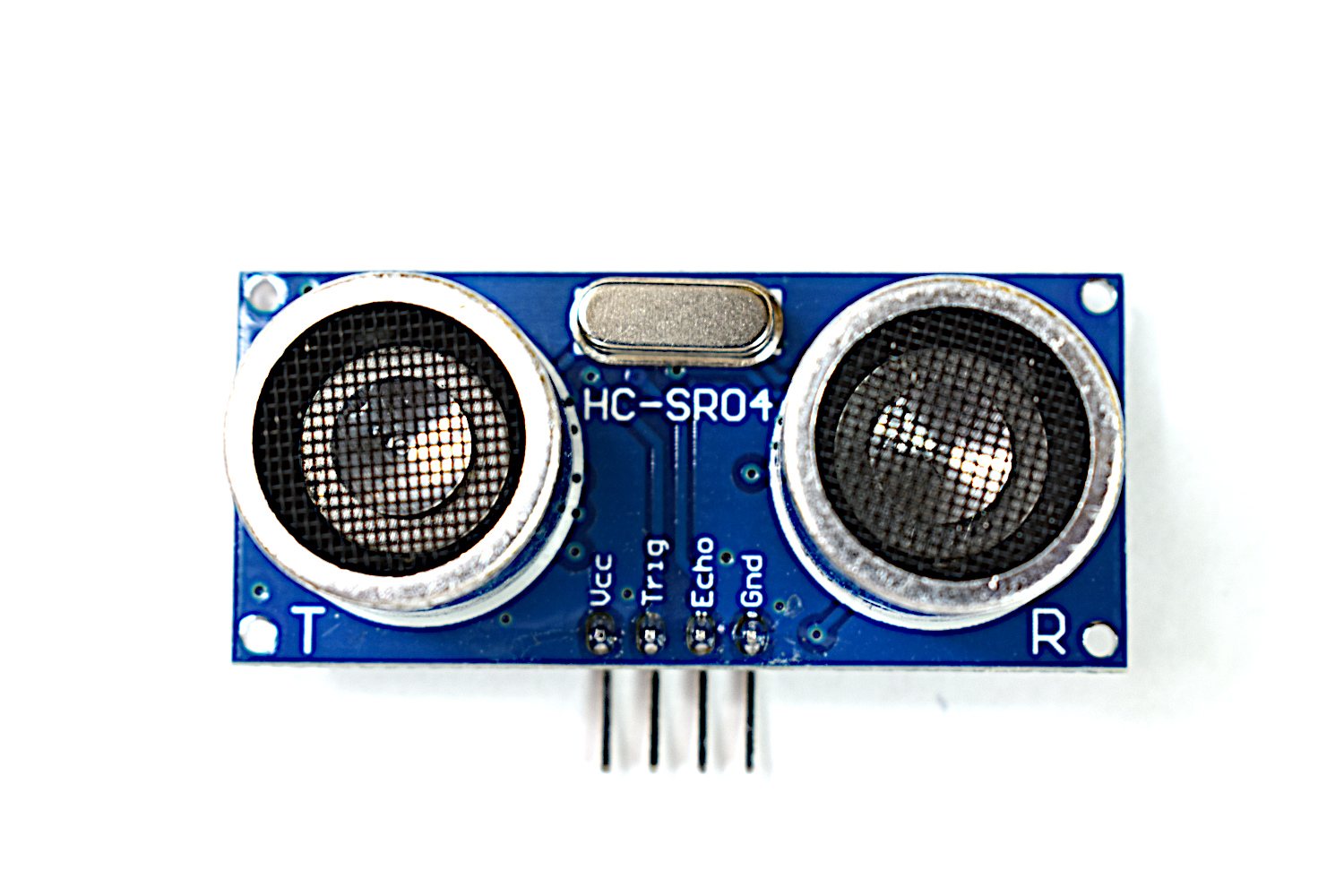 1×HC-SR04 Ultrasonic Distance Sensor Module for Arduino
 1×Active Buzzer Module 5V DC
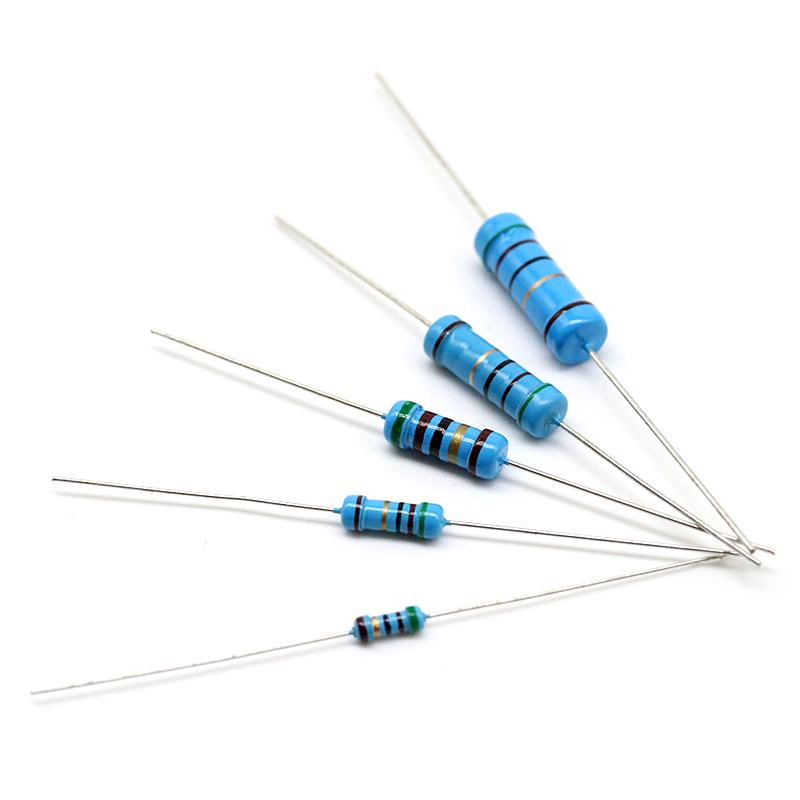 1×RESISTOR ASSORTED 220-1K-10K
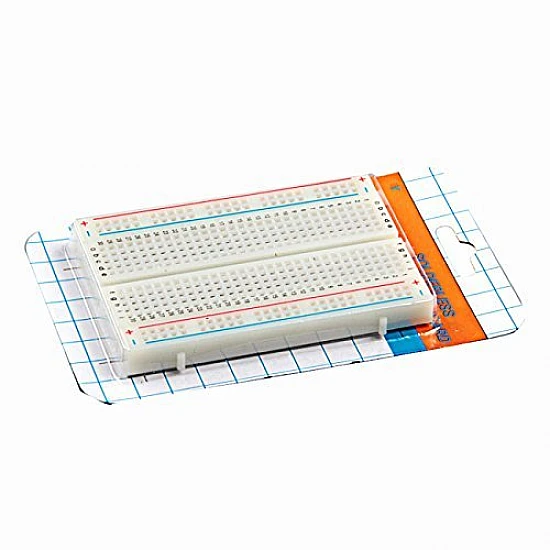 1×400 Tie Point Solderless Breadboard
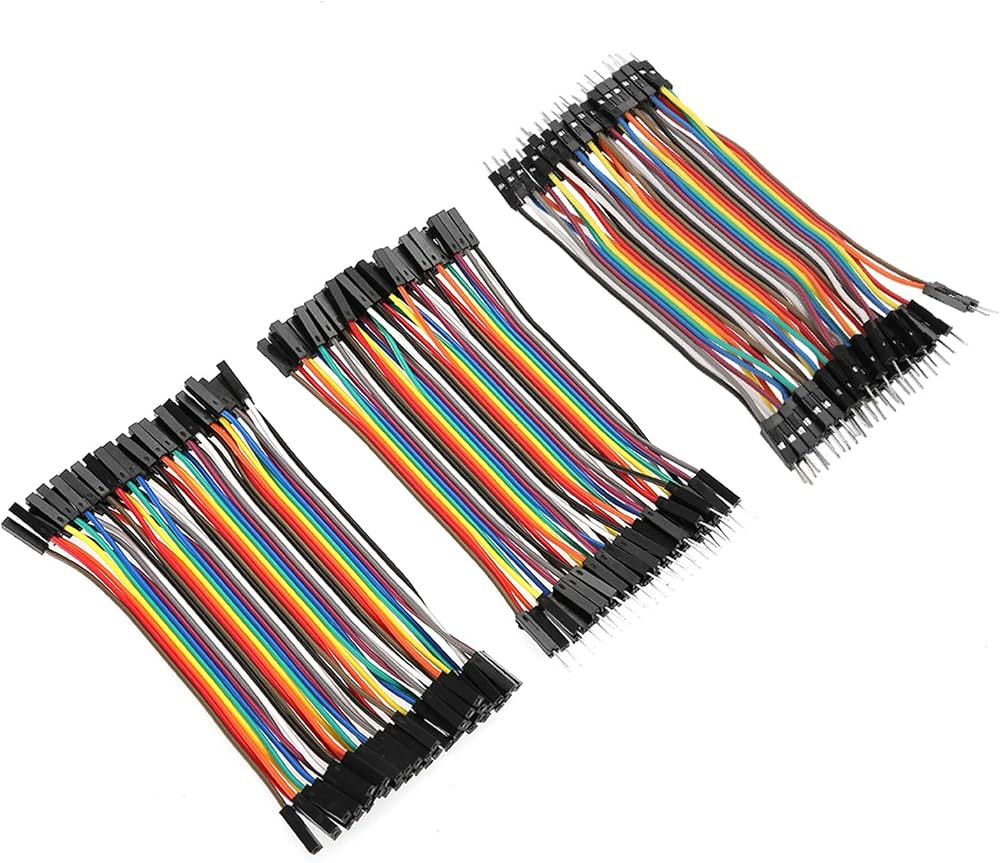 1×Jumper Wire Assorted Pack 120 Pieces
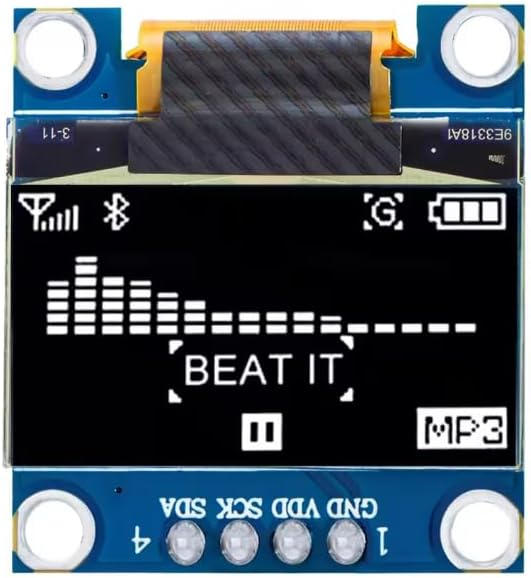 1×0.96" OLED Display Module 128x64 I2C (White) (optional)
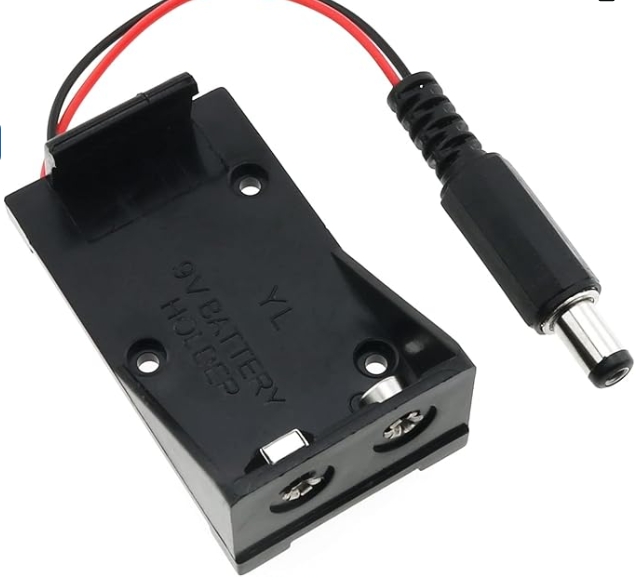 1×9V Battery Holder Case with 5.5x2.1mm DC Male Plug (optional)
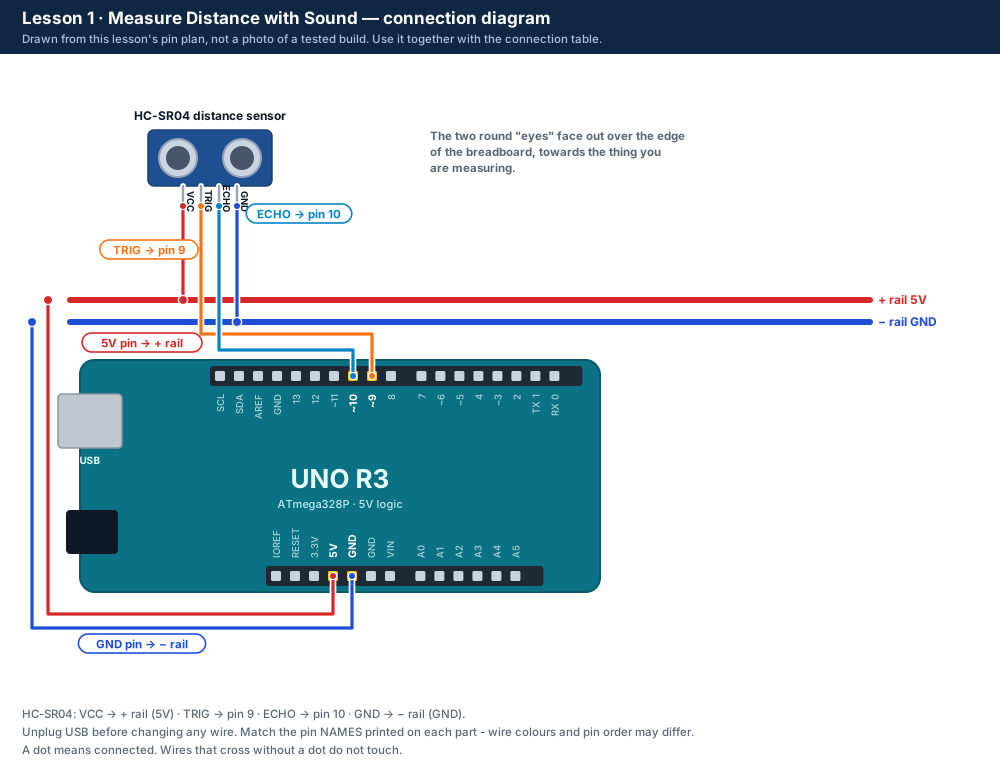 Connection diagram drawn from the pin plan - not a photo of a tested build. The table says the same in words.
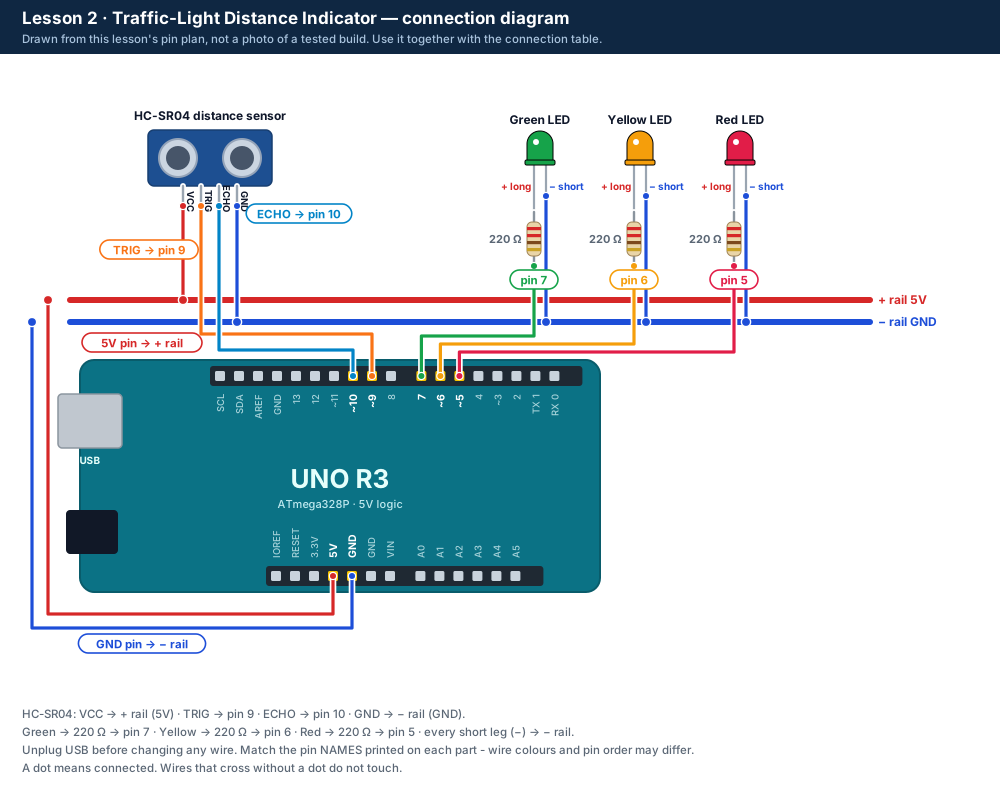 Connection diagram drawn from the pin plan - not a photo of a tested build. The table says the same in words.
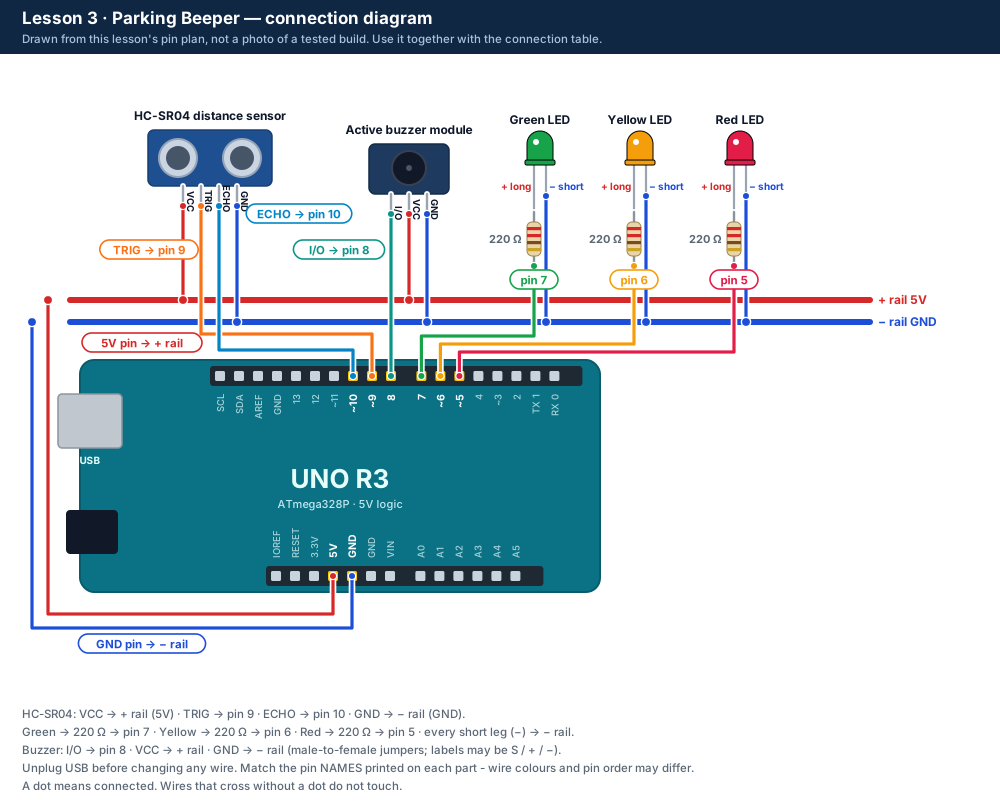 Connection diagram drawn from the pin plan - not a photo of a tested build. The table says the same in words.
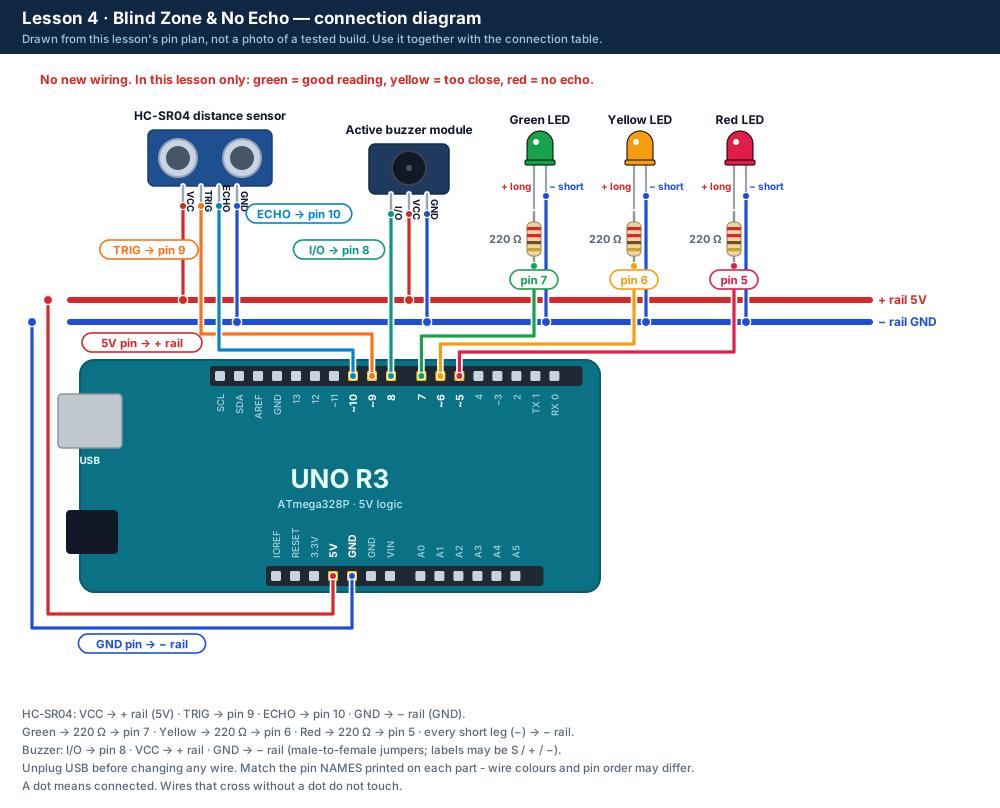 Connection diagram drawn from the pin plan - not a photo of a tested build. The table says the same in words.
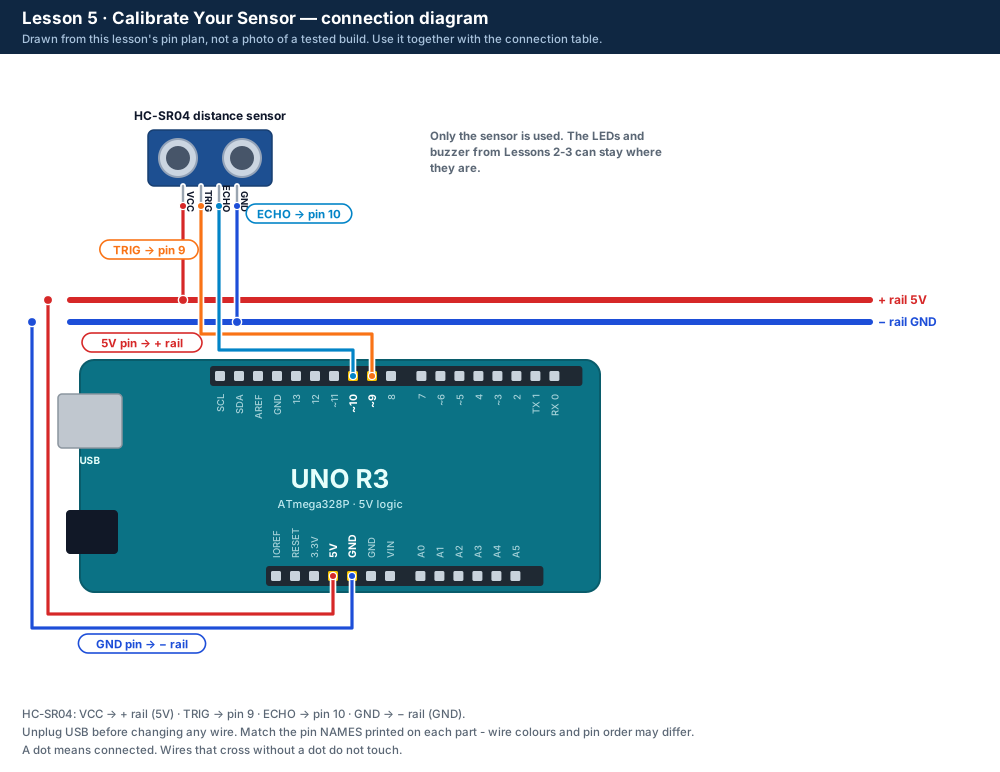 Connection diagram drawn from the pin plan - not a photo of a tested build. The table says the same in words.
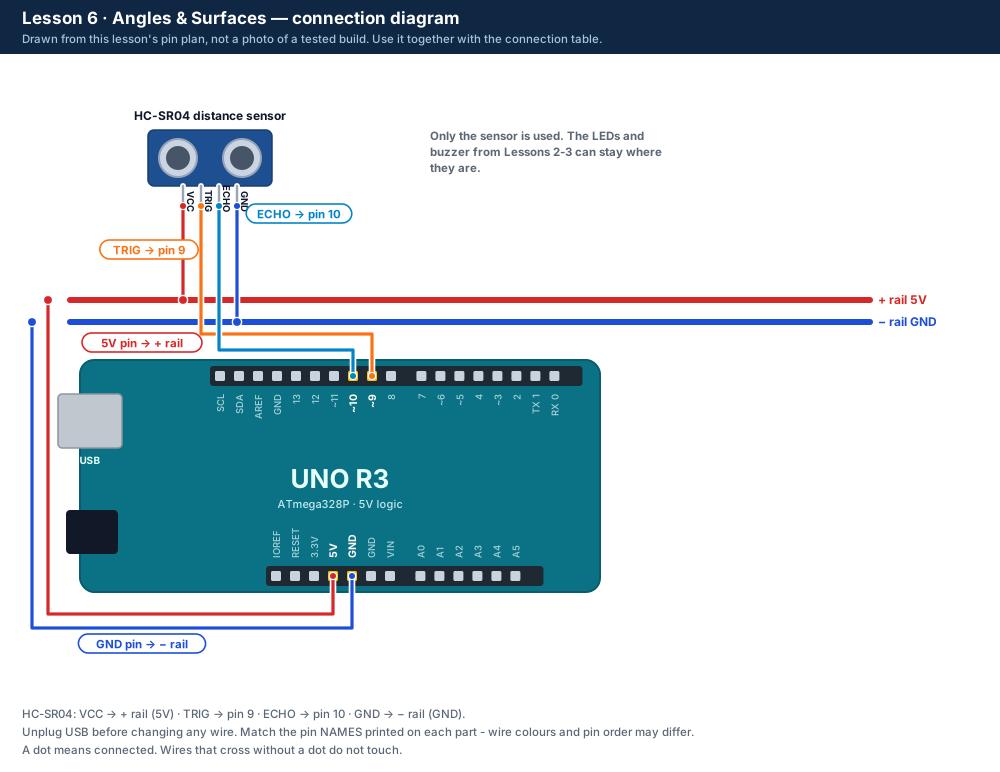 Connection diagram drawn from the pin plan - not a photo of a tested build. The table says the same in words.
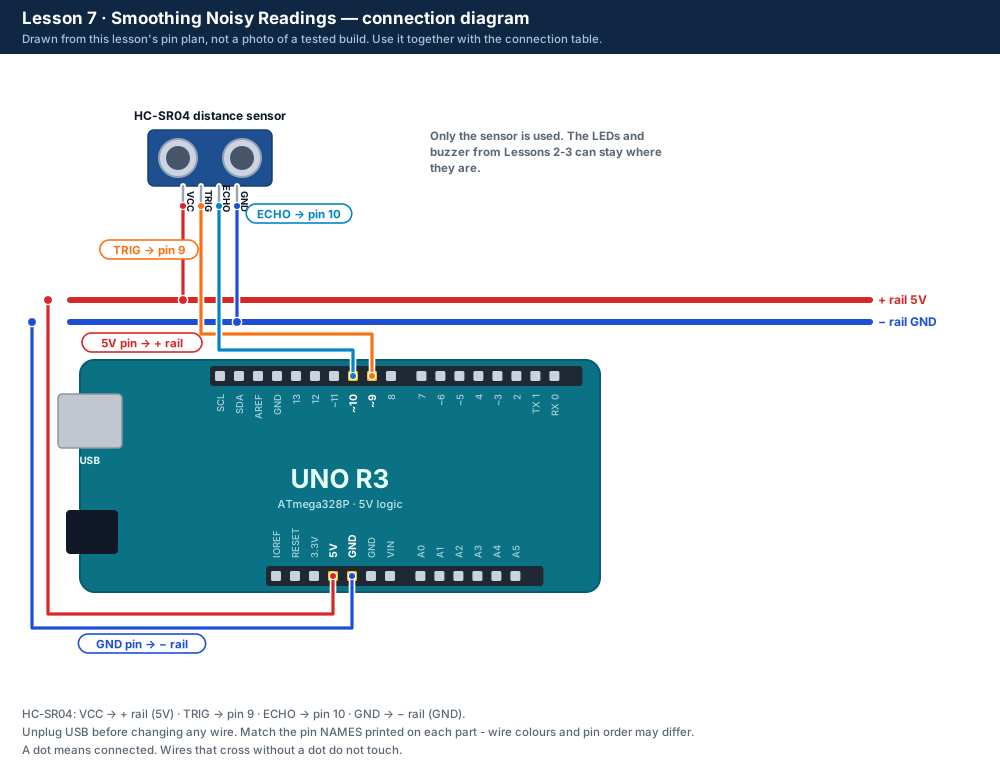 Connection diagram drawn from the pin plan - not a photo of a tested build. The table says the same in words.
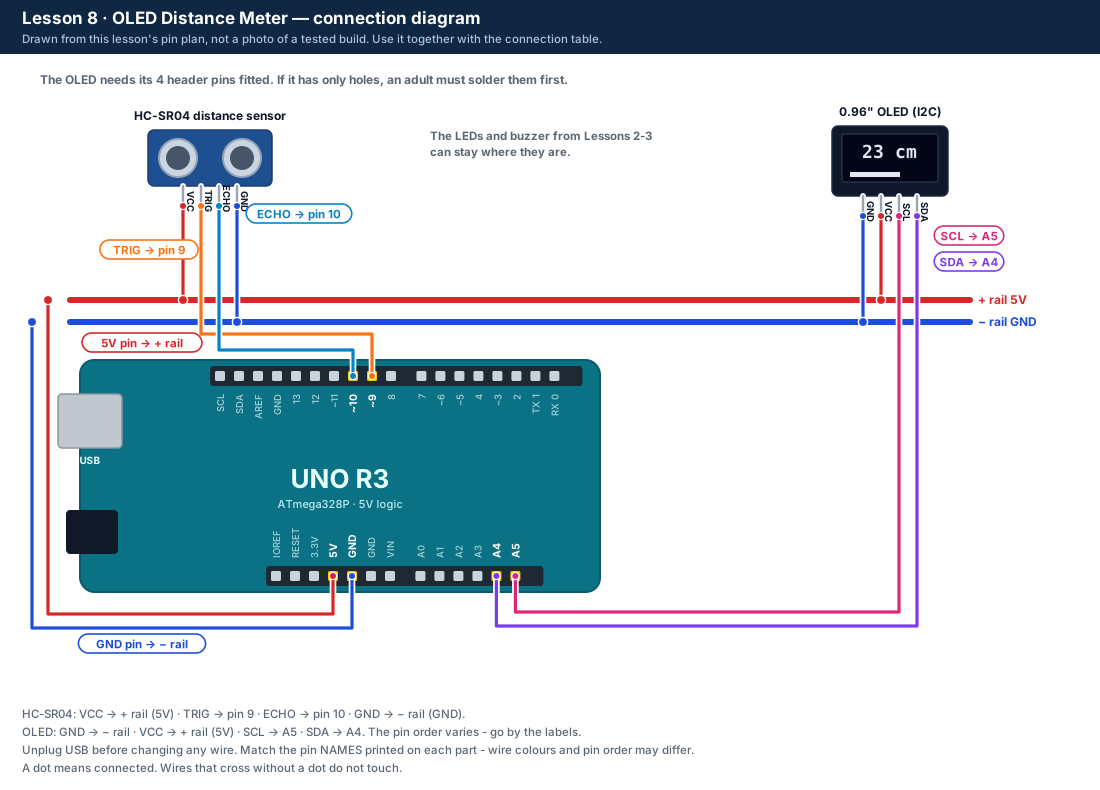 Connection diagram drawn from the pin plan - not a photo of a tested build. The table says the same in words.
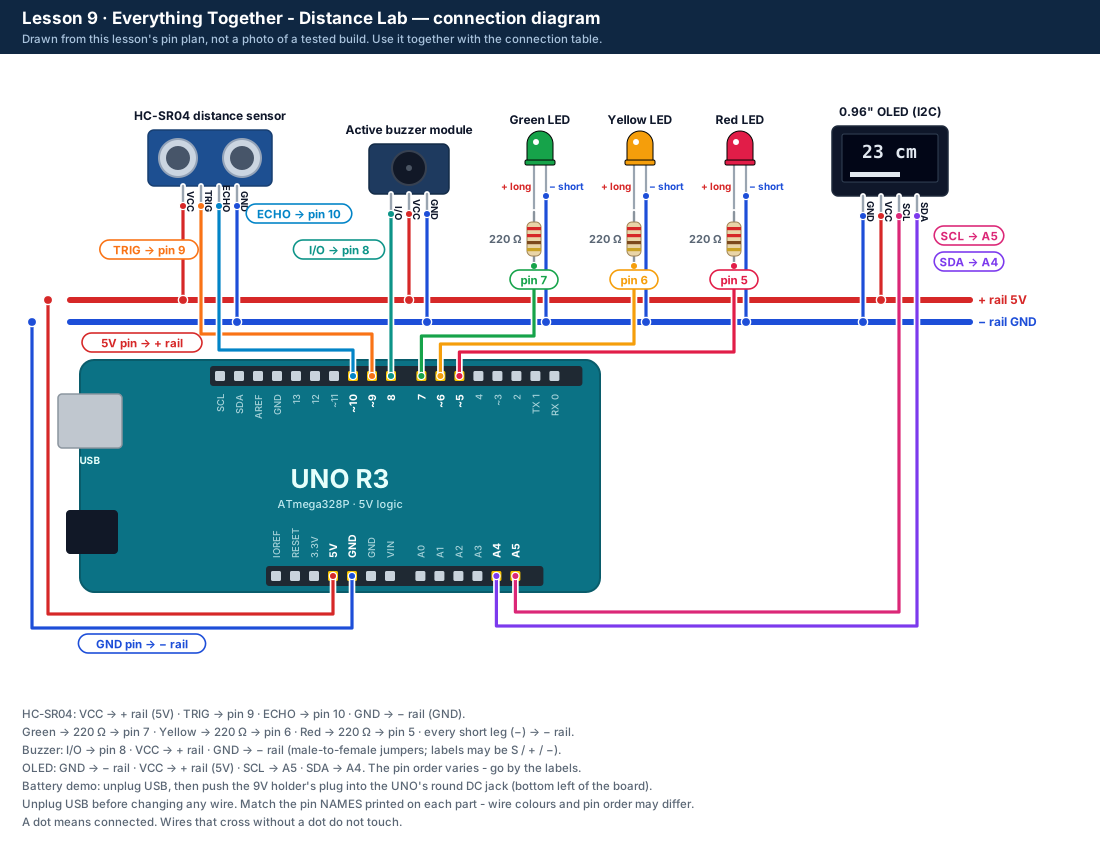 Connection diagram drawn from the pin plan - not a photo of a tested build. The table says the same in words.