Follow these 7 steps before Lesson 1. They take about 30-45 minutes and prove that your computer, cable and UNO all work - so if something goes wrong later, you know it is the wiring, not the setup.
Lessons 1-7 need only the kit, a computer and things from home such as a book and a ruler. Lesson 8 adds the OLED and needs two free libraries (and an adult only if the OLED has no pins). Lesson 9's battery demo needs a 9V battery, which is not in the box.
Safety rules for every lesson
Unplug the USB cable (and the battery) before you add, move or remove any wire.
LEDs: the long leg is +, and every LED gets its own 220 Ω resistor.
Never connect 5V straight to GND.
Keep the buzzer away from your ears; type sound off (Lesson 9) during long tests.
If anything gets hot or smells, or the UNO keeps restarting, unplug at once.
Use only USB power or the 9V battery in its holder, plugged into the UNO's round DC jack - never mains electricity.
This is a learning model, not a parking or safety device. Never use it on a vehicle.
Small parts: keep them away from young children.
1
Check the parts
Open the box and lay the parts out on a clear table.
Tick each one off against the photos and descriptions below.
Safety: Small parts: keep them away from young children and pets.
1 × UNO R3 Development Board ATmega328P Microcontro…Board marked UNO with a square USB socket. The cable has a square plug at one end.
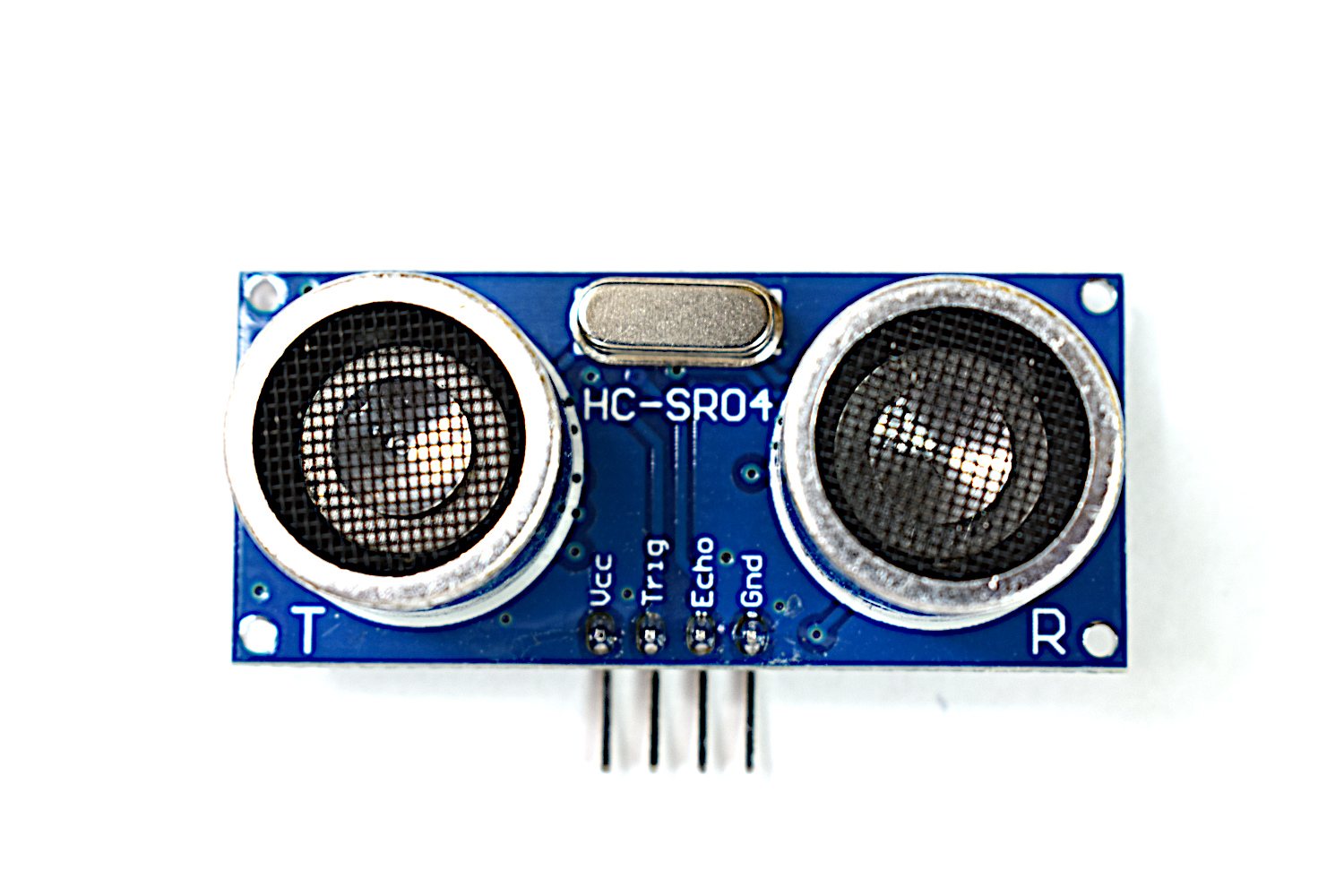
1 × HC-SR04 Ultrasonic Distance Sensor Module for A…Board with two round "eyes" and 4 pins: VCC, TRIG, ECHO, GND.
1 × Active Buzzer Module 5V DC, Plug-and- Alarm Out…Small board with a round black buzzer and 3 pins (VCC, GND, I/O).
◇
1 × 5MM LED R-Y-GRed, yellow and green 5 mm LEDs. The longer leg is +.
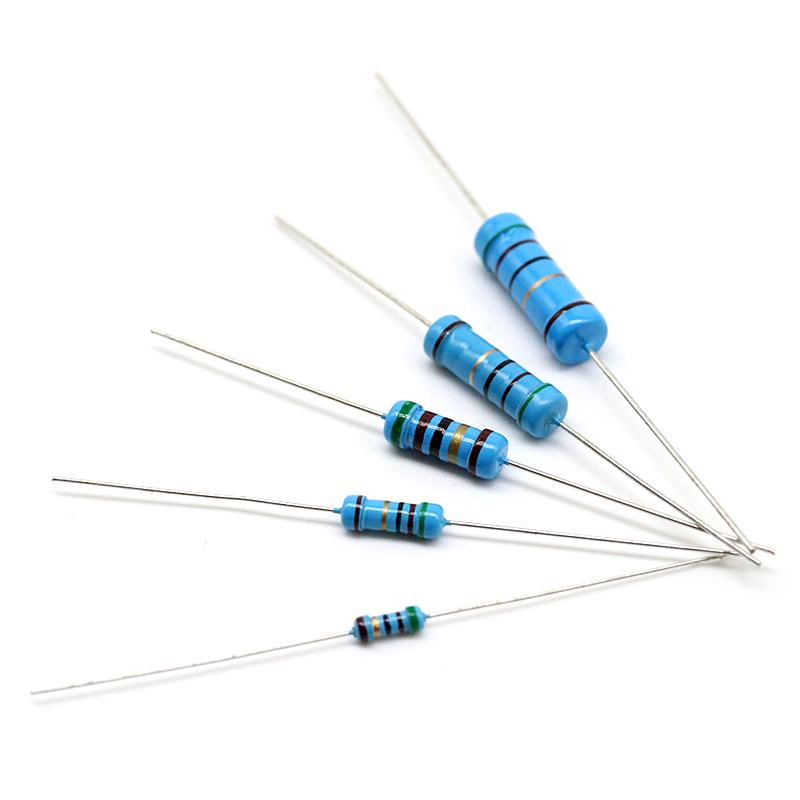
1 × RESISTOR ASSORTED 220-1K-10KSmall beige parts with coloured bands: 220 Ω red-red-brown, 1 kΩ brown-black-red, 10 kΩ brown-black-orange.
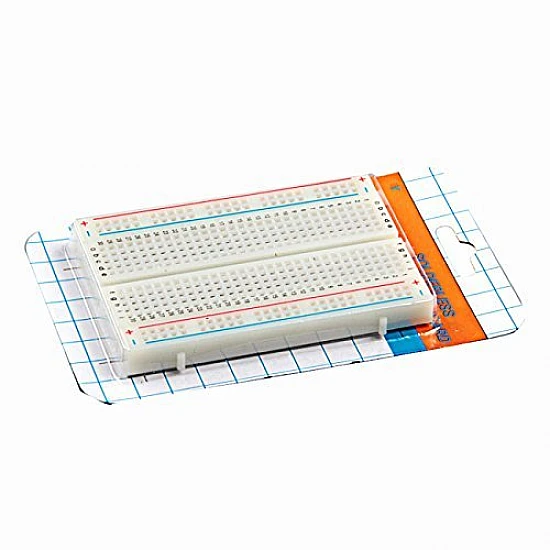
1 × 400 Tie Point Solderless Breadboard - Half Size…White board with 400 holes and red and blue lines along the edges.
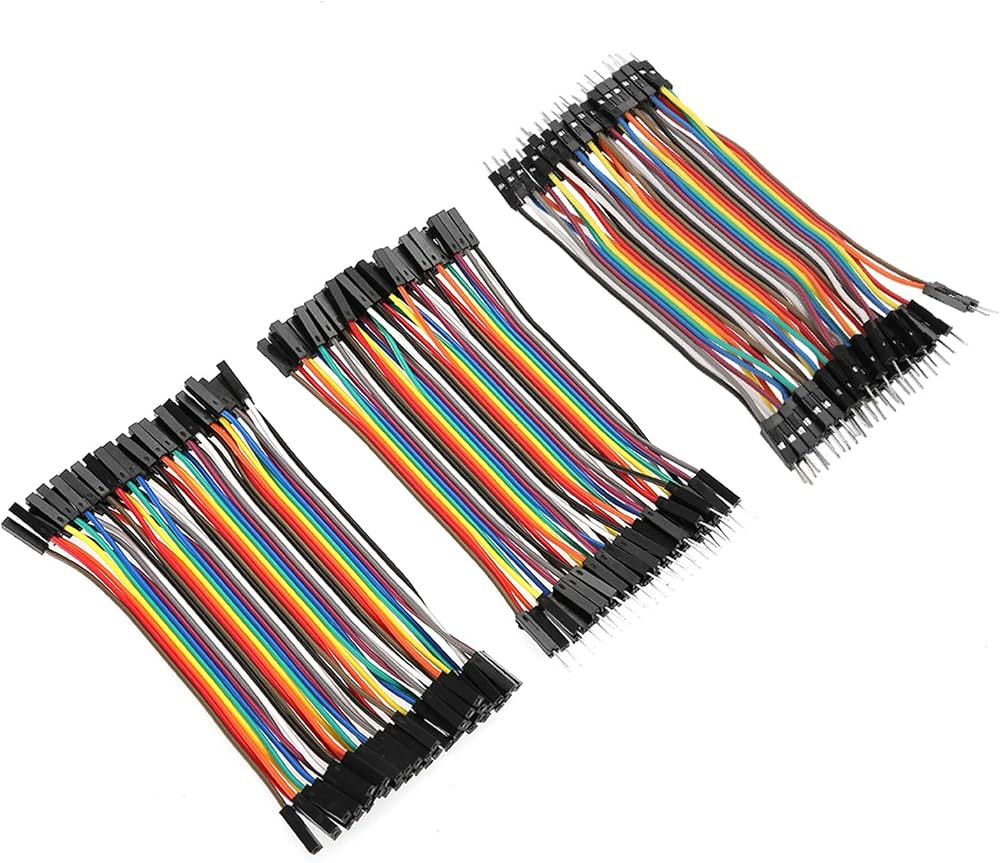
1 × Jumper Wire Assorted Pack 120 Pieces - Male-to-…Rainbow ribbon of wires: male-male, male-female and female-female (10 cm).
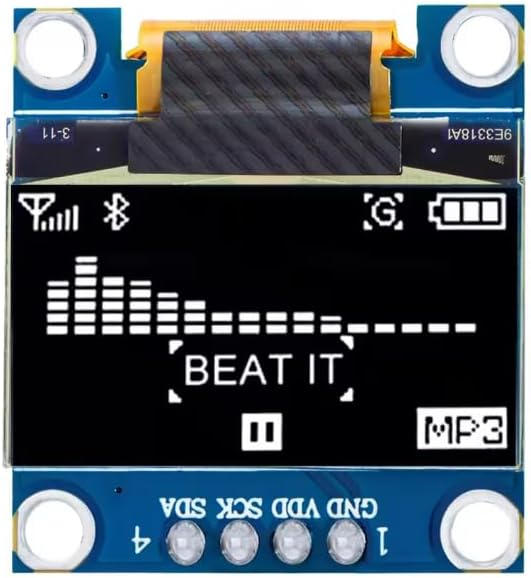
1 × 0.96" OLED Display Module 128x64 I2C (White)Small display with a glass screen and 4 pins labelled GND, VCC, SCL and SDA (the order varies).
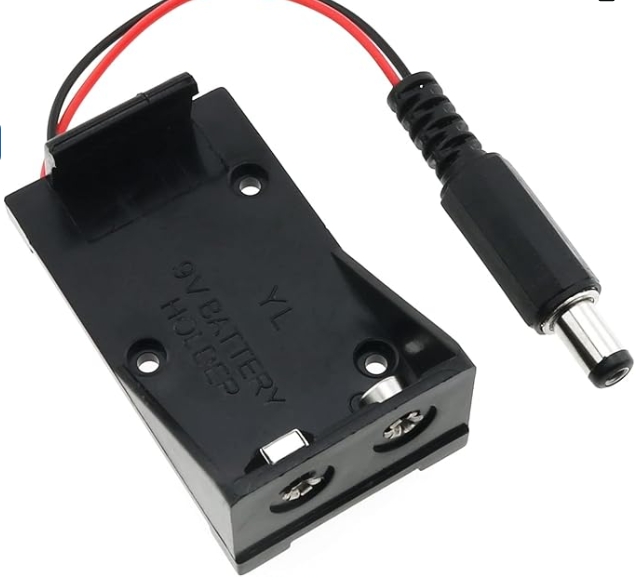
1 × 9V Battery Holder Case with 5.5x2.1mm DC Male P…Black box for a 9V battery, with a round plug on a lead. The battery is not included.
Photos are the catalogue pictures of each part. Your parts may differ slightly in colour - go by the shape, the pins and the labels.
You should see: You have all 9 items listed below.
If it doesn't work
Something is missing or broken
Send us a photo with your order number on WhatsApp.
Breadboard
A white board full of holes that lets you connect parts without soldering.
2
Check what else you need
Read the "You also need" list below.
Find a computer you are allowed to install software on, with a free USB port.
You also need (not in the box)
For
Note
A computer (Windows, macOS or Linux) where you can install the free Arduino IDE 2 - or a Chromebook with the Arduino Cloud Editor
All lessons
A free USB-A port, or an adapter, for the kit's USB cable
All lessons
An internet connection, to download the IDE, the libraries and the code
Start here, Lesson 8
A ruler or tape measure, and a book or flat piece of card
Lessons 1-9
A cushion or jumper, a bottle and a pencil, to test targets
Lessons 4 and 6
A spreadsheet program (Google Sheets, Excel, LibreOffice)
Lesson 5 - optional
A 9V battery
Lesson 9 battery demo - optional
Not included. The holder is in the box.
A 4-pin header and soldering
Lesson 8 - only if your OLED has no pins fitted
Adult only
A multimeter
Optional
No lesson needs one. Useful for an adult checking 5V and GND.
You should see: You have a computer, a free USB port, an internet connection, a ruler and a book.
3
Set up the computer
Go to arduino.cc/en/software and download the free Arduino IDE 2 for your computer (Windows, macOS or Linux).
Install it and open it. If it asks to install drivers, allow it.
On a Chromebook, use the free Arduino Cloud Editor in the browser instead (it needs a free Arduino account).
You should see: The Arduino IDE opens with a new, empty sketch that contains setup() and loop().
If it doesn't work
The download or install is blocked
School and work computers often block installs. Ask an adult or use a home computer.
IDE
The program where you write code and send it to the UNO.
Sketch
An Arduino program.
4
Connect the UNO with its USB cable
Plug the square end of the USB cable into the UNO and the flat end into the computer.
Nothing else is connected to the UNO yet.
Safety: Put the UNO on a dry table, away from coins, paper clips and other metal - they can touch the pins underneath and cause a short.
You should see: A small power light on the UNO (marked ON or PWR) lights up. The light marked L may already be blinking - some boards come with Blink loaded.
If it doesn't work
No light at all
Push the plug fully into the UNO. Try another USB port, then another cable.
5
Select the board and the port
In the IDE open Tools → Board → Arduino AVR Boards → Arduino Uno.
Open Tools → Port and choose your UNO: COM3, COM4… on Windows, /dev/cu.usbserial… or /dev/cu.usbmodem… on a Mac, /dev/ttyUSB0 or /dev/ttyACM0 on Linux.
Not sure which one? Unplug the UNO, look at the list, plug it back in: the new entry is your UNO.
You should see: The bottom of the IDE window shows "Arduino Uno" and your port.
If it doesn't work
The Port menu is greyed out or empty
Some USB cables only charge and carry no data. Try the kit's cable in another port, or another data cable.
Windows shows "USB2.0-Serial" or an unknown device
Look at the small chip next to the UNO's USB socket. If it says CH340, the computer needs the free CH340 driver - ask us on WhatsApp and we'll send the link.
Mac: no new port appears
Do the same CH340 check. After installing a driver, you may need to allow it in System Settings → Privacy & Security.
Linux: "permission denied" on the port
Ask an adult to add your user to the dialout group (sudo usermod -a -G dialout $USER), then log out and back in.
Port
The name your computer gives the USB connection to the UNO.
6
Upload Blink
Open File → Examples → 01.Basics → Blink.
Click the round Upload button (the → arrow) at the top left.
Wait for "Done uploading." at the bottom of the window.
You should see: The small light marked L (next to pin 13) blinks: 1 second on, 1 second off.
Try it: Change both delay(1000) lines to delay(200) and upload again. The L light blinks five times faster. Now you know you can change code and upload it.
If it doesn't work
"can't open device" or "Access is denied"
The port is busy or wrong. Close other Arduino windows, choose the port again (step 5) and try again.
"programmer is not responding"
The wrong board or port is selected, or the cable carries no data. Check step 5 and try another cable.
A red "Compilation error"
The example was changed by accident. Close it without saving and open Blink again from File → Examples.
"Done uploading" but L doesn't change
Your board may already have been running Blink. Do the change below (delay 200) and look for faster blinking.
Upload
Sending your sketch from the computer into the UNO. It stays there even after you unplug.
Compile
The IDE checks your sketch and turns it into code the UNO understands. It happens automatically before every upload.
7
Continue to Lesson 1
Unplug the USB cable.
Open Lesson 1: Measure Distance with Sound and follow it step by step.
Do the lessons in order: each one builds on the last, and the wiring stays in place.
Every lesson runs on screen with the same code and pins. It is a good way to check your code - but it is not the real breadboard:
The simulator checks your code and pins, not your wiring: it does not know which way round an LED is, or whether a resistor is fitted.
Distances come from a slider, so readings are perfectly steady and every ping comes back. Soft, thin and tilted targets (Lessons 4-6) need the real sensor.
Power is not simulated, so the 9V battery demo in Lesson 9 needs the real kit.
The OLED is drawn on screen and its text appears in the console; the real IDE also needs the Adafruit libraries installed.
Still stuck? Ask us on WhatsApp.Send this message with a photo of your wiring - it tells us exactly where you are.
Hi DIY KIT, I'm stuck on the Arduino Ultrasonic Distance & Parking Learning Kit.
Lesson: __
Step number: __
What should happen: __
What happens instead: __
Error message (copied exactly): __
I'll attach a photo of my wiring.
Fire 20 pings at different targets - flat, soft, round, thin, tilted - and count how many echoes come back. Find out what the sensor finds hard to see.
UNO R3HC-SR04a flat carda cushion or jumpera bottlea pencil (yours)
Start here sets up your computer. Then 9 lessons build one tabletop distance station step by step: each lesson adds a part or an idea and keeps the wiring from the one before. Every lesson page has a connection diagram, a wiring table, numbered steps, the code, what you should see and a fix-it table.
Start here + 9 lessons9 parts in the boxAbout 6 hoursSerial Monitor at 9600 baudLearning model - not a safety device
What this kit teaches
Measure · Lessons 1 and 5
Time an ultrasonic echo with pulseIn(), turn it into centimetres, and check the sensor against a ruler: error and spread.
Indicate · Lessons 2, 3 and 8
Show distance zones with green, yellow and red LEDs, slow and fast beeps, and big numbers on the OLED.
Investigate · Lessons 4, 6 and 7
Find the blind zone, see soft and tilted targets go missing, and smooth noisy readings with an average and a median.
Learning model only: never rely on this build for vehicle collision prevention, reversing assistance, industrial safety or unattended protection.
The distance zones (every lesson)
Distance
LED
Buzzer
Zone
50 cm or more
Green
Silent
CLEAR
20 to 49 cm
Yellow
Silent
CAUTION
10 to 19 cm
Red
Slow beeps
NEAR
Under 10 cm
Red
Fast beeps
CRITICAL
No echo
Yellow blinking
Silent
NO_ECHO - unknown, not clear
Desk-size learning zones, not vehicle clearances or safety limits. They are named at the top of each sketch (CLEAR_CM, NEAR_CM, CRITICAL_CM), so you can change them.
One pin plan
Part
UNO pin
Lessons
Red / yellow / green LED (each through 220 ohm)
5 / 6 / 7
2, 3, 4, 9
Active buzzer I/O
8
3, 4, 9
HC-SR04 TRIG / ECHO
9 / 10
All
OLED SDA / SCL
A4 / A5
8, 9
All VCC and GND pins
5V and GND rails
All
Lesson 9 commands
Type
What it does
help
Shows the list of commands.
status
Running or paused, sound on or off, and whether the OLED was found.
scan
Lists the I2C addresses that answer - the OLED is 0x3C or 0x3D.
run / pause
Starts or stops measuring; pause turns every output off.
sound on / sound off
Turns the beeps on or off; the LEDs keep working.
test
Lights red, yellow and green in turn and beeps once.
Serial Monitor at 9600 baud with "New Line" selected.
What the sensor can and cannot do
The HC-SR04 measures about 2 cm to 4 m, but only when the echo comes back. Soft, thin, round or tilted targets can return no echo even when they are right in front of it - Lessons 4 and 6 show this. Readings also change slightly with temperature, because the speed of sound does. Lesson 5 measures your own sensor's error against a ruler.
Status
Wiring design-reviewed; all 9 sketches compile for the Arduino UNO with no warnings and run in the kit simulator. The complete physical assembly has not been bench-tested. Parts may differ slightly from the photos - go by the labels printed on your parts.
// Assembly
Build steps (10)
Tick steps off as you go — your place is kept on this device.
0 / 10
ℹ
These steps come from the build reference recorded for this kit. The firmware is in the Code section below.
// Firmware
Code (9 files)
One sketch per project, written for the boards in this kit. Open a project to read it with its wiring, or copy it there.
ℹ
Pin numbers and thresholds are written for the board in this kit. Change the board and the pin map changes with it — ask and we'll adjust it.
10%// first order
// Welcome
10% off your first order, up to AED 10
Join the build list — new boards, restocks and the occasional teardown.
We'll send your discount code straight away. The code takes 10% off, up to AED 10 on your first order.
// You're on the list
Here's your code
Apply it in the cart before checkout. It also lands in your inbox. Takes 10% off, up to AED 10.
Catalog assistant: verify final stock/price on the product page before checkout.
Cookies on diykit.ae
We use cookies that the shop needs to work — signing in, your cart, form security.
We also measure how the shop is used so we can stock the right parts and fix what is broken.
Choose “Only essential” and we will not load Google Analytics or the Meta pixel, and will not record your visit.
Read more.


%22%2F%3E%3Cellipse%20cx%3D%2228%22%20cy%3D%2224%22%20rx%3D%2226%22%20ry%3D%2214%22%20fill%3D%22rgba(255%2C255%2C255%2C.18)%22%2F%3E%3Crect%20x%3D%2222%22%20y%3D%2228%22%20width%3D%2256%22%20height%3D%2250%22%20rx%3D%2212%22%20fill%3D%22url(%23b)%22%20filter%3D%22url(%23s)%22%2F%3E%3Cellipse%20cx%3D%2234%22%20cy%3D%2236%22%20rx%3D%2212%22%20ry%3D%226%22%20fill%3D%22rgba(255%2C255%2C255%2C.28)%22%20transform%3D%22rotate(-18%2034%2036)%22%2F%3E%3Crect%20x%3D%2234%22%20y%3D%2215%22%20width%3D%225%22%20height%3D%2214%22%20rx%3D%222.5%22%20fill%3D%22%236ee7b7%22%2F%3E%3Crect%20x%3D%2261%22%20y%3D%2215%22%20width%3D%225%22%20height%3D%2214%22%20rx%3D%222.5%22%20fill%3D%22%236ee7b7%22%2F%3E%3Ccircle%20cx%3D%2236.5%22%20cy%3D%2214%22%20r%3D%224%22%20fill%3D%22%23a7f3d0%22%2F%3E%3Ccircle%20cx%3D%2263.5%22%20cy%3D%2214%22%20r%3D%224%22%20fill%3D%22%23a7f3d0%22%2F%3E%3Crect%20x%3D%2228%22%20y%3D%2242%22%20width%3D%2244%22%20height%3D%2222%22%20rx%3D%226%22%20fill%3D%22%23022c22%22%2F%3E%3Cline%20x1%3D%2228%22%20y1%3D%2250%22%20x2%3D%2272%22%20y2%3D%2250%22%20stroke%3D%22%2334d399%22%20stroke-width%3D%22.8%22%20stroke-opacity%3D%22.5%22%2F%3E%3Cline%20x1%3D%2228%22%20y1%3D%2257%22%20x2%3D%2272%22%20y2%3D%2257%22%20stroke%3D%22%2334d399%22%20stroke-width%3D%22.8%22%20stroke-opacity%3D%22.5%22%2F%3E%3Cline%20x1%3D%2244%22%20y1%3D%2242%22%20x2%3D%2244%22%20y2%3D%2264%22%20stroke%3D%22%2334d399%22%20stroke-width%3D%22.8%22%20stroke-opacity%3D%22.5%22%2F%3E%3Cline%20x1%3D%2256%22%20y1%3D%2242%22%20x2%3D%2256%22%20y2%3D%2264%22%20stroke%3D%22%2334d399%22%20stroke-width%3D%22.8%22%20stroke-opacity%3D%22.5%22%2F%3E%3Ccircle%20cx%3D%2238%22%20cy%3D%2252%22%20r%3D%226%22%20fill%3D%22%2334d399%22%20opacity%3D%22.9%22%2F%3E%3Ccircle%20cx%3D%2262%22%20cy%3D%2252%22%20r%3D%226%22%20fill%3D%22%2334d399%22%20opacity%3D%22.9%22%2F%3E%3Ccircle%20cx%3D%2236.5%22%20cy%3D%2250.5%22%20r%3D%222%22%20fill%3D%22white%22%2F%3E%3Ccircle%20cx%3D%2260.5%22%20cy%3D%2250.5%22%20r%3D%222%22%20fill%3D%22white%22%2F%3E%3Cpath%20d%3D%22M36%2068%20Q50%2076%2064%2068%22%20fill%3D%22none%22%20stroke%3D%22%23022c22%22%20stroke-width%3D%222.5%22%20stroke-linecap%3D%22round%22%2F%3E%3C%2Fsvg%3E)