Lesson 4: Blind Zone & No Echo
Find out where the sensor fails: too close, too far, too soft or at an angle. The LEDs and the Serial Monitor count each kind of reading.
Before you start
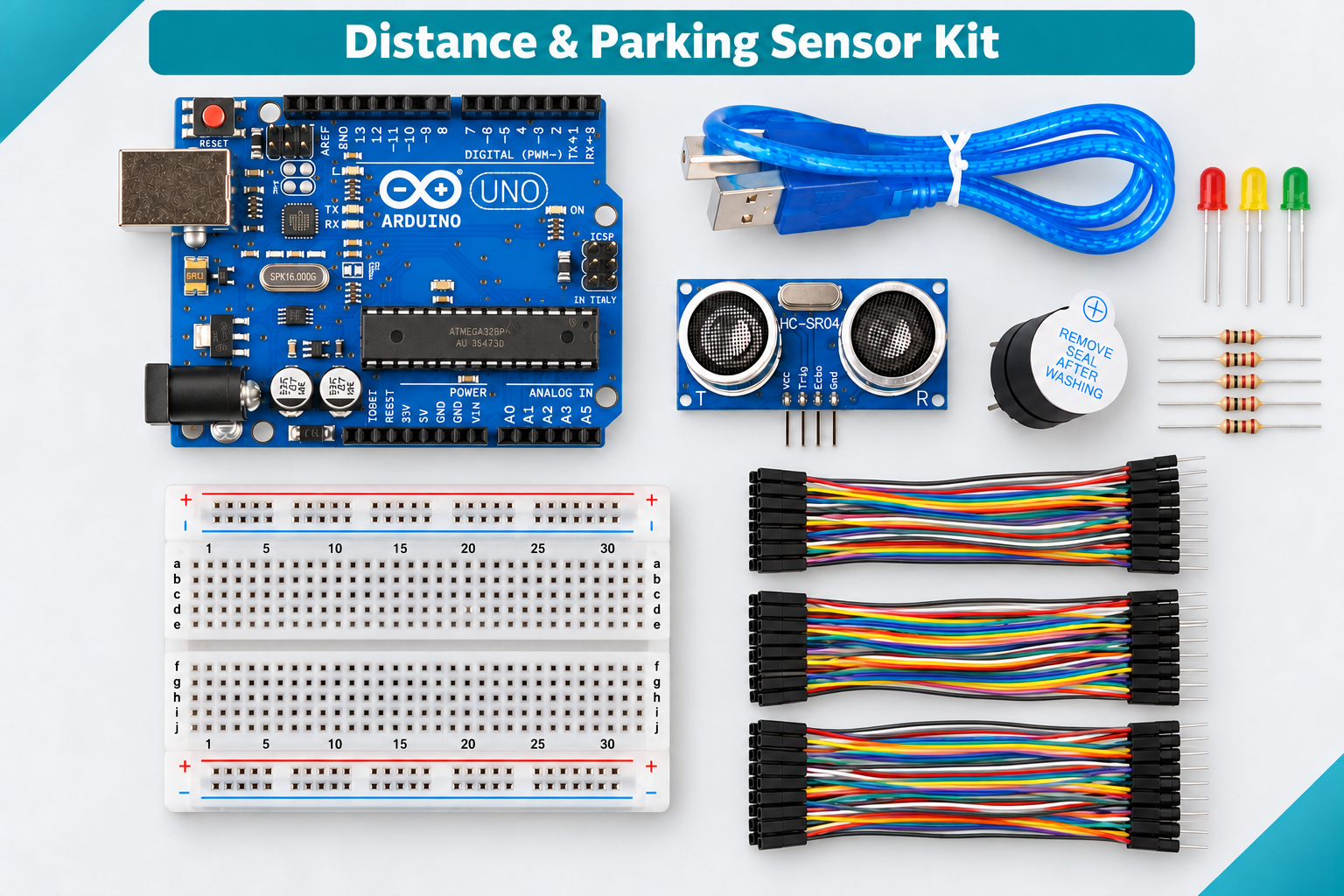
Exact parts
| Part | How many |
|---|---|
| Wiring from Lesson 3 - nothing new | |
| A book, a cushion or jumper, and a pencil (yours) |
Not in the box
Nothing extra - just the kit and your computer.
What you build and learn
- The blind zone right in front of the sensor
- Why a missing echo is not the same as "nothing there"
- Counting results with variables
- Typing a command into the Serial Monitor
Very close up, the echo comes back before the sensor has finished sending, so the reading is wrong or missing. That is the blind zone.
No echo can mean the object is too far, too soft (fabric absorbs sound), too small, or tilted so the echo flies off to the side. It does NOT mean nothing is there.
In this lesson only, the LEDs mean something different: green = a good reading, yellow = too close (under 3 cm), red = no echo.
Three variables count each kind of reading. Type r and press Enter to set them back to 0 before each test.
New words
- Blind zone
- The space just in front of the sensor (about 2-3 cm) where it cannot measure properly.
- Timeout
- How long the code waits before giving up. Here 30 ms: after that we call it "no echo".
- Variable
- A named box that holds a number, such as goodCount. It can change while the sketch runs.
What this project uses
Every item is in the kit — nothing extra to buy.

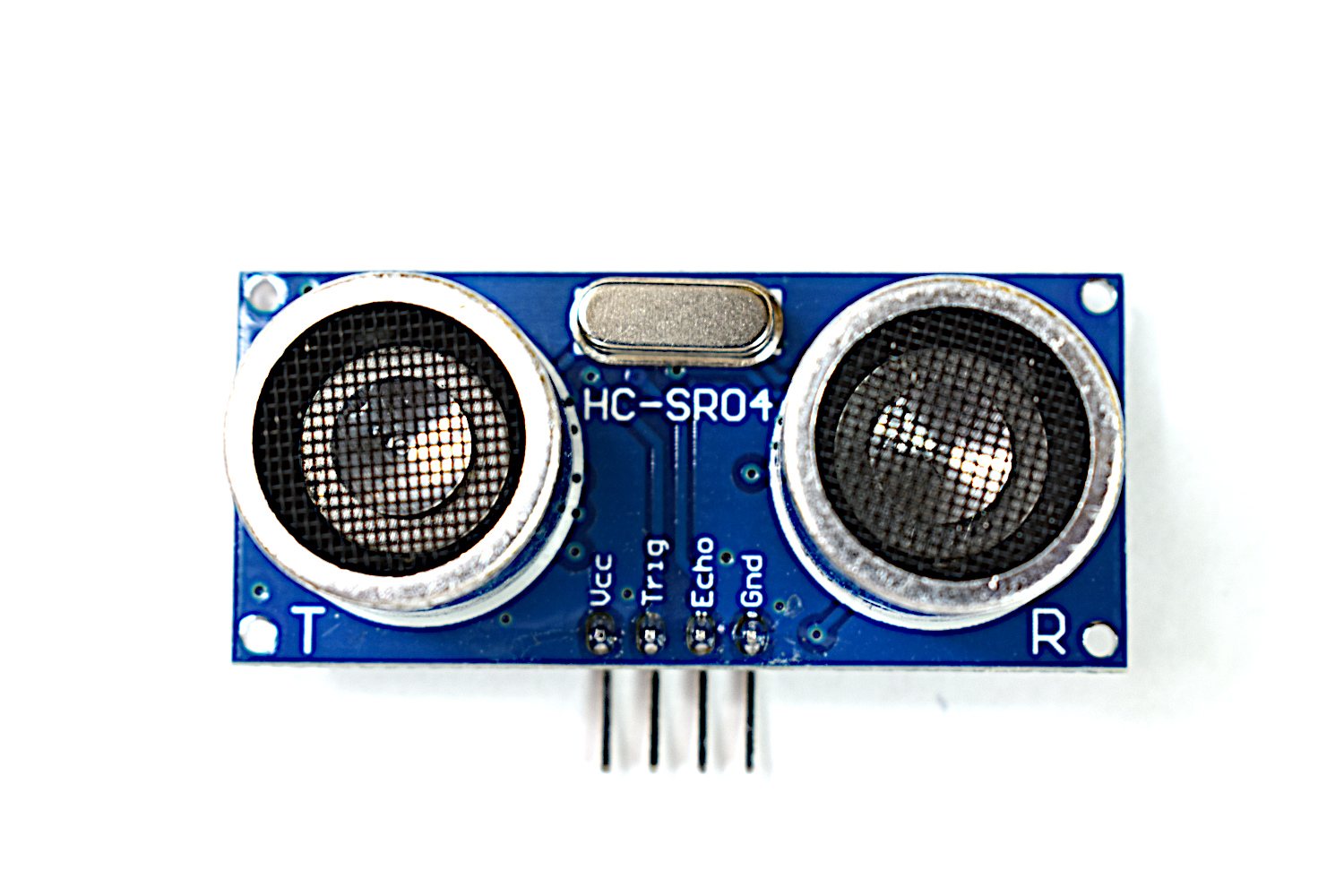
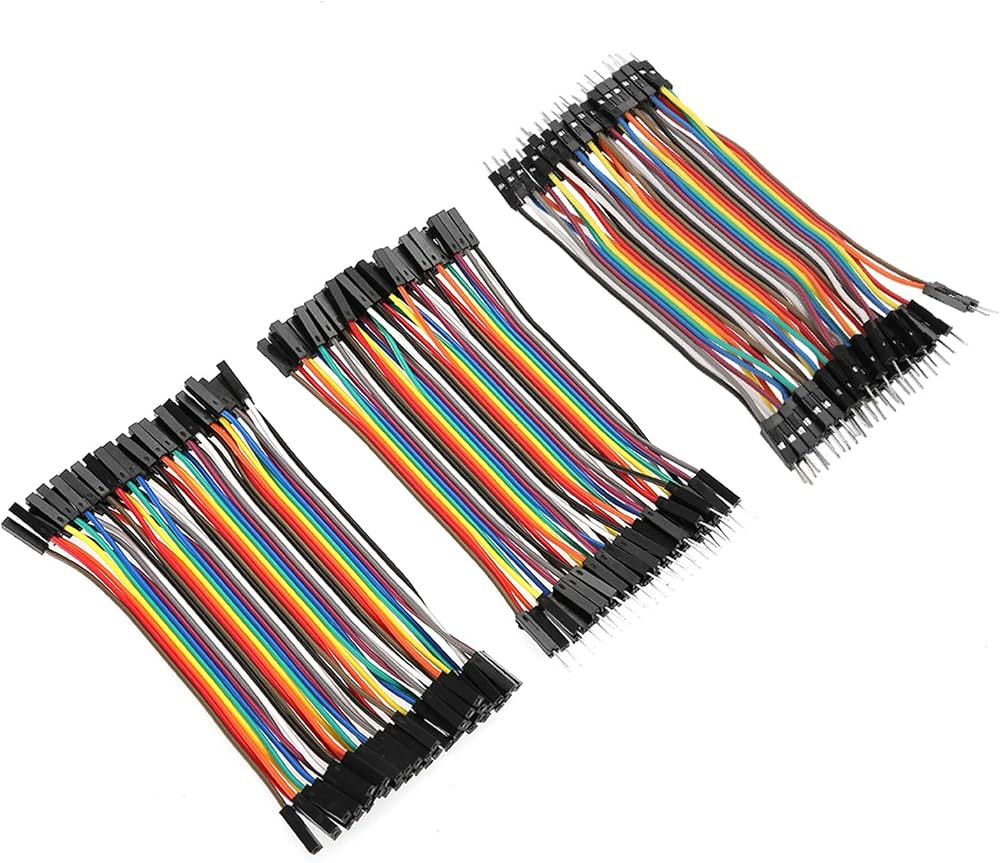
Arduino Ultrasonic Distance & Parking Learning Kit
All 9 parts in one box, with this project and 8 more to build from them.
Need only these parts? Order them loose · from AED 78.30
One of each part. Packs (resistor assortment, jumper wires) already hold more than a single build needs. red/yellow/green LEDs, Serial Monitor, the wiring from Lesson 3: included in the kit, ask us for it loose. Delivery is AED 20, free on orders AED 100+.
Connections
Unplug USB before you change any wire. Pin names are the labels printed on the board.
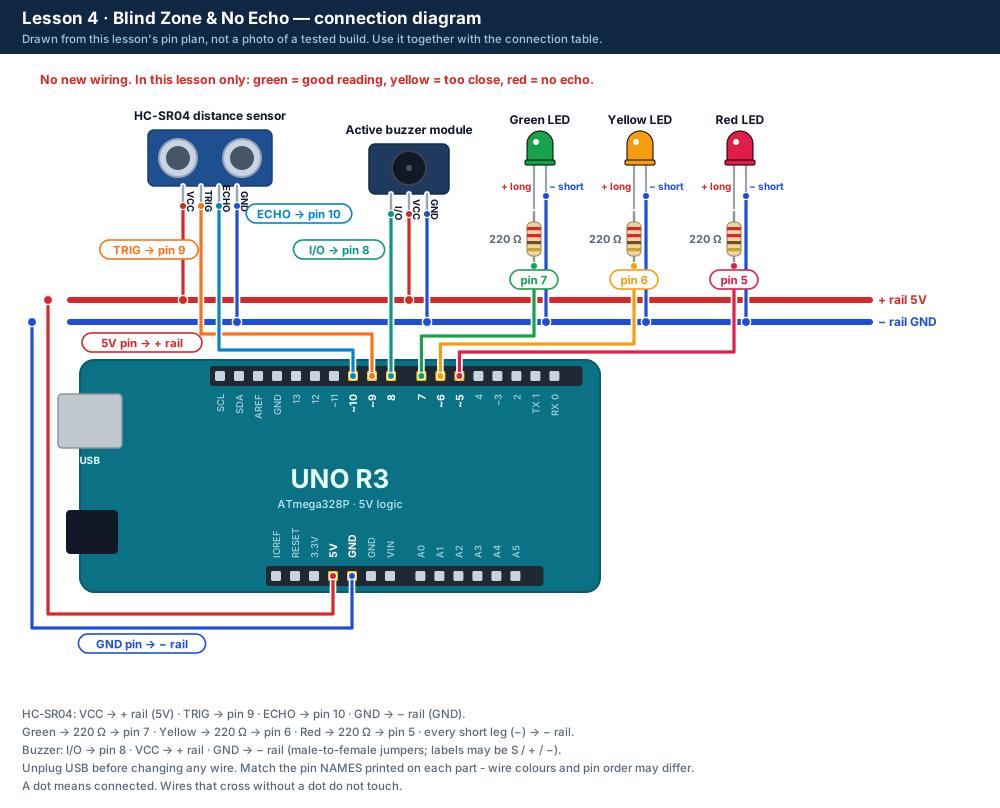
| Part / pin | Connect to | Note |
|---|---|---|
| No changes | Same as Lesson 3 | LEDs 5, 6, 7 · buzzer 8 (kept silent) · TRIG 9 · ECHO 10 |
Step by step
One thing at a time. Tick nothing off until it matches the diagram.
- Upload the Lesson 4 code. No wiring changes are needed.
- Open the Serial Monitor at 9600 baud with "New Line" selected.
- Type r and press Enter. Hold a book 30 cm away for 10 seconds: green, and the good count goes up.
- Type r. Move the book right up to the sensor, 1-2 cm away. Watch for yellow (too close) or red - and wrong numbers.
- Type r. Point the sensor at a cushion or a soft jumper 30 cm away, then at a pencil, then at the book tilted to 45°.
- Type r. Point the sensor at an empty part of the room. Write down the counts after 10 seconds for each test.
Sketch for this project
Written for the board in the kit. Copy it into the Arduino IDE; change the pin numbers if you wire it differently.
/*
  DIY KIT - Arduino Ultrasonic Distance & Parking Learning Kit
  Lesson 4 of 9: Blind Zone & No Echo

  WIRING: the sensor and LEDs from Lessons 1-3 (pins 5, 6, 7, 9, 10).
  The buzzer can stay connected - this sketch keeps it silent.

  IN THIS LESSON THE LEDs MEAN SOMETHING DIFFERENT:
    Green  = a good reading
    Yellow = too close (under 3 cm) - the sensor's "blind zone"
    Red    = no echo came back (too far, too soft, or angled away)
  The Serial Monitor (9600 baud) counts each kind of reading.
  Type r and press Enter to set the counts back to 0.
*/

const int RED_LED = 5;
const int YELLOW_LED = 6;
const int GREEN_LED = 7;
const int BUZZER_PIN = 8;
const int TRIG_PIN = 9;
const int ECHO_PIN = 10;

const int BLIND_CM = 3;                        // closer than this is the blind zone
const unsigned long ECHO_TIMEOUT_US = 30000;   // after 30 ms we call it "no echo"
const int MAX_CM = 400;

int goodCount = 0;
int blindCount = 0;
int noEchoCount = 0;

// Distance in cm, or 0 if no echo came back in time.
long readRawCm() {
  digitalWrite(TRIG_PIN, LOW);
  delayMicroseconds(2);
  digitalWrite(TRIG_PIN, HIGH);
  delayMicroseconds(10);
  digitalWrite(TRIG_PIN, LOW);
  unsigned long us = pulseIn(ECHO_PIN, HIGH, ECHO_TIMEOUT_US);
  if (us == 0) return 0;
  return us / 58;
}

void setup() {
  pinMode(RED_LED, OUTPUT);
  pinMode(YELLOW_LED, OUTPUT);
  pinMode(GREEN_LED, OUTPUT);
  pinMode(BUZZER_PIN, OUTPUT);
  digitalWrite(BUZZER_PIN, LOW);   // keep the buzzer quiet in this lesson
  pinMode(TRIG_PIN, OUTPUT);
  pinMode(ECHO_PIN, INPUT);
  Serial.begin(9600);
  Serial.println("Lesson 4: Blind Zone & No Echo");
}

void loop() {
  // Type r + Enter to reset the counts.
  while (Serial.available() > 0) {
    char c = Serial.read();
    if (c == 'r' || c == 'R') {
      goodCount = 0;
      blindCount = 0;
      noEchoCount = 0;
      Serial.println("Counts reset");
    }
  }

  long cm = readRawCm();
  bool noEcho = (cm == 0 || cm > MAX_CM);
  bool blind = (!noEcho && cm < BLIND_CM);
  bool good = (!noEcho && !blind);

  digitalWrite(RED_LED, noEcho ? HIGH : LOW);
  digitalWrite(YELLOW_LED, blind ? HIGH : LOW);
  digitalWrite(GREEN_LED, good ? HIGH : LOW);

  if (noEcho) noEchoCount++;
  else if (blind) blindCount++;
  else goodCount++;

  Serial.print("cm=");
  if (noEcho) Serial.print("none");
  else Serial.print(cm);
  Serial.print("  good=");
  Serial.print(goodCount);
  Serial.print("  too_close=");
  Serial.print(blindCount);
  Serial.print("  no_echo=");
  Serial.println(noEchoCount);

  delay(200);
}Upload it
- Click Copy (or Download .ino and open the file).
- In the Arduino IDE choose File → New Sketch, select everything in it and paste.
- Check the bottom of the window says Arduino Uno and your port (Start here, step 5).
- Click Upload (the → arrow) and wait for Done uploading.
How the code works
| In the code | What it does |
|---|---|
| const int BLIND_CM = 3; | Readings closer than 3 cm count as "too close". |
| int goodCount = 0; ... | Three counters. ++ adds one each time. |
| while (Serial.available() > 0) | Reads anything you typed. If it is r, the counts go back to 0. |
| digitalWrite(BUZZER_PIN, LOW); | Keeps the buzzer from Lesson 3 quiet in this lesson. |
Change it and see
What you should see or hear
- Green and climbing good counts with a flat book 30 cm away.
- Right up close: yellow, red, or a number that is clearly wrong.
- Soft, thin or tilted targets: more red (no echo), even though something is there.
If it doesn't work
| Problem | What to check |
|---|---|
| Always red | Unplug USB. Check VCC to the + rail, GND to the − rail, TRIG to pin 9 and ECHO to pin 10 - by the labels on the sensor, not their position. Point it at a big flat object 20-50 cm away. |
| Typing r does nothing | Click in the box at the top of the Serial Monitor, type r, then press Enter. Check the speed is 9600 baud. |
| Yellow never lights | Many sensors give no echo rather than a small number when very close, so red is also a correct result. |
| The buzzer sounds | Upload the Lesson 4 code again - it keeps pin 8 LOW. |
Small experiment
Make a table: book, cushion, pencil, tilted book, empty room. For each, write good / too close / no echo after 10 seconds. Which target is hardest for the sensor?
Check what you learned
Does "no echo" mean nothing is in front of the sensor?
No. The object may be too far, too soft, too thin or tilted away.
Why can the sensor not measure 1 cm?
The echo comes back before the sensor has finished sending: that is the blind zone.
What do the LEDs mean in this lesson?
Green good reading, yellow too close, red no echo.
Next
- Lesson 5 measures exactly how accurate your sensor is, with a ruler and a spreadsheet.
Stuck?
Most problems are one wire in the wrong hole. Check these first:
- Unplug, then compare every wire with the lesson's diagram and table. One pin off is the most common problem.
- Sensor: are VCC, TRIG, ECHO and GND wired by their labels, with TRIG on 9 and ECHO on 10?
- LEDs: is the long leg on the resistor side?
- Is the − rail connected to a UNO GND pin, and the + rail to 5V?
- Serial Monitor: is it set to 9600 baud (and "New Line" when you type commands)?
- Upload problems: is Tools → Board set to Arduino Uno and Tools → Port to your UNO? (Start here, step 5.)
Open the troubleshooting table for this step →
Hi DIY KIT, I'm stuck on the Arduino Ultrasonic Distance & Parking Learning Kit.
Lesson: __
Step number: __
What should happen: __
What happens instead: __
Error message (copied exactly): __
I'll attach a photo of my wiring.
More from this kit
Lesson 1: Measure Distance with Sound
Wire the HC-SR04 and read distances in the Serial Monitor. Compare them with a ruler to see how accurate the sensor really is. Do Start here first.
Lesson 5: Calibrate Your Sensor
Type the ruler distance, get 10 readings back: average, error, minimum, maximum and spread. Paste the rows into a spreadsheet and find your sensor's accuracy.
Lesson 6: Angles & Surfaces
Why does the sensor sometimes miss things right in front of it? Fire 20 pings at flat, soft, round, thin and tilted targets and count how many echoes come back.
%22%2F%3E%3Cellipse%20cx%3D%2228%22%20cy%3D%2224%22%20rx%3D%2226%22%20ry%3D%2214%22%20fill%3D%22rgba(255%2C255%2C255%2C.18)%22%2F%3E%3Crect%20x%3D%2222%22%20y%3D%2228%22%20width%3D%2256%22%20height%3D%2250%22%20rx%3D%2212%22%20fill%3D%22url(%23b)%22%20filter%3D%22url(%23s)%22%2F%3E%3Cellipse%20cx%3D%2234%22%20cy%3D%2236%22%20rx%3D%2212%22%20ry%3D%226%22%20fill%3D%22rgba(255%2C255%2C255%2C.28)%22%20transform%3D%22rotate(-18%2034%2036)%22%2F%3E%3Crect%20x%3D%2234%22%20y%3D%2215%22%20width%3D%225%22%20height%3D%2214%22%20rx%3D%222.5%22%20fill%3D%22%236ee7b7%22%2F%3E%3Crect%20x%3D%2261%22%20y%3D%2215%22%20width%3D%225%22%20height%3D%2214%22%20rx%3D%222.5%22%20fill%3D%22%236ee7b7%22%2F%3E%3Ccircle%20cx%3D%2236.5%22%20cy%3D%2214%22%20r%3D%224%22%20fill%3D%22%23a7f3d0%22%2F%3E%3Ccircle%20cx%3D%2263.5%22%20cy%3D%2214%22%20r%3D%224%22%20fill%3D%22%23a7f3d0%22%2F%3E%3Crect%20x%3D%2228%22%20y%3D%2242%22%20width%3D%2244%22%20height%3D%2222%22%20rx%3D%226%22%20fill%3D%22%23022c22%22%2F%3E%3Cline%20x1%3D%2228%22%20y1%3D%2250%22%20x2%3D%2272%22%20y2%3D%2250%22%20stroke%3D%22%2334d399%22%20stroke-width%3D%22.8%22%20stroke-opacity%3D%22.5%22%2F%3E%3Cline%20x1%3D%2228%22%20y1%3D%2257%22%20x2%3D%2272%22%20y2%3D%2257%22%20stroke%3D%22%2334d399%22%20stroke-width%3D%22.8%22%20stroke-opacity%3D%22.5%22%2F%3E%3Cline%20x1%3D%2244%22%20y1%3D%2242%22%20x2%3D%2244%22%20y2%3D%2264%22%20stroke%3D%22%2334d399%22%20stroke-width%3D%22.8%22%20stroke-opacity%3D%22.5%22%2F%3E%3Cline%20x1%3D%2256%22%20y1%3D%2242%22%20x2%3D%2256%22%20y2%3D%2264%22%20stroke%3D%22%2334d399%22%20stroke-width%3D%22.8%22%20stroke-opacity%3D%22.5%22%2F%3E%3Ccircle%20cx%3D%2238%22%20cy%3D%2252%22%20r%3D%226%22%20fill%3D%22%2334d399%22%20opacity%3D%22.9%22%2F%3E%3Ccircle%20cx%3D%2262%22%20cy%3D%2252%22%20r%3D%226%22%20fill%3D%22%2334d399%22%20opacity%3D%22.9%22%2F%3E%3Ccircle%20cx%3D%2236.5%22%20cy%3D%2250.5%22%20r%3D%222%22%20fill%3D%22white%22%2F%3E%3Ccircle%20cx%3D%2260.5%22%20cy%3D%2250.5%22%20r%3D%222%22%20fill%3D%22white%22%2F%3E%3Cpath%20d%3D%22M36%2068%20Q50%2076%2064%2068%22%20fill%3D%22none%22%20stroke%3D%22%23022c22%22%20stroke-width%3D%222.5%22%20stroke-linecap%3D%22round%22%2F%3E%3C%2Fsvg%3E)