Lesson 2: Traffic-Light Distance Indicator
Add three LEDs that act like a traffic light for distance: green when it is far, yellow when it gets close and red when it is near.
Before you start
Exact parts
| Part | How many |
|---|---|
| Wiring from Lesson 1 | |
| Red, yellow and green LED | 1 each |
| 220 Ω resistors (red-red-brown) | 3 |
| Male-to-male jumper wires | about 6 |
Not in the box
Nothing extra - just the kit and your computer.
What you build and learn
- Which LED leg is + and why every LED needs its own resistor
- Turning a measurement into a decision with if / else if / else
- Choosing zones with named numbers (CLEAR_CM, NEAR_CM)
- Why "no echo" must never look like "all clear"
Each LED has its own pin: red on 5, yellow on 6, green on 7. HIGH turns an LED on and LOW turns it off.
Each LED has its own 220 Ω resistor. Without one, the LED takes too much current and can damage itself or the UNO pin. Sharing one resistor between LEDs makes them glow unevenly.
loop() measures once, then picks one zone: under 20 cm red, under 50 cm yellow, otherwise green. Only one LED is on at a time.
If no echo comes back, the sketch does not know the distance. It blinks yellow instead of showing green: unknown must never look like safe.
New words
- LED
- Light-emitting diode. It only lights one way round: long leg +.
- Resistor
- A part that limits current. The lessons use 220 Ω: red-red-brown bands.
- Zone
- A range of distances that gets the same light, such as 20-49 cm = yellow.
- if / else
- Code that does one thing if something is true, and something else if not.
What this project uses
Every item is in the kit — nothing extra to buy.

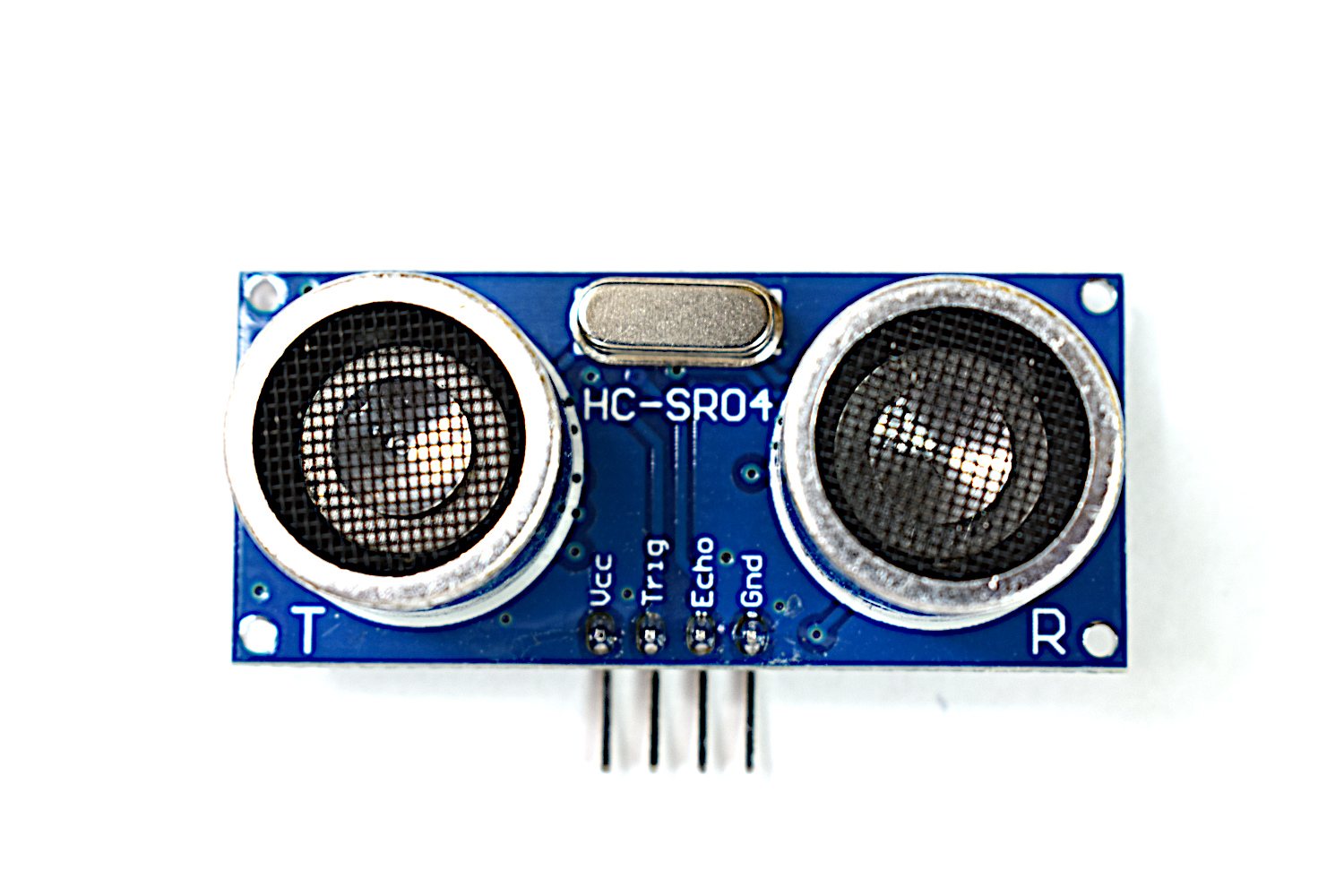
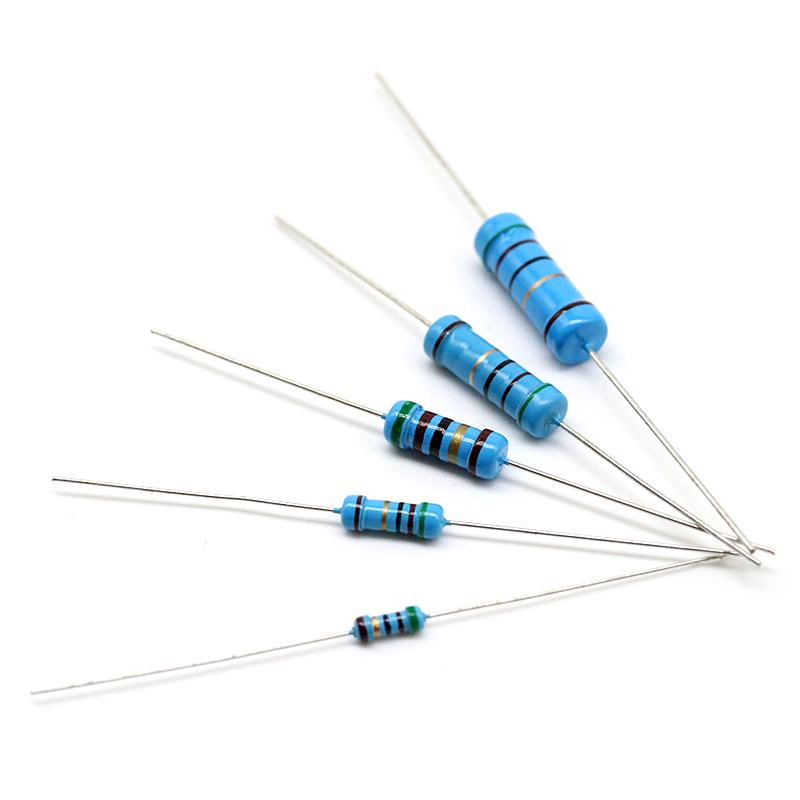
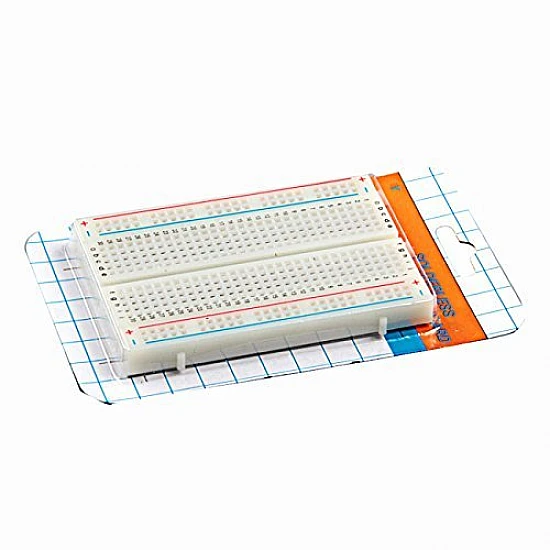
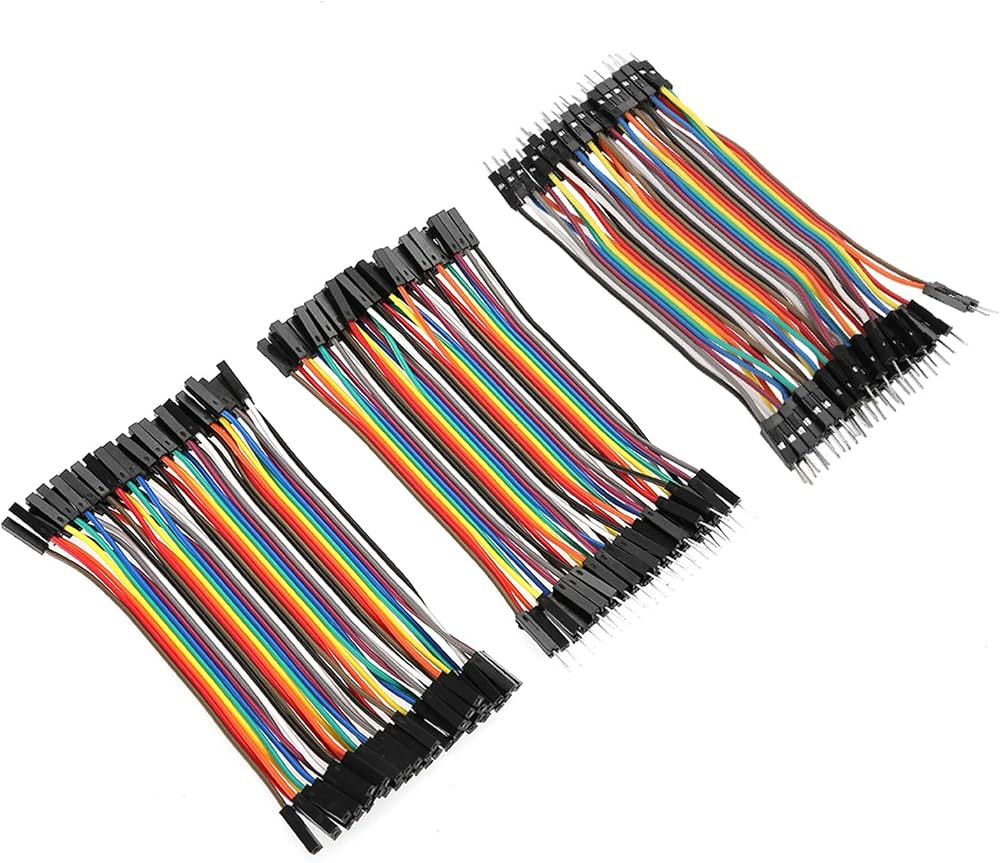
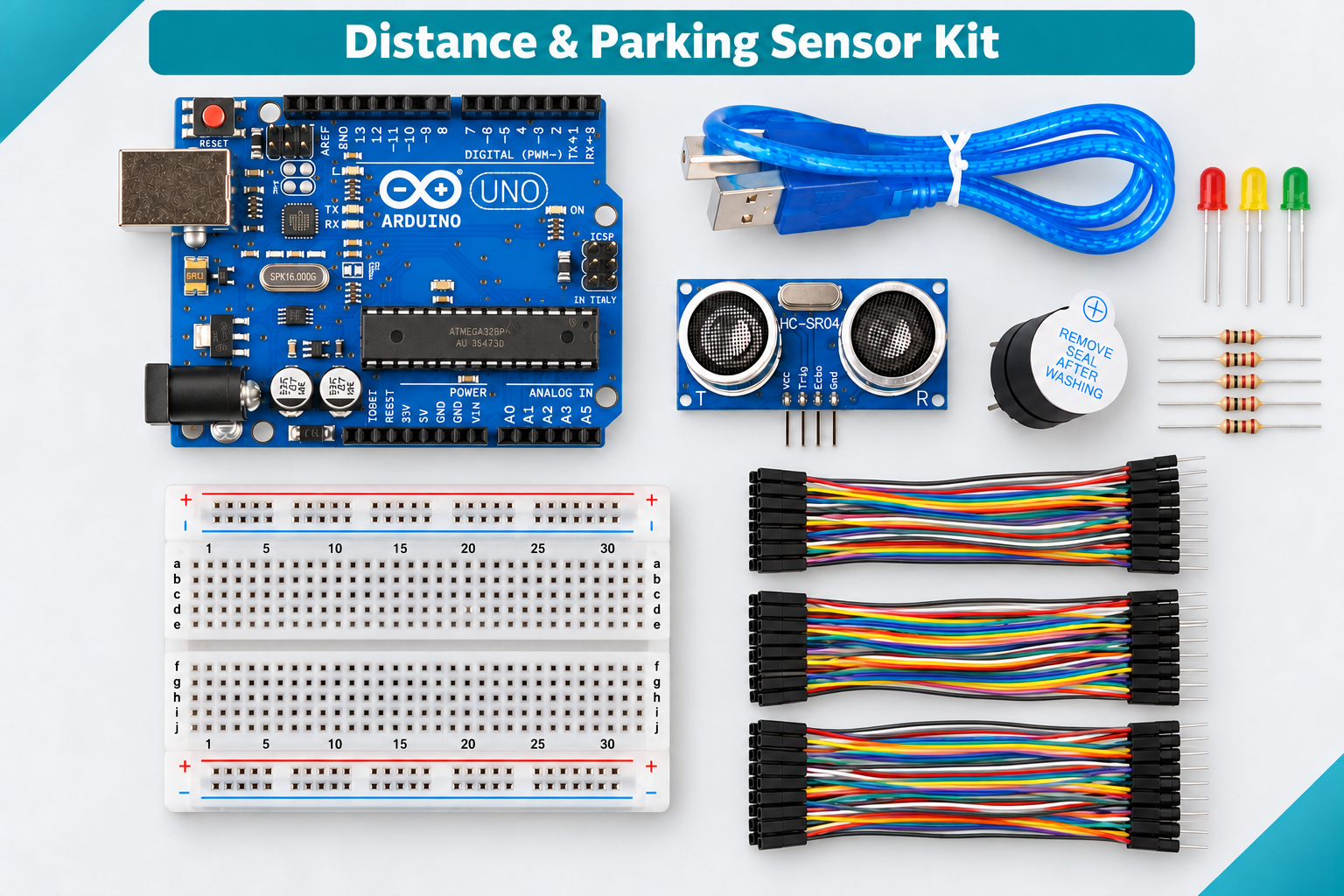
Arduino Ultrasonic Distance & Parking Learning Kit
All 9 parts in one box, with this project and 8 more to build from them.
Need only these parts? Order them loose · from AED 87.65
One of each part. Packs (resistor assortment, jumper wires) already hold more than a single build needs. red/yellow/green LEDs: included in the kit, ask us for it loose. Delivery is AED 20, free on orders AED 100+.
Connections
Unplug USB before you change any wire. Pin names are the labels printed on the board.
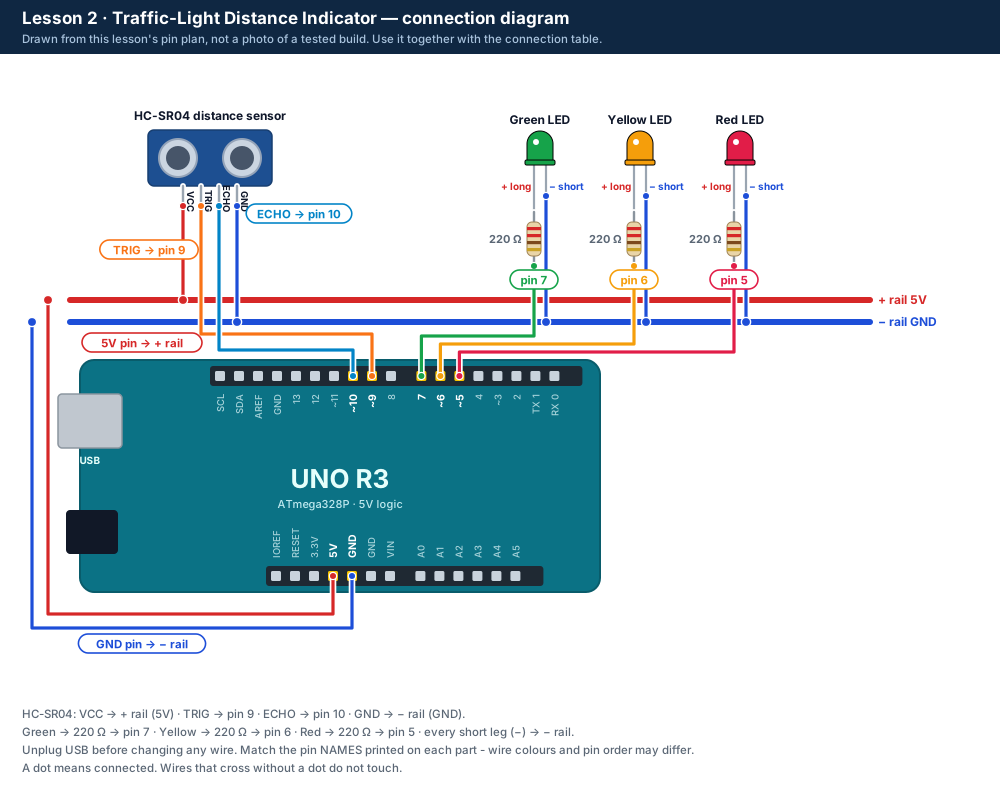
| Part / pin | Connect to | Note |
|---|---|---|
| Red LED long leg (+) | 220 Ω → UNO pin 5 | One resistor for each LED |
| Yellow LED long leg (+) | 220 Ω → UNO pin 6 | |
| Green LED long leg (+) | 220 Ω → UNO pin 7 | |
| All three short legs (−) | − rail (GND) | |
| HC-SR04 | As in Lesson 1 | TRIG pin 9, ECHO pin 10 |
Step by step
One thing at a time. Tick nothing off until it matches the diagram.
- Unplug the USB cable.Watch out: Always unplug the USB cable before you add, move or remove a wire.
- Leave the sensor and the rail wires from Lesson 1 where they are.
- Push the red LED into the breadboard with its two legs in two different rows. Note which row has the long leg.Watch out: The long leg is +. If the legs are cut, the flat edge on the LED's rim marks the − side.
- Put a 220 Ω resistor (red-red-brown) from the long-leg row to an empty row, and wire that row to UNO pin 5.Watch out: Every LED needs its own resistor.
- Do the same for the yellow LED (pin 6) and the green LED (pin 7).
- Wire each LED's short-leg row to the − rail.
- Check the three LEDs against the diagram, plug in USB, then copy the Lesson 2 code into the IDE and upload it.Watch out: If anything gets hot or smells, unplug straight away.
- Watch the light test (red, yellow, green), then move a book slowly towards the sensor from about 70 cm away.
Sketch for this project
Written for the board in the kit. Copy it into the Arduino IDE; change the pin numbers if you wire it differently.
/*
  DIY KIT - Arduino Ultrasonic Distance & Parking Learning Kit
  Lesson 2 of 9: Traffic-Light Distance Indicator

  WIRING (unplug the USB cable before you wire)
    HC-SR04 as in Lesson 1: VCC 5V, TRIG pin 9, ECHO pin 10, GND.
    Red LED    long leg -> 220 ohm resistor -> UNO pin 5
    Yellow LED long leg -> 220 ohm resistor -> UNO pin 6
    Green LED  long leg -> 220 ohm resistor -> UNO pin 7
    All three short legs -> GND (- rail)

  WHAT SHOULD HAPPEN
    Green  = 50 cm or more   (CLEAR)
    Yellow = 20 to 49 cm     (CAUTION)
    Red    = under 20 cm     (NEAR)
    Yellow blinking = no echo: the sensor does not know. Unknown is never shown as green.
    The Serial Monitor (9600 baud) prints the zone and the distance.
*/

const int RED_LED = 5;
const int YELLOW_LED = 6;
const int GREEN_LED = 7;
const int TRIG_PIN = 9;
const int ECHO_PIN = 10;

const int CLEAR_CM = 50;   // this far or more: green
const int NEAR_CM = 20;    // closer than this: red

const unsigned long ECHO_TIMEOUT_US = 30000;
const int MIN_CM = 2;
const int MAX_CM = 400;

long readOnceCm() {
  digitalWrite(TRIG_PIN, LOW);
  delayMicroseconds(2);
  digitalWrite(TRIG_PIN, HIGH);
  delayMicroseconds(10);
  digitalWrite(TRIG_PIN, LOW);
  unsigned long us = pulseIn(ECHO_PIN, HIGH, ECHO_TIMEOUT_US);
  if (us == 0) return 0;          // no echo
  long cm = us / 58;
  if (cm < MIN_CM || cm > MAX_CM) return 0;
  return cm;
}

// Turn each LED on (true) or off (false).
void showLights(bool red, bool yellow, bool green) {
  digitalWrite(RED_LED, red ? HIGH : LOW);
  digitalWrite(YELLOW_LED, yellow ? HIGH : LOW);
  digitalWrite(GREEN_LED, green ? HIGH : LOW);
}

void setup() {
  pinMode(RED_LED, OUTPUT);
  pinMode(YELLOW_LED, OUTPUT);
  pinMode(GREEN_LED, OUTPUT);
  pinMode(TRIG_PIN, OUTPUT);
  pinMode(ECHO_PIN, INPUT);
  Serial.begin(9600);
  Serial.println("Lesson 2: Traffic-Light Distance Indicator");

  // Light test: red, yellow, green, one after another.
  showLights(true, false, false);  delay(300);
  showLights(false, true, false);  delay(300);
  showLights(false, false, true);  delay(300);
  showLights(false, false, false);
}

void loop() {
  long cm = readOnceCm();

  if (cm == 0) {
    // No echo: blink yellow - on for half a second, off for half a second.
    unsigned long halfSeconds = millis() / 500;   // half-seconds since the UNO started
    bool blinkOn = (halfSeconds % 2 == 0);        // even: on, odd: off
    showLights(false, blinkOn, false);
    Serial.println("NO_ECHO");
  } else if (cm < NEAR_CM) {
    showLights(true, false, false);
    Serial.print("NEAR ");
    Serial.println(cm);
  } else if (cm < CLEAR_CM) {
    showLights(false, true, false);
    Serial.print("CAUTION ");
    Serial.println(cm);
  } else {
    showLights(false, false, true);
    Serial.print("CLEAR ");
    Serial.println(cm);
  }

  delay(100);
}Upload it
- Click Copy (or Download .ino and open the file).
- In the Arduino IDE choose File → New Sketch, select everything in it and paste.
- Check the bottom of the window says Arduino Uno and your port (Start here, step 5).
- Click Upload (the → arrow) and wait for Done uploading.
How the code works
| In the code | What it does |
|---|---|
| const int CLEAR_CM = 50; const int NEAR_CM = 20; | The zone edges. Change them here and the whole sketch follows. |
| showLights(red, yellow, green) | Our own function: true switches an LED on, false switches it off. |
| if (cm == 0) { ... } else if (cm < NEAR_CM) ... | The decision: no echo first, then red, then yellow, otherwise green. |
| halfSeconds % 2 == 0 | Counts half-seconds since start. Even numbers: yellow on, odd: off. That makes the blink. |
Change it and see
What you should see or hear
- At start: red, yellow, green each light for a moment.
- Green at 50 cm and more, yellow from 20 to 49 cm, red under 20 cm.
- Point the sensor at an empty space: yellow blinks and the Serial Monitor shows NO_ECHO.
If it doesn't work
| Problem | What to check |
|---|---|
| One LED never lights, not even in the light test | Unplug USB and turn that LED round (long leg towards the resistor). Check its wire goes to the right pin. |
| The colours light in the wrong zones | Two pin wires are swapped. Red must be on 5, yellow on 6, green on 7. |
| The LEDs light in the test but never change | The sensor wiring moved. Check it against Lesson 1. |
| An LED is very dim | Check the resistor bands: red-red-brown is 220 Ω. Brown-black-orange is 10 kΩ, far too big. |
| It always says no echo | Unplug USB. Check VCC to the + rail, GND to the − rail, TRIG to pin 9 and ECHO to pin 10 - by the labels on the sensor, not their position. Point it at a big flat object 20-50 cm away. |
| The upload fails | See Start here, step 6: "If the upload fails". |
Small experiment
Find the exact distance where yellow changes to red. Move the book 1 cm at a time. Is it always at the same place, or does it flicker at the edge?
Check what you learned
Why does every LED need its own resistor?
To limit the current so the LED and the UNO pin are not damaged; sharing one makes them glow unevenly.
A book is 35 cm away. Which LED is on?
Yellow (20-49 cm).
Why does the sketch blink yellow instead of showing green when there is no echo?
No echo means the distance is unknown, and unknown must never look like "all clear".
Next
- Lesson 3 adds the buzzer, so it beeps when something gets close. Keep the LEDs where they are.
Stuck?
Most problems are one wire in the wrong hole. Check these first:
- Unplug, then compare every wire with the lesson's diagram and table. One pin off is the most common problem.
- Sensor: are VCC, TRIG, ECHO and GND wired by their labels, with TRIG on 9 and ECHO on 10?
- LEDs: is the long leg on the resistor side?
- Is the − rail connected to a UNO GND pin, and the + rail to 5V?
- Serial Monitor: is it set to 9600 baud (and "New Line" when you type commands)?
- Upload problems: is Tools → Board set to Arduino Uno and Tools → Port to your UNO? (Start here, step 5.)
Open the troubleshooting table for this step →
Hi DIY KIT, I'm stuck on the Arduino Ultrasonic Distance & Parking Learning Kit.
Lesson: __
Step number: __
What should happen: __
What happens instead: __
Error message (copied exactly): __
I'll attach a photo of my wiring.
More from this kit
Lesson 1: Measure Distance with Sound
Wire the HC-SR04 and read distances in the Serial Monitor. Compare them with a ruler to see how accurate the sensor really is. Do Start here first.
Lesson 3: Parking Beeper
Like a car's parking sensor on your desk: slow beeps under 20 cm and fast beeps under 10 cm, while the LEDs show the zone. A learning model only.
Lesson 4: Blind Zone & No Echo
Find the sensor's limits: too close, too far and off to the side. The LEDs and running counts show good readings, "too close" and "no echo".
%22%2F%3E%3Cellipse%20cx%3D%2228%22%20cy%3D%2224%22%20rx%3D%2226%22%20ry%3D%2214%22%20fill%3D%22rgba(255%2C255%2C255%2C.18)%22%2F%3E%3Crect%20x%3D%2222%22%20y%3D%2228%22%20width%3D%2256%22%20height%3D%2250%22%20rx%3D%2212%22%20fill%3D%22url(%23b)%22%20filter%3D%22url(%23s)%22%2F%3E%3Cellipse%20cx%3D%2234%22%20cy%3D%2236%22%20rx%3D%2212%22%20ry%3D%226%22%20fill%3D%22rgba(255%2C255%2C255%2C.28)%22%20transform%3D%22rotate(-18%2034%2036)%22%2F%3E%3Crect%20x%3D%2234%22%20y%3D%2215%22%20width%3D%225%22%20height%3D%2214%22%20rx%3D%222.5%22%20fill%3D%22%236ee7b7%22%2F%3E%3Crect%20x%3D%2261%22%20y%3D%2215%22%20width%3D%225%22%20height%3D%2214%22%20rx%3D%222.5%22%20fill%3D%22%236ee7b7%22%2F%3E%3Ccircle%20cx%3D%2236.5%22%20cy%3D%2214%22%20r%3D%224%22%20fill%3D%22%23a7f3d0%22%2F%3E%3Ccircle%20cx%3D%2263.5%22%20cy%3D%2214%22%20r%3D%224%22%20fill%3D%22%23a7f3d0%22%2F%3E%3Crect%20x%3D%2228%22%20y%3D%2242%22%20width%3D%2244%22%20height%3D%2222%22%20rx%3D%226%22%20fill%3D%22%23022c22%22%2F%3E%3Cline%20x1%3D%2228%22%20y1%3D%2250%22%20x2%3D%2272%22%20y2%3D%2250%22%20stroke%3D%22%2334d399%22%20stroke-width%3D%22.8%22%20stroke-opacity%3D%22.5%22%2F%3E%3Cline%20x1%3D%2228%22%20y1%3D%2257%22%20x2%3D%2272%22%20y2%3D%2257%22%20stroke%3D%22%2334d399%22%20stroke-width%3D%22.8%22%20stroke-opacity%3D%22.5%22%2F%3E%3Cline%20x1%3D%2244%22%20y1%3D%2242%22%20x2%3D%2244%22%20y2%3D%2264%22%20stroke%3D%22%2334d399%22%20stroke-width%3D%22.8%22%20stroke-opacity%3D%22.5%22%2F%3E%3Cline%20x1%3D%2256%22%20y1%3D%2242%22%20x2%3D%2256%22%20y2%3D%2264%22%20stroke%3D%22%2334d399%22%20stroke-width%3D%22.8%22%20stroke-opacity%3D%22.5%22%2F%3E%3Ccircle%20cx%3D%2238%22%20cy%3D%2252%22%20r%3D%226%22%20fill%3D%22%2334d399%22%20opacity%3D%22.9%22%2F%3E%3Ccircle%20cx%3D%2262%22%20cy%3D%2252%22%20r%3D%226%22%20fill%3D%22%2334d399%22%20opacity%3D%22.9%22%2F%3E%3Ccircle%20cx%3D%2236.5%22%20cy%3D%2250.5%22%20r%3D%222%22%20fill%3D%22white%22%2F%3E%3Ccircle%20cx%3D%2260.5%22%20cy%3D%2250.5%22%20r%3D%222%22%20fill%3D%22white%22%2F%3E%3Cpath%20d%3D%22M36%2068%20Q50%2076%2064%2068%22%20fill%3D%22none%22%20stroke%3D%22%23022c22%22%20stroke-width%3D%222.5%22%20stroke-linecap%3D%22round%22%2F%3E%3C%2Fsvg%3E)